> For the complete documentation index, see [llms.txt](https://docs.candy-smith.com/main/llms.txt). Markdown versions of documentation pages are available by appending `.md` to page URLs; this page is available as [Markdown](https://docs.candy-smith.com/main/block-puzzle-jewel/how-to-change-or-add-new-block.md).

# How to Change or Add new Block

<figure><img src="https://content.gitbook.com/content/g0Bp94O1mujntDlhwDJY/blobs/YWvMZusQb74EOW4leXou/image.png" alt=""><figcaption></figcaption></figure>

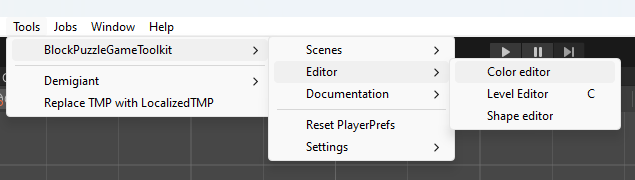
1- Go to <mark style="color:green;">**Tools**</mark> -> <mark style="color:green;">**BlockPuzzleGameToolkit**</mark> -> <mark style="color:green;">**Editor**</mark> -> <mark style="color:green;">**Color editor**</mark>\ <mark style="color:red;">**\*Saving is done automatically.**</mark>\
[🎥 VIDEO Tutorial](https://www.youtube.com/watch?v=xjQBsciy97M)

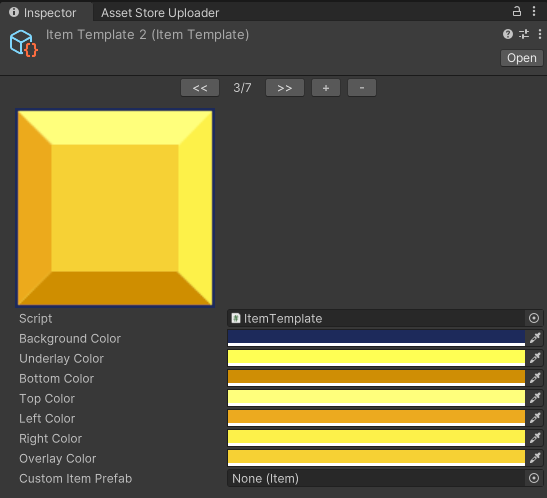
In the inspector, you will see the editor. Use Unity tools to make changes.

<figure><img src="https://content.gitbook.com/content/g0Bp94O1mujntDlhwDJY/blobs/u0Q6Xt29wqWkL8qWPqS4/image.png" alt=""><figcaption></figcaption></figure>

If you want to **create / delete** a new block -> use "+" and "-" buttons. \
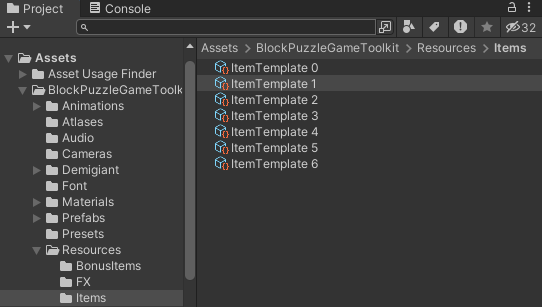
If you want to rename the new block, you can find it at this path: <mark style="color:green;">**Project**</mark> -> <mark style="color:green;">**Assets**</mark> ->  <mark style="color:green;">**BlockPuzzleGameToolkit**</mark> -> <mark style="color:green;">**Resources**</mark> -> <mark style="color:green;">**Items**</mark>.&#x20;

<figure><img src="https://content.gitbook.com/content/g0Bp94O1mujntDlhwDJY/blobs/8b8B7x6idgAde7M1wqoH/image.png" alt=""><figcaption></figcaption></figure>

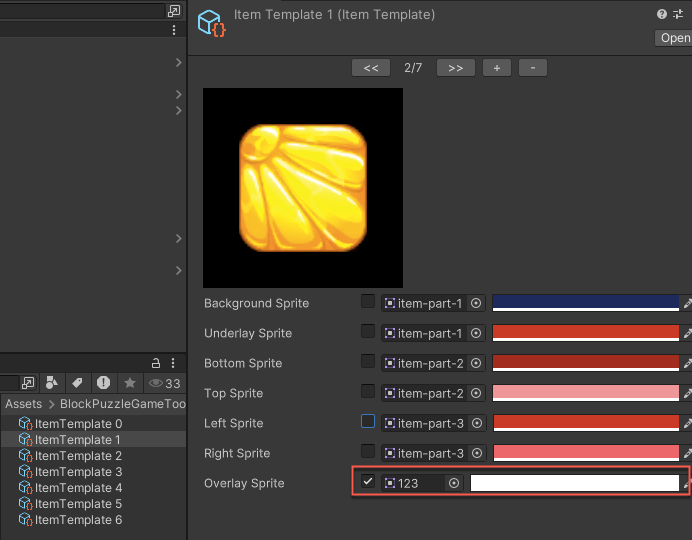
### From 2.1 you can replace all sprites

* Replace the sprite, set color to the white
* Disable other sprites\ <br>
  <figure><img src="https://content.gitbook.com/content/g0Bp94O1mujntDlhwDJY/blobs/bMnbDi3YOzN3DKRVOYy9/image.png" alt=""><figcaption></figcaption></figure>