# How to add more than 100 levels on the map (tutorial)

1 - In view Scene, go to top of your map

<figure><img src="https://static.wixstatic.com/media/d59ada_c26c40c96ea148e69f1858c09ef58e9f~mv2.png/v1/fill/w_896,h_305,al_c,q_85,usm_0.66_1.00_0.01,enc_auto/map1_PNG.png" alt=""><figcaption></figcaption></figure>

2 - Go to Project Tab --> Assets --> Textures. Find a folder with textures for the map. Drag map's srite texture on the scene. \
\ <mark style="color:green;">**Tips:**</mark> Choose any lower corner of the map texture, hold V button to join the two corners correctly and drag.

<figure><img src="https://static.wixstatic.com/media/d59ada_84f23e674c004acd9b851e531ccf79c0~mv2.jpg/v1/fill/w_897,h_658,al_c,q_85,usm_0.66_1.00_0.01,enc_auto/map-2.jpg" alt=""><figcaption></figcaption></figure>

3 - A new sprite has been added to the hierarchy. You can put it to other map sprites, for a more convenient look.

![map-3.JPG](https://static.wixstatic.com/media/d59ada_9d60c2c443f64ce28c955d45aa3c1bb1~mv2.jpg/v1/fill/w_399,h_427,al_c,q_80,enc_auto/map-3_JPG.jpg)![map-4.jpg](https://static.wixstatic.com/media/d59ada_1f48270144244d649cc00e3e7951784c~mv2.jpg/v1/fill/w_399,h_427,al_c,q_80,enc_auto/map-4.jpg)

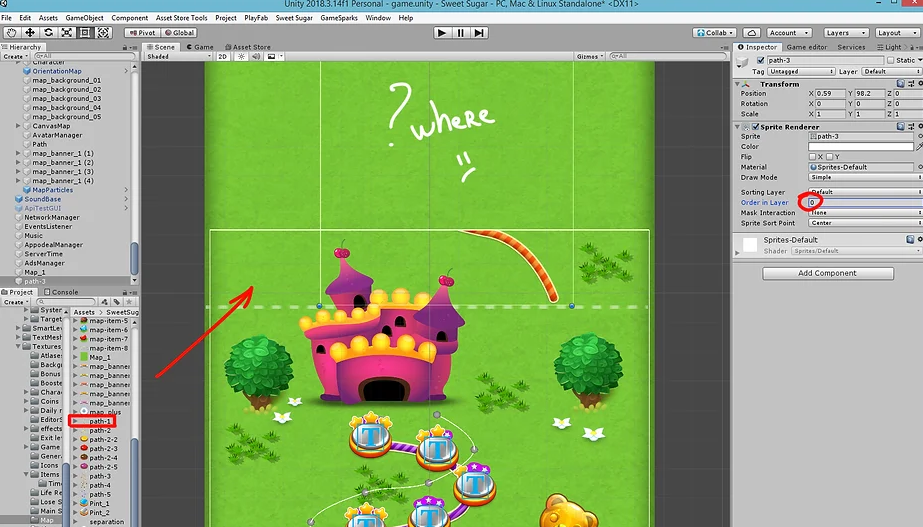
4 - To add the new path --> Go to Assets --> Textures --> Choose a path texture and drag it to right place.

How you can to see - now, path under the map texture. That is because both of them have Oredr in Layer = 0

<figure><img src="https://2423037410-files.gitbook.io/~/files/v0/b/gitbook-x-prod.appspot.com/o/spaces%2FixseEfHbM88cpcinnJo4%2Fuploads%2FSFWws20F5bfwWBtfMoxd%2Fimage.png?alt=media&#x26;token=8d3efc87-cbf3-45d7-9878-49e67af82286" alt=""><figcaption></figcaption></figure>

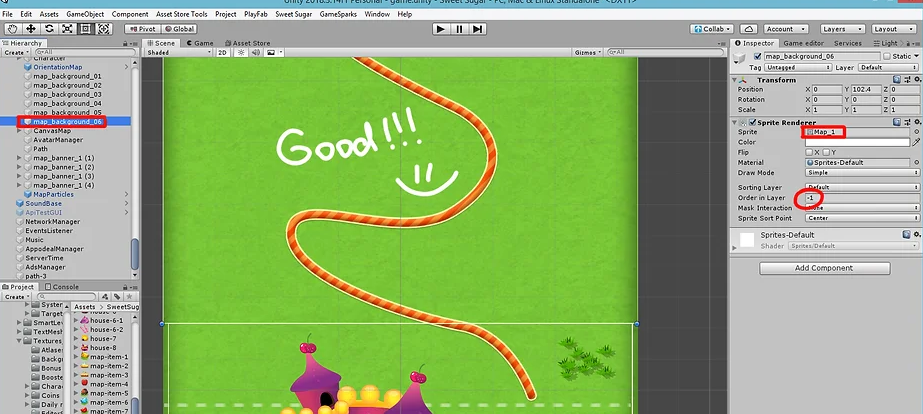
Change the "Order in Layer" parameter of map texture to -1.

Perfect! Now we can see the path.\
&#x20;

<figure><img src="https://2423037410-files.gitbook.io/~/files/v0/b/gitbook-x-prod.appspot.com/o/spaces%2FixseEfHbM88cpcinnJo4%2Fuploads%2FfcPgGc1UWFQMBC79ff6i%2Fimage.png?alt=media&#x26;token=3636d272-f8a1-4b39-ad45-368d29785fa8" alt=""><figcaption></figcaption></figure>

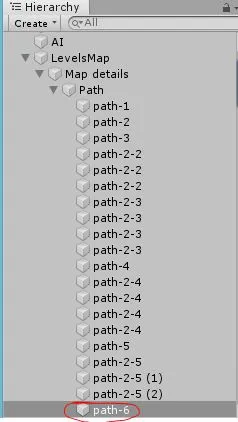
In Hierarchy, put your path to other path sprites, for a more convenient look.

<figure><img src="https://2423037410-files.gitbook.io/~/files/v0/b/gitbook-x-prod.appspot.com/o/spaces%2FixseEfHbM88cpcinnJo4%2Fuploads%2Fd0ORKj0wL1Carc7A1csw%2Fmap-8_JPG.webp?alt=media&#x26;token=08aeb18d-ed9e-4072-85db-a4d334744b10" alt=""><figcaption></figcaption></figure>

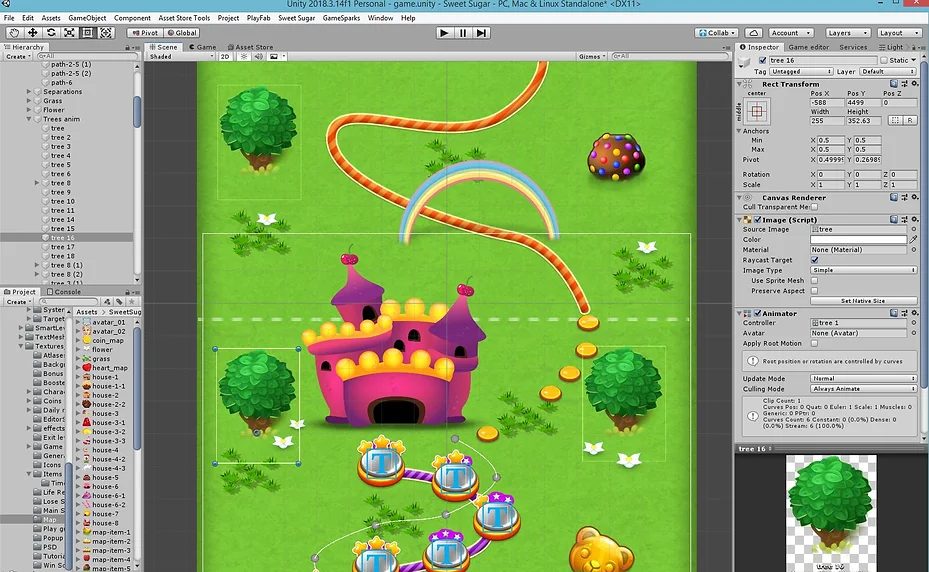
You can add more details on the map, just copy or create the prefabs and drag it to a right place.

<figure><img src="https://2423037410-files.gitbook.io/~/files/v0/b/gitbook-x-prod.appspot.com/o/spaces%2FixseEfHbM88cpcinnJo4%2Fuploads%2Fogb55G9jxnKUlWKBUdDi%2Fmap-9_JPG.webp?alt=media&#x26;token=bd306cc5-5980-40e4-b988-b42d15e98205" alt=""><figcaption></figcaption></figure>

If you don't want to use the animated prefabs, just draw all environment on your map texture.

Remember, your map textures should be seamless.

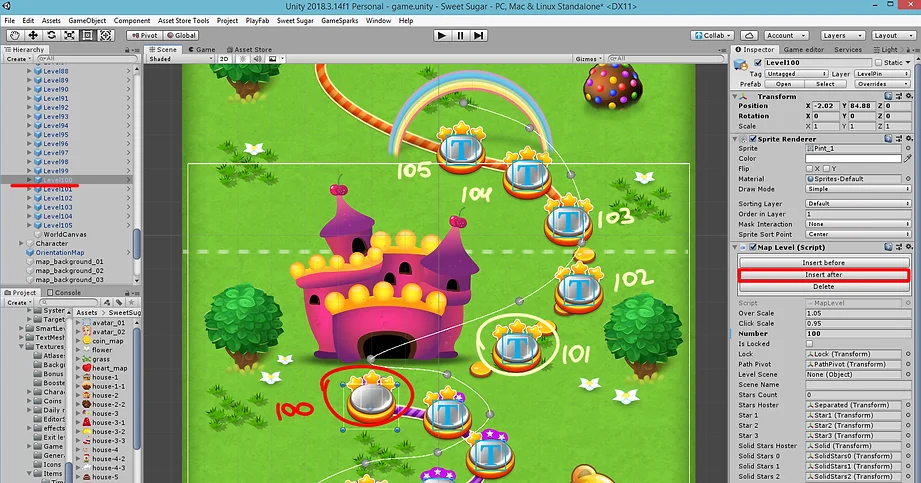
5 - Choose an icon of the last level (100), click in Inspector to "Insert After". New level (101) will added on the map. Drag it in the right place on the map. Do the same for all new levels.

<figure><img src="https://2423037410-files.gitbook.io/~/files/v0/b/gitbook-x-prod.appspot.com/o/spaces%2FixseEfHbM88cpcinnJo4%2Fuploads%2FFJOAXJxr3K8kh5seXGIB%2Fmap-5.webp?alt=media&#x26;token=1f484b6e-ff7b-4887-87fc-58811cbf98ec" alt=""><figcaption></figcaption></figure>

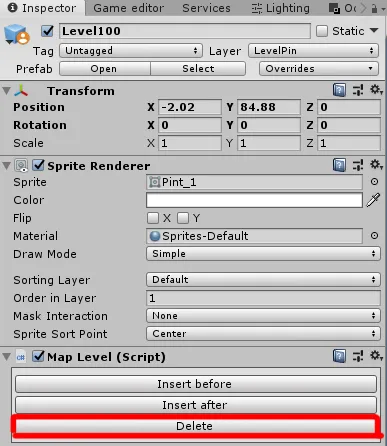
If you want to delete the level pins, use DELETE button.&#x20;

<figure><img src="https://2423037410-files.gitbook.io/~/files/v0/b/gitbook-x-prod.appspot.com/o/spaces%2FixseEfHbM88cpcinnJo4%2Fuploads%2FdsEr7KDIH51vvlUw7HRn%2Fmap-12.webp?alt=media&#x26;token=defcfb46-bbf8-40d8-b55c-29ca77f844b8" alt=""><figcaption></figcaption></figure>

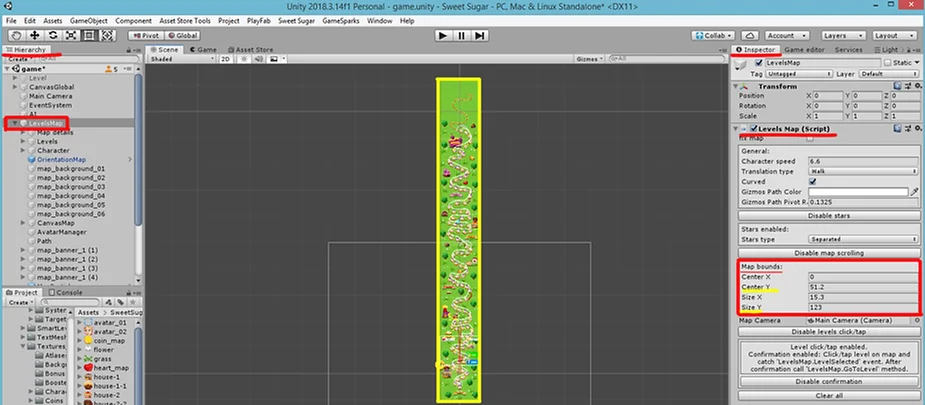
6 - To expand MAP BOUNDS. Go to Hierarchy --> Choose "Levels Map" --> Go to Inspector --> Level Map (Script) --> Change "Map bounds" parameters (Size Y and Center Y) until the white frame covers the entire game map.

<figure><img src="https://2423037410-files.gitbook.io/~/files/v0/b/gitbook-x-prod.appspot.com/o/spaces%2FixseEfHbM88cpcinnJo4%2Fuploads%2FXH0HLRp6E38X8G7JWs8B%2Fmap-10.webp?alt=media&#x26;token=8fad8115-4acb-4a75-843e-5c5f5eea9810" alt=""><figcaption></figcaption></figure>

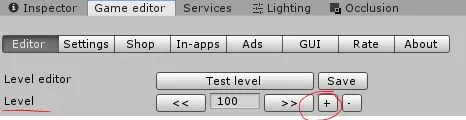
7 - Now you need to create new level design for your map. Go to Game Scene --> GameEditor --> Level --> Press "+" button to create level 101. Do the same for all your levels.

<figure><img src="https://2423037410-files.gitbook.io/~/files/v0/b/gitbook-x-prod.appspot.com/o/spaces%2FixseEfHbM88cpcinnJo4%2Fuploads%2Fc6hC2AJraSqiyIePr39m%2Fmap-11_JPG.webp?alt=media&#x26;token=d2fbbdbc-5374-49f4-ae73-ef2def9d16dc" alt=""><figcaption></figcaption></figure>

<mark style="color:green;">**Congratulations!**</mark>

Map is ready =) <br>