> This is part 1 of 2 of the full documentation (pages 1–100 of 176).
> The content is paginated: fetch every part to see all of it.
> Next part: https://docs.candy-smith.com/main/llms-full.txt/1
> Page index: https://docs.candy-smith.com/main/llms.txt

# Welcome to Candy Smith

Discover detailed, step-by-step instructions designed to help both newcomers and experienced users make the most of our Assets. We created them with love for you!

***

### 🎉<mark style="color:green;">Match-3 Kit: Home Design New Asset</mark>

Build a match-3 game with a design & decoration META-game. Rooms PSD sources included!

<figure><img src="https://1176434224-files.gitbook.io/~/files/v0/b/gitbook-x-prod.appspot.com/o/spaces%2FDQMFcXAfIGTHQouAYzHF%2Fuploads%2F6B3j0a74jugQw84mM16c%2F1950x1300.png?alt=media&amp;token=23f30164-e23a-4721-ac88-3bc96b5b567a" alt=""><figcaption></figcaption></figure>

<figure><img src="https://1176434224-files.gitbook.io/~/files/v0/b/gitbook-x-prod.appspot.com/o/spaces%2FDQMFcXAfIGTHQouAYzHF%2Fuploads%2F9GRBXlB8pnPH53JYSJUy%2F9.png?alt=media&amp;token=a628b17b-1556-4890-9f26-9c8ed8541e71" alt=""><figcaption></figcaption></figure>

[WEB Demo](https://homedesignmatch3kit.netlify.app/)

[YouTube VIDEO](https://youtu.be/yhKmQictK6U)

[Unity Asset Store](https://assetstore.unity.com/packages/templates/systems/match-3-kit-home-design-289778)

***

### ✨ <mark style="color:green;">Getting Started</mark>

Some settings apply to many of our projects, such as ad configuration, in-app purchases, etc. Check out **General Info** to review these guides.

<figure><img src="https://1176434224-files.gitbook.io/~/files/v0/b/gitbook-x-prod.appspot.com/o/spaces%2FDQMFcXAfIGTHQouAYzHF%2Fuploads%2F1dhmCVPdsvGKqqQ5ESe8%2F22.png?alt=media&amp;token=c85ab891-899a-4309-88b7-7b1c93ff18f5" alt=""><figcaption></figcaption></figure>

***

### 📩 <mark style="color:green;">Need Help?</mark>

If you encounter any issues or have any questions, don't hesitate to reach out to our support team. Visit the [General Info](https://docs.candy-smith.com/main/general-info/) *and* [F.A.Q.](/main/faq) or contact us directly for personalized assistance.\
\
Feel free to <mark style="color:green;">**contact us**</mark> with questions or for help. \
We aim to reply within <mark style="color:green;">**24-48**</mark> <mark style="color:green;">**hours**</mark> on weekdays.\
\
**⏵** [DISCORD ](https://discord.gg/dE3WS8d)\
**⏵** Email: **<info@candy-smith.com>**

***

### 📝 <mark style="color:green;">Documentations</mark> <a href="#puzzle-game-templates" id="puzzle-game-templates"></a>

* [Match-3 Kit: Home Design](https://docs.candy-smith.com/main/match-3-kit-home-design)
* [Word Connect: Game Toolkit](/main/word-connect-game-toolkit)
* [Block Blast Puzzle: Game Toolkit](https://candy-smith.gitbook.io/main/block-puzzle-game-toolkit)
* [Spot The Differences: Game Toolkit](https://candy-smith.gitbook.io/main/v/spot-the-differences-game-toolkit)&#x20;
* [Match 3 Kit: Sweet Sugar Candy](https://docs.candy-smith.com/main/sweet-candy-sugar-match-3/)
* [Pop Blocks Puzzle Game Kit](https://docs.candy-smith.com/main/pop-blocks/)
* [Bubble Shooter: Game Toolkit](https://candy-smith.gitbook.io/main/v/bubble-shooter-toolkit)
* [Jelly Garden Match 3 Kit](https://docs.candy-smith.com/main/jelly-garden-match3/)
* [Match 3 Kit: Jewelry](https://docs.candy-smith.com/main/jewelry-math-3-tool-kit/)&#x20;
* [Match 3: Juice Fresh](https://docs.google.com/document/d/1ex3rvCDWAc3geATi66s3lpBzwzhJbjd4A2Fo19HgdcQ/edit)

***

\
[<mark style="color:blue;">**Publisher Page**</mark>](https://assetstore.unity.com/publishers/7078) on the Unity Asset Store


# How to open the project

1\. Open Unity (see the version on the asset store product page or higher)

2\. Create a new 2D project&#x20;

<figure><img src="https://static.wixstatic.com/media/d59ada_23675fa0a3564b1783401ad7f3ff631e~mv2.jpg/v1/fill/w_600,h_345,al_c,q_80,usm_0.66_1.00_0.01,enc_auto/unityhub2.jpg" alt=""><figcaption></figcaption></figure>

3\. Go to Window --> General --> Asset Store (if you can't find the Aseets Store in top menu, try to use Ctrl+9 button for Windows or Fn9 for Mac.

<figure><img src="https://static.wixstatic.com/media/d59ada_00bdfab731784e5fa378f2431e763f98~mv2.png/v1/fill/w_600,h_281,al_c,q_85,usm_0.66_1.00_0.01,enc_auto/2019-06-07_8-56-55.png" alt=""><figcaption></figcaption></figure>

4\. In Asset Store tab, go to My Downloads

5\. Find the asset and press Download button --> Import

<mark style="color:red;">**ATTENTION**</mark> - Unfortunately, Unity does not always correctly launch applications from the first time. And we can not affect it. In case of any error, follow the instructions below:\
\
1\. Go to Help -->Reset Package to default\
2\. Restart Unity.\
\
It should to help you to solve this issue. \
\
If the problem is not solved this way, please contact our support.

<figure><img src="https://static.wixstatic.com/media/d59ada_76c19c30172347b0b22829e416c488b0~mv2.png/v1/fill/w_569,h_442,al_c,q_85,enc_auto/2019-06-07_11-19-16.png" alt=""><figcaption></figcaption></figure>


# How to add more than 100 levels on the map (tutorial)

1 - In view Scene, go to top of your map

<figure><img src="https://static.wixstatic.com/media/d59ada_c26c40c96ea148e69f1858c09ef58e9f~mv2.png/v1/fill/w_896,h_305,al_c,q_85,usm_0.66_1.00_0.01,enc_auto/map1_PNG.png" alt=""><figcaption></figcaption></figure>

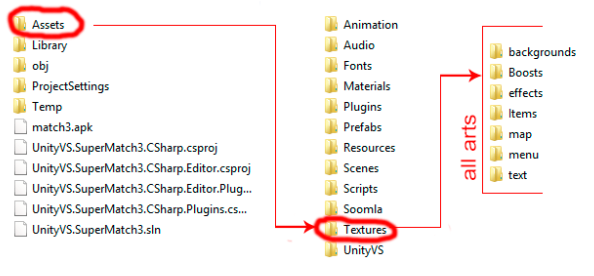
2 - Go to Project Tab --> Assets --> Textures. Find a folder with textures for the map. Drag map's srite texture on the scene. \
\ <mark style="color:green;">**Tips:**</mark> Choose any lower corner of the map texture, hold V button to join the two corners correctly and drag.

<figure><img src="https://static.wixstatic.com/media/d59ada_84f23e674c004acd9b851e531ccf79c0~mv2.jpg/v1/fill/w_897,h_658,al_c,q_85,usm_0.66_1.00_0.01,enc_auto/map-2.jpg" alt=""><figcaption></figcaption></figure>

3 - A new sprite has been added to the hierarchy. You can put it to other map sprites, for a more convenient look.

![map-3.JPG](https://static.wixstatic.com/media/d59ada_9d60c2c443f64ce28c955d45aa3c1bb1~mv2.jpg/v1/fill/w_399,h_427,al_c,q_80,enc_auto/map-3_JPG.jpg)![map-4.jpg](https://static.wixstatic.com/media/d59ada_1f48270144244d649cc00e3e7951784c~mv2.jpg/v1/fill/w_399,h_427,al_c,q_80,enc_auto/map-4.jpg)

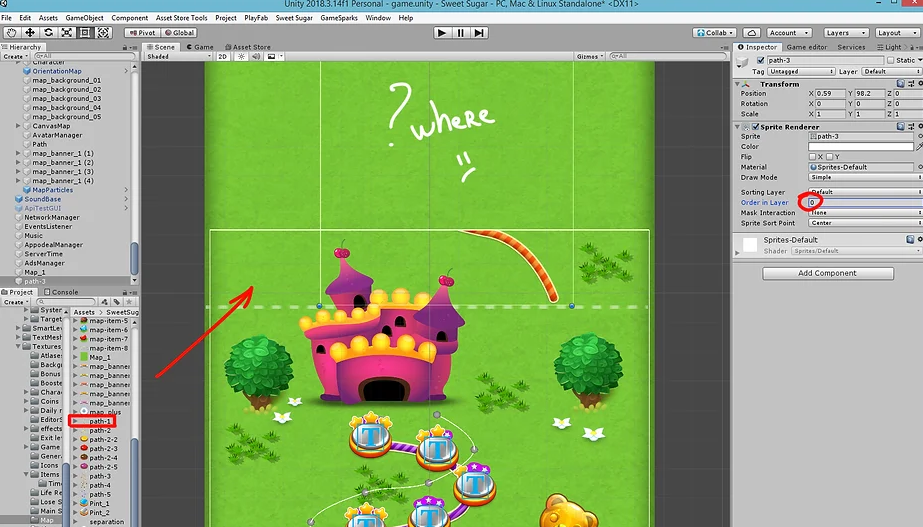
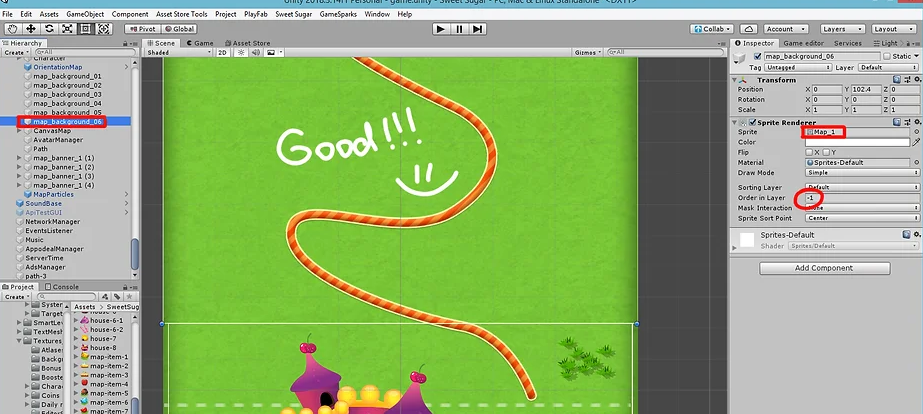
4 - To add the new path --> Go to Assets --> Textures --> Choose a path texture and drag it to right place.

How you can to see - now, path under the map texture. That is because both of them have Oredr in Layer = 0

<figure><img src="https://2423037410-files.gitbook.io/~/files/v0/b/gitbook-x-prod.appspot.com/o/spaces%2FixseEfHbM88cpcinnJo4%2Fuploads%2FSFWws20F5bfwWBtfMoxd%2Fimage.png?alt=media&amp;token=8d3efc87-cbf3-45d7-9878-49e67af82286" alt=""><figcaption></figcaption></figure>

Change the "Order in Layer" parameter of map texture to -1.

Perfect! Now we can see the path.\
&#x20;

<figure><img src="https://2423037410-files.gitbook.io/~/files/v0/b/gitbook-x-prod.appspot.com/o/spaces%2FixseEfHbM88cpcinnJo4%2Fuploads%2FfcPgGc1UWFQMBC79ff6i%2Fimage.png?alt=media&amp;token=3636d272-f8a1-4b39-ad45-368d29785fa8" alt=""><figcaption></figcaption></figure>

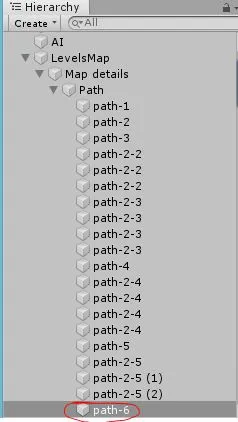
In Hierarchy, put your path to other path sprites, for a more convenient look.

<figure><img src="https://2423037410-files.gitbook.io/~/files/v0/b/gitbook-x-prod.appspot.com/o/spaces%2FixseEfHbM88cpcinnJo4%2Fuploads%2Fd0ORKj0wL1Carc7A1csw%2Fmap-8_JPG.webp?alt=media&amp;token=08aeb18d-ed9e-4072-85db-a4d334744b10" alt=""><figcaption></figcaption></figure>

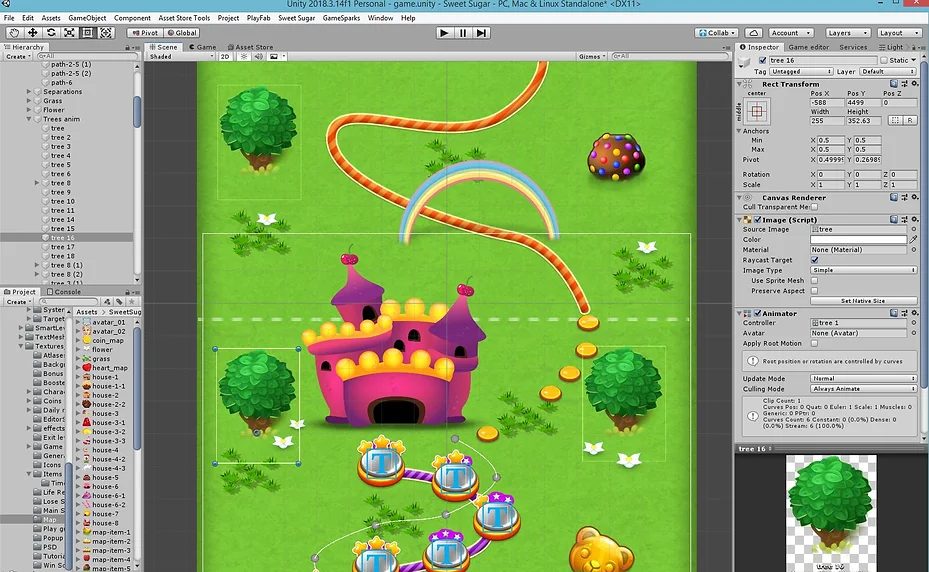
You can add more details on the map, just copy or create the prefabs and drag it to a right place.

<figure><img src="https://2423037410-files.gitbook.io/~/files/v0/b/gitbook-x-prod.appspot.com/o/spaces%2FixseEfHbM88cpcinnJo4%2Fuploads%2Fogb55G9jxnKUlWKBUdDi%2Fmap-9_JPG.webp?alt=media&amp;token=bd306cc5-5980-40e4-b988-b42d15e98205" alt=""><figcaption></figcaption></figure>

If you don't want to use the animated prefabs, just draw all environment on your map texture.

Remember, your map textures should be seamless.

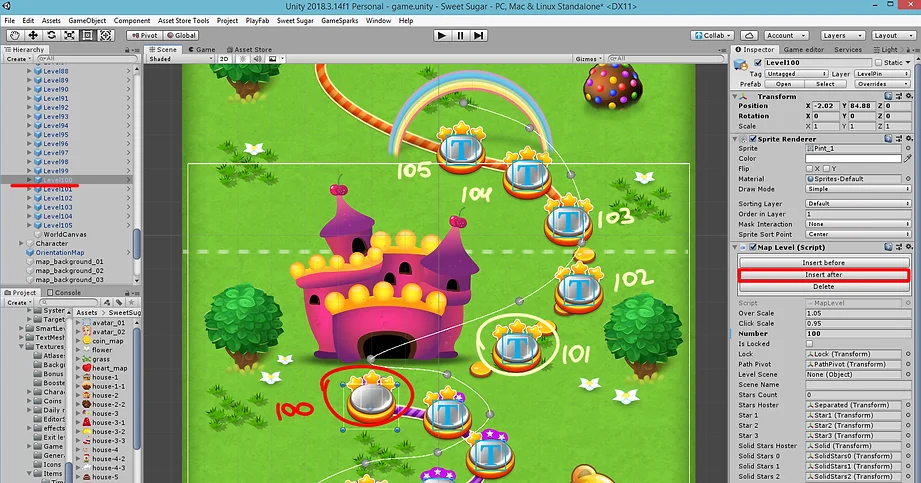
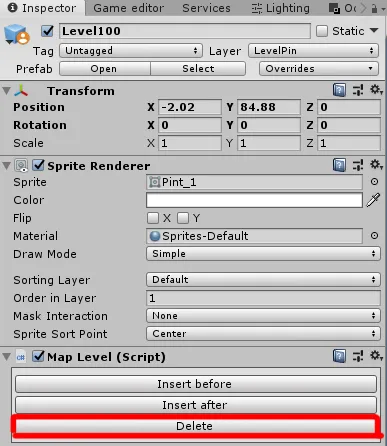
5 - Choose an icon of the last level (100), click in Inspector to "Insert After". New level (101) will added on the map. Drag it in the right place on the map. Do the same for all new levels.

<figure><img src="https://2423037410-files.gitbook.io/~/files/v0/b/gitbook-x-prod.appspot.com/o/spaces%2FixseEfHbM88cpcinnJo4%2Fuploads%2FFJOAXJxr3K8kh5seXGIB%2Fmap-5.webp?alt=media&amp;token=1f484b6e-ff7b-4887-87fc-58811cbf98ec" alt=""><figcaption></figcaption></figure>

If you want to delete the level pins, use DELETE button.&#x20;

<figure><img src="https://2423037410-files.gitbook.io/~/files/v0/b/gitbook-x-prod.appspot.com/o/spaces%2FixseEfHbM88cpcinnJo4%2Fuploads%2FdsEr7KDIH51vvlUw7HRn%2Fmap-12.webp?alt=media&amp;token=defcfb46-bbf8-40d8-b55c-29ca77f844b8" alt=""><figcaption></figcaption></figure>

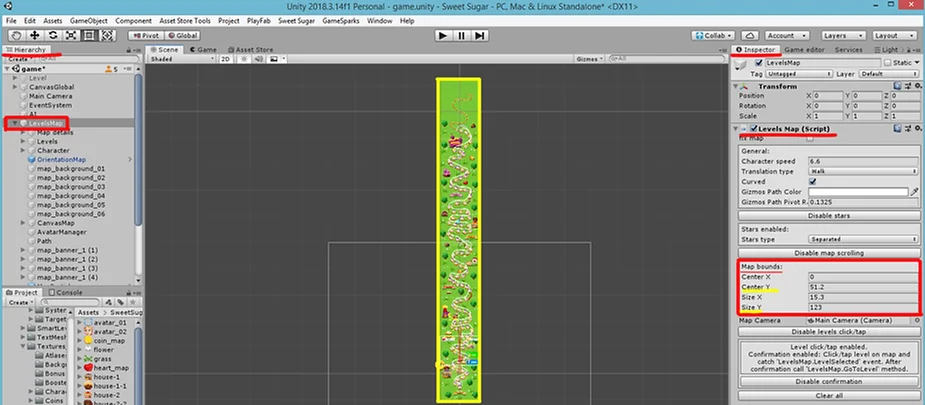
6 - To expand MAP BOUNDS. Go to Hierarchy --> Choose "Levels Map" --> Go to Inspector --> Level Map (Script) --> Change "Map bounds" parameters (Size Y and Center Y) until the white frame covers the entire game map.

<figure><img src="https://2423037410-files.gitbook.io/~/files/v0/b/gitbook-x-prod.appspot.com/o/spaces%2FixseEfHbM88cpcinnJo4%2Fuploads%2FXH0HLRp6E38X8G7JWs8B%2Fmap-10.webp?alt=media&amp;token=8fad8115-4acb-4a75-843e-5c5f5eea9810" alt=""><figcaption></figcaption></figure>

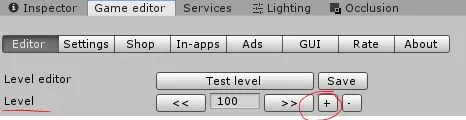
7 - Now you need to create new level design for your map. Go to Game Scene --> GameEditor --> Level --> Press "+" button to create level 101. Do the same for all your levels.

<figure><img src="https://2423037410-files.gitbook.io/~/files/v0/b/gitbook-x-prod.appspot.com/o/spaces%2FixseEfHbM88cpcinnJo4%2Fuploads%2Fc6hC2AJraSqiyIePr39m%2Fmap-11_JPG.webp?alt=media&amp;token=d2fbbdbc-5374-49f4-ae73-ef2def9d16dc" alt=""><figcaption></figcaption></figure>

<mark style="color:green;">**Congratulations!**</mark>

Map is ready =) <br>


# How to edit map and add new levels to the map

### <mark style="color:red;">**Attention!**</mark>

These [video tutorial](https://www.youtube.com/watch?v=q7jWMUDo9UU) fit most of our assets.

If you have not found the questions you are interested in, do not hesitate to contact us by [Discord ](https://discord.gg/B4cakyg)channel.

​

1- Open game scene

<figure><img src="https://static.wixstatic.com/media/d59ada_bdc0abbefd5944d4894a4b75c0a1447e~mv2.png/v1/fill/w_335,h_245,al_c,q_85,enc_auto/24_PNG.png" alt=""><figcaption></figcaption></figure>

2- Select Scene view

<figure><img src="https://static.wixstatic.com/media/d59ada_f29550101a8344ab9c97d073cc0cd59f~mv2.png/v1/fill/w_600,h_265,al_c,q_85,usm_0.66_1.00_0.01,enc_auto/25_PNG.png" alt=""><figcaption></figcaption></figure>

3- Double click on LevelsMap object in Hierarchy to see it in center.

<figure><img src="https://static.wixstatic.com/media/d59ada_ca7ad1062ba64f93b2901db95eff753b~mv2.png/v1/fill/w_600,h_228,al_c,q_85,usm_0.66_1.00_0.01,enc_auto/26_PNG.png" alt=""><figcaption></figcaption></figure>

4- Select level icon you need on the map

<figure><img src="https://static.wixstatic.com/media/d59ada_715c9cfeb5cd49509ad63a358db03041~mv2.png/v1/fill/w_545,h_368,al_c,q_85,enc_auto/27_PNG.png" alt=""><figcaption></figcaption></figure>

5- Drag it where you need.

6- If you need to add a new level, select the last icon on map. Now it is 100th level

7- Click “Insert after” in inspector window

<figure><img src="https://static.wixstatic.com/media/d59ada_4b8bb5e83b2942c48331efa92e2868bc~mv2.png/v1/fill/w_556,h_475,al_c,q_85,enc_auto/28_PNG.png" alt=""><figcaption></figcaption></figure>

8- Drag it where you need.

9- Also you have “delete” and “insert before” buttons there

&#x20;

<mark style="color:red;">**Remember:**</mark> If you want to create new levels (more than 100levels), you need to create new levels in LevelMakerEditor and then to create the new object on map.

\
10- How to edit Player Icon position:

<figure><img src="https://static.wixstatic.com/media/d59ada_e82c8966d29146c38b044ebcff1960d2~mv2.png/v1/fill/w_579,h_341,al_c,q_85,enc_auto/29_PNG.png" alt=""><figcaption></figcaption></figure>

The grey points in the map editor is the Player Icon position. You can change it, just look in Hierarchy and select Levels map, expand it:

<figure><img src="https://static.wixstatic.com/media/d59ada_e6374afa00b94ecca15b8eb0f58bca27~mv2.png/v1/fill/w_371,h_275,al_c,q_85,enc_auto/30_PNG.png" alt=""><figcaption></figcaption></figure>

After this, expand any "level...", you see the "PathPivot". It is the position for the player icon.

<figure><img src="https://static.wixstatic.com/media/d59ada_751095102bc04b4fbe0223282af9741f~mv2.png/v1/fill/w_372,h_270,al_c,q_85,enc_auto/31_PNG.png" alt=""><figcaption></figcaption></figure>

Just drag it in the necessary place.

## Targets on the Map

![32.PNG](https://static.wixstatic.com/media/d59ada_3dce2c6a348d4907a9cb6e3cb6a4fee3~mv2.png/v1/fill/w_64,h_40,al_c,q_85,enc_auto/32_PNG.png)

Get the Star (destroy the items the same colors and get the required number of score and get the star)

![33.PNG](https://static.wixstatic.com/media/d59ada_9b80fe3e83d9474b9bcc379833d5e54a~mv2.png/v1/fill/w_58,h_64,al_c,lg_1,q_85,enc_auto/33_PNG.png)

Get Ingredients (destroy all the objects hindering drop ingredients down)

![34.PNG](https://static.wixstatic.com/media/d59ada_8050ca90f794484f9243bf5a571d7484~mv2.png/v1/fill/w_64,h_40,al_c,lg_1,q_85,enc_auto/34_PNG.png)

Get the star for a few minutes (destroy the items the same colors and get the required number of score and get the star for a few minutes)

![35.PNG](https://static.wixstatic.com/media/d59ada_5ab0cd159a644ec6a4d06f0f2ca913f5~mv2.png/v1/fill/w_64,h_40,al_c,lg_1,q_85,enc_auto/35_PNG.png)

Destroy all sugar on game field

![36.PNG](https://static.wixstatic.com/media/d59ada_e2f5ecbe17494f15a57b294a64802839~mv2.png/v1/fill/w_60,h_64,al_c,lg_1,q_85,enc_auto/36_PNG.png)

Gather the required number of items this color


# How to reskin

<figure><img src="https://2423037410-files.gitbook.io/~/files/v0/b/gitbook-x-prod.appspot.com/o/spaces%2FixseEfHbM88cpcinnJo4%2Fuploads%2FqHIHsjHvFdJYFSuCTxSd%2F37_PNG.webp?alt=media&amp;token=c7ebadca-4ca5-429f-8a6b-8b8c94c9237b" alt=""><figcaption></figcaption></figure>

<figure><img src="https://static.wixstatic.com/media/d59ada_622a2e9e3add4519a32fe10235ef47a7~mv2.jpg/v1/fill/w_600,h_313,al_c,q_80,usm_0.66_1.00_0.01,enc_auto/21.jpg" alt=""><figcaption><p>Dynamic Reskin for Sweet Candy Sugar Match 3</p></figcaption></figure>

You don’t need to change a lot of similar arts in different places into the project. Just change one art in Textures\_png folder, and this art will replaced in all places of the project, where it should be located.

1. Open a project
2. Go to Assets → Textures\_png
3. For reskin, you should to change all arts in all folders into Textures\_png Folder.

EXAMPLE, open Textures \_png Folder --> Items (folder includes all items and blocks images in the project). Replace your arts in Textures\_png --> Items to reskin all images in this Folder. Do the same for all folders inside the Textures\_png.

<figure><img src="https://2423037410-files.gitbook.io/~/files/v0/b/gitbook-x-prod.appspot.com/o/spaces%2FixseEfHbM88cpcinnJo4%2Fuploads%2FsKP13v9SV1AgJUdvxLQc%2F37_PNG.webp?alt=media&amp;token=8ed32ce4-1768-464f-a341-40188966f887" alt=""><figcaption></figcaption></figure>

Remember - your art should be the same size and only in the PNG format like in the project, to correctly display the textures in the project.<br>


# How to change audio

<br>

Audio files located in the folder Assets / Audio. You need just replace your music and sounds in this folder, keep the same name in WAV format:

<figure><img src="https://2423037410-files.gitbook.io/~/files/v0/b/gitbook-x-prod.appspot.com/o/spaces%2FixseEfHbM88cpcinnJo4%2Fuploads%2Fo1VTyZwALbDNpHojaIi8%2F38_PNG.webp?alt=media&amp;token=eaa0ec85-21e9-46ed-ad43-f906014d46f6" alt=""><figcaption></figcaption></figure>


# How to change the fonts

If you want to add a new font, you need to put your font in folder Fonts (go to the project / Fonts).

<figure><img src="https://static.wixstatic.com/media/d59ada_ca3ee68a41d2406da4f9b726583d059d~mv2.png/v1/fill/w_600,h_610,al_c,q_90,usm_0.66_1.00_0.01,enc_auto/29_PNG.png" alt=""><figcaption></figcaption></figure>

1. Write your text;
2. Font sections. Click 2.a and choose your font in the drop-down menu.
3. Color section. Click 3.a for choosing the main color.
4. Effect color - it is color of outline. Click to 4.a for choosing the outline color.<br>


# How to test on devices

1. File - > Build Settings…\
   &#x20;
2. Choose your platform (iOS, Android)\
   &#x20;
3. Switch platform\
   &#x20;
4. After switching: \
   &#x20;
   1. For iOS click “Build” and select folder, then open created project in XCode.
   2. For Android you can plug-in device to your pc and click “Build and Run” and game automatically runs on your device after building.


# How to build

[iOS. How to build (official guide)](https://docs.unity3d.com/Manual/iphone-GettingStarted.html)

[Android. How to build (official guide)](https://docs.unity3d.com/Manual/android-BuildProcess.html)


# Difference between Sweet Candy Sugar and Jelly Garden Match 3

| Description                                 | Sweet Sugar | Jelly Garden |
| ------------------------------------------- | ----------- | ------------ |
| New code structure \*                       | ✓ \*        |              |
| Editor                                      | ✓           | ✓            |
| Map                                         | ✓           | ✓            |
| Friends of the map                          | ✓           | ✓            |
| Leadboard                                   | ✓           | ✓            |
| Booster shop                                | ✓           | ✓            |
| Life shop                                   | ✓           | ✓            |
| Ads monetization                            | ✓           | ✓            |
| Optimized for mobiles                       | ✓           | ✓            |
| Rewarded video                              | ✓           | ✓            |
| IAP's                                       | ✓           | ✓            |
| Tutorials                                   | ✓           | ✓            |
| Privacy policy                              | ✓           | ✓            |
| 100 tested levels                           | ✓           | ✓            |
| Unbreakable block                           | ✓           | ✓            |
| Ice/Cage block                              | ✓           | ✓            |
| Sugar block x2                              | ✓           | ✓            |
| Choco block                                 | ✓           | ✓            |
| Packaged candies                            | ✓           | ✓            |
| Striped candies                             | ✓           | ✓            |
| Ingredients x2                              | ✓           | ✓            |
| Multicolor candy                            | ✓           | ✓            |
| Solid block \*\*                            | ✓ \*\*      | ✓ \*\*       |
| Enhanced UI and animation system            | ✓           |              |
| Spread the Jelly target                     | ✓           |              |
| Spiral block                                | ✓           |              |
| Color Bomb items                            | ✓           |              |
| Marmalade items                             | ✓           |              |
| Booster: +5 moves                           | ✓           | ✓            |
| Booster: +30 sec                            | ✓           | ✓            |
| Booster: remove 1 item                      | ✓           | ✓            |
| Booster: bomb                               | ✓           | ✓            |
| Booster: move 1 item                        | ✓           | ✓            |
| Gold shop                                   | ✓           | ✓            |
| Rate us                                     | ✓           | ✓            |
| Sublevels                                   | ✓           |              |
| Dynamic reskin system                       | ✓           |              |
| Rotation                                    | ✓           |              |
| Social features                             | ✓           | ✓            |
| Localization tool                           | ✓           |              |
| Mini game (Bonus Spin)                      | ✓           |              |
| Daily Rewards + anticheat system            | ✓           |              |
| Teleports                                   | ✓           |              |
| Changing the direction of the playing field | ✓           |              |
| Layered PSD map                             | ✓           |              |
| Localized price                             | ✓           |              |
| Target Management System                    | ✓           |              |

\* Sweet Sugar is not based on the Jelly Garden source code.&#x20;

\*\* Sweet Sugar: Solid Block x3\
&#x20;  Jelly Garden: Solid Block x1


# Facebook account setup

This guide describes the Facebook and leaderboard setup for the current `HomeDesignMatch3Kit` project.

The original Candy Smith guide uses the spelling `Leadboard` and describes a legacy Gamesparks/PlayFab flow. The original Facebook sequence is preserved below, while project-specific notes explain the current Unity Gaming Services (UGS) setup.

Source guide: [How to setup Facebook and Leadboard](https://docs.candy-smith.com/main/general-info/how-to-setup-facebook-and-leadboard).

{% hint style="info" %}
The screenshots below are taken from the source guide. Meta and Unity may move controls or rename labels in newer dashboard and editor versions.
{% endhint %}

## What is configured

* Facebook Login through the Facebook Unity SDK.
* Facebook as an identity provider in Unity Authentication.
* A UGS leaderboard that stores the player's current level.
* Cloud Code scripts for gifts and Facebook-to-Unity player mapping.
* Optional Facebook friends access through the [`user_friends` permission](broken://pages/c2886e28faddcf298f15f215999599828e084449).

## Prerequisites

Before starting, prepare the following:

* A Meta developer account: [Meta for Developers](https://developers.facebook.com/apps/).
* A Meta app registered for the game, or access to an existing Meta app for this game.
* The Android package name and iOS Bundle ID from Unity Player Settings.
* Access to the Unity organization and UGS project that will be used by the game.
* A debug or release keystore and its Android key hash.
* Test Facebook accounts. Do not use fake accounts; add real test users or app-role accounts in the Meta dashboard.

{% stepper %}
{% step %}

## Link the Unity project

1. Open the project in Unity 6000.0.80f1 or a compatible Unity version.
2. Sign in to the Unity Editor.
3. Open `HomeDesignMatch3Kit > Settings > Setup Wizard`.
4. In step 1, open Project Services and link the project to the correct Unity organization and UGS project.
5. Select the environment used for development or release.

{% hint style="warning" %}
The leaderboard and Cloud Code resources are created in the selected environment. Selecting a different environment later does not copy resources between environments.
{% endhint %}
{% endstep %}

{% step %}

## Create and configure the Meta app

Open the [Meta Developer Dashboard](https://developers.facebook.com/apps/), open **My Apps**, and click **Create App**.

### Create the app

1. Enter the game name.
2. Select the use case **Authenticate and request data from users with Facebook Login**. The wording may be shortened to **Authenticate and request data from users** in the current dashboard.
3. At the Business step, select the business connected to the game or continue without connecting a business.
4. Finish creating the app and open its dashboard.

![Meta Developer Dashboard](https://content.gitbook.com/content/ixseEfHbM88cpcinnJo4/blobs/MjjOJF9HKyAeSkvu4VBZ/images/facebook/meta-create-app-dashboard.png)

![Meta app creation form](https://content.gitbook.com/content/ixseEfHbM88cpcinnJo4/blobs/lMj7BJJQKC7Og8ukhb9b/images/facebook/meta-create-app.png)

<figure><img src="https://2423037410-files.gitbook.io/~/files/v0/b/gitbook-x-prod.appspot.com/o/spaces%2FixseEfHbM88cpcinnJo4%2Fuploads%2Fpx8DZ22oCOIXfKZge7K2%2Fimage.png?alt=media&amp;token=3d983214-1d9e-47eb-b448-11d64d2ad678" alt=""><figcaption></figcaption></figure>

### Basic app settings

1. Open **App settings > Basic**.
2. Set the **Category**, **Sub-category**, and **App icon** when those fields are shown.
3. Save the changes.
4. Copy the numeric **App ID**.
5. Copy the **Client Token** from the security section in **Settings > Advanced**.
6. Keep the **App Secret** private. It is required to configure Unity Authentication, but it must not be committed to the repository or stored in `LeaderboardSettings.asset`.

![Meta app basic settings](https://content.gitbook.com/content/ixseEfHbM88cpcinnJo4/blobs/YHhYFm6YFnUvoycrKdw2/images/facebook/meta-app-basic-settings.png)

### Android platform

Add an Android platform to the Meta app:

1. Set the package name to the exact value from `Project Settings > Player > Android > Package Name`.
2. Set the Unity deep-linking activity class to `com.facebook.unity.FBUnityDeepLinkingActivity` if the dashboard asks for it.
3. Enable Single Sign On and Deep Linking when those options are available.
4. Add every key hash used to sign the app, including separate debug and release hashes.
5. Save the platform settings.

![Add a platform in Meta](https://content.gitbook.com/content/ixseEfHbM88cpcinnJo4/blobs/Cqe37i6H2uNgfCUpyBfd/images/facebook/meta-add-platform.png)

![Select Android or iOS](https://content.gitbook.com/content/ixseEfHbM88cpcinnJo4/blobs/BYbMOQz3eEkFaZMJfQeg/images/facebook/meta-select-platform.png)

![Meta Android platform settings](https://content.gitbook.com/content/ixseEfHbM88cpcinnJo4/blobs/aUH3xI39HzAtAPWa6Umg/images/facebook/meta-android-platform.png)

{% hint style="warning" %}
The package name, signing key, and Facebook App ID must belong to the same build. A key hash from a debug keystore will not authenticate a release-signed APK.
{% endhint %}

### iOS platform

Add an iOS platform and set its Bundle ID to the exact value from `Project Settings > Player > iOS > Bundle Identifier`.

If the dashboard asks for an App Store ID or other store metadata, use the values belonging to the final iOS app. Save the platform settings.

Before publishing the app, provide a valid privacy policy URL and complete the app's required verification and review steps.

![Facebook Login OAuth settings](https://content.gitbook.com/content/ixseEfHbM88cpcinnJo4/blobs/4TmoW5xrYjLzVHzy5c6A/images/facebook/facebook-login-oauth-settings.png)

In **Settings > Advanced**, enable **Native or desktop app** when the option is available. Keep the app in development mode while testing; switch it to Live/public only after the required review and verification steps are complete.

![Native app setting](https://content.gitbook.com/content/ixseEfHbM88cpcinnJo4/blobs/HqwpG1OB3t1fMTQCYLaB/images/facebook/meta-native-app.png)

![Meta Client Token](https://content.gitbook.com/content/ixseEfHbM88cpcinnJo4/blobs/cMKnwnSwULic0dYhnVcT/images/facebook/meta-client-token.png)
{% endstep %}

{% step %}

## Install and configure the Facebook SDK in Unity

The setup wizard can install the Facebook Unity SDK used by this project.

The original guide describes a manual SDK flow: download the Facebook Unity SDK package, open the `.unitypackage`, and click **Import**. Use that flow only if the setup wizard cannot install the SDK; do not import a second SDK copy.

![Facebook SDK package menu](https://content.gitbook.com/content/ixseEfHbM88cpcinnJo4/blobs/mRiw8bqhB7tifbzgQy4w/images/facebook/facebook-sdk-package-menu.png)

![Facebook SDK import dialog](https://content.gitbook.com/content/ixseEfHbM88cpcinnJo4/blobs/Qt6MGSly97is9fL8bDYn/images/facebook/facebook-sdk-import-dialog.png)

1. Return to `HomeDesignMatch3Kit > Settings > Setup Wizard`.
2. Open step 4, **Set up Facebook**.
3. Click **Install Facebook SDK** if the SDK is not installed.
4. Enter the Meta **App ID** and **Client Token** in the Facebook SDK Settings section.
5. Enter the **App Secret** only in the password field used by **Configure Facebook Automatically**.
6. Click **Configure Facebook Automatically**.
7. Click **Regenerate Android Manifest** if the wizard did not regenerate it successfully.

![Unity Facebook SDK settings](https://content.gitbook.com/content/ixseEfHbM88cpcinnJo4/blobs/JgaEqNhRv4vSXAU6huQO/images/facebook/unity-facebook-settings.png)

The original guide also shows the App ID copied from Meta into the Unity Facebook settings:

![App ID in Unity Facebook settings](https://content.gitbook.com/content/ixseEfHbM88cpcinnJo4/blobs/PqUamgNev6vRvdBMhDiO/images/facebook/app-id-in-unity.png)

The wizard synchronizes the App ID and Client Token with `Assets/FacebookSDK/SDK/Resources/FacebookSettings.asset`, configures iOS stripping, regenerates the Android manifest, and registers or updates the Facebook identity provider in Unity Authentication. The App Secret is used for the setup operation and is not saved in the project.

![Generated Android manifest with Facebook activities](https://content.gitbook.com/content/ixseEfHbM88cpcinnJo4/blobs/z1GEopO8F1oJaZJUTlQB/images/facebook/android-manifest.png)

{% hint style="warning" %}
Do not import a second copy of the Facebook SDK. Duplicate SDK assemblies can produce errors such as `Facebook.Unity.Settings` being imported more than once.
{% endhint %}
{% endstep %}

{% step %}

## Configure the UGS leaderboard

1. In the setup wizard, open step 5, **Configure the leaderboard**.
2. Set the leaderboard ID. The default value is `global_leaderboard`.
3. Set `Score Fetch Limit` and `Opponent Count` as required by the UI.
4. Click **Save Settings**.
5. Click **Configure Leaderboard**.

The provisioner creates the leaderboard in the selected environment with descending sort order and `Keep Best` update behavior. Running the action again reuses an existing leaderboard with the same ID.

The settings asset is stored at:

```
Assets/HomeDesignMatch3Kit/Resources/Settings/LeaderboardSettings.asset
```

The runtime submits the player's current level and reads scores through Unity Leaderboards. The current popup displays UGS leaderboard entries; it is not the legacy Gamesparks friend leaderboard.

![Facebook provider in Unity Authentication](https://content.gitbook.com/content/ixseEfHbM88cpcinnJo4/blobs/N7VncB3X2MB41LSs43KP/images/facebook/unity-authentication-facebook.png)
{% endstep %}

{% step %}

## Enable Cloud Save and upload Cloud Code

1. In the selected UGS environment, open Cloud Save and enable it.
2. Return to the setup wizard.
3. Open step 6, **Upload and publish Cloud Code**.
4. Click **Upload Cloud Code**.

The action creates or updates and publishes the included scripts for gifts and Facebook player mapping. The `facebookPlayerMappings` collection is created automatically after the first successful Facebook sign-in.

If the game uses Facebook friends, complete the separate [user\_friends permission setup](broken://pages/c2886e28faddcf298f15f215999599828e084449) before testing that flow.
{% endstep %}

{% step %}

## Optional Meta App Center setup

The original guide includes **Dashboard > App Center > Set up**. Add the game's screenshots and description there if the game should be represented in Meta's App Center.

![Meta App Center setup](https://content.gitbook.com/content/ixseEfHbM88cpcinnJo4/blobs/4HKY4p9Ul8cN5x64vkye/images/facebook/app-center-setup.png)
{% endstep %}

{% step %}

## Test the integration

Use a device build rather than relying only on the Unity Editor:

1. Build with the same Android package name or iOS Bundle ID configured in Meta.
2. Install the build on a test device.
3. Open the Settings popup and tap the Facebook button.
4. Complete Facebook Login with an allowed test account.
5. Open the leaderboard and finish at least one level so a score can be submitted.
6. Confirm that the login completes, the UGS player is authenticated, and the score appears in the selected leaderboard.
7. If friends functionality is enabled, test it with two Facebook accounts that both use the app.

{% hint style="info" %}
For Unity Editor testing, the Facebook SDK uses its Mock Login Dialog and expects a valid Facebook user access token. An App ID, Client Token, or App Secret is not a user access token.
{% endhint %}

The original guide also includes a [video tutorial and Unity test](https://www.youtube.com/watch?v=o82n0FxOQQY). Use a device build and the navigation that exists in the submitted version of this project.
{% endstep %}

{% step %}

## Legacy backend note

The source guide links to a paid [PlayFab setup guide](https://docs.google.com/document/d/1zBcvgZL_CcEUYwt4h2eYpi3UaKKFEcdumryk6-NcP1c) for its leaderboard, friends-on-map, and player-cloud-store flow. This project uses UGS instead, so the PlayFab/Gamesparks setup is not required for the current build.
{% endstep %}
{% endstepper %}

## Next steps

* [Request the `user_friends` permission](broken://pages/c2886e28faddcf298f15f215999599828e084449)
* [Facebook and leaderboard troubleshooting](broken://pages/a51261c0b87ef08b3476004a066545b03c3ab50d)


# FACEBOOK\_TROUBLESHOOTING

Use this page after completing [Facebook and Leaderboard setup](broken://pages/6d10d7924be8dbe7bec8ec8681388c9e614ac205). The original Candy Smith troubleshooting list includes legacy Gamesparks and older Unity/Facebook SDK issues; the entries below are adapted to the current UGS-based project.

## Facebook login problems

### `Invalid key hash`

This means that Meta does not recognize the certificate that signed the installed Android build.

{% stepper %}
{% step %}

## Copy the key hash

Copy the key hash shown in the device error or log.
{% endstep %}

{% step %}

## Open the Meta app dashboard

Open the Meta app dashboard.
{% endstep %}

{% step %}

## Open Android platform settings

Open the Android platform settings.
{% endstep %}

{% step %}

## Add the key hash

Add the exact key hash to **Key Hashes** and save.
{% endstep %}

{% step %}

## Rebuild and reinstall

Rebuild and reinstall the app.
{% endstep %}
{% endstepper %}

Add separate hashes for debug, internal testing, and release signing certificates. Also confirm that the package name in Meta exactly matches Unity's Android application identifier.

![Android key hash mismatch example](https://content.gitbook.com/content/ixseEfHbM88cpcinnJo4/blobs/Nj2eGPRah32X4mjota9K/images/facebook/key-hash-mismatch.png)

### Facebook Login is unavailable for this app

Check the following:

* The app ID in `LeaderboardSettings.asset` belongs to the selected Meta app.
* The Android package name or iOS Bundle ID matches the Meta platform configuration.
* The test account is an app admin, developer, tester, or approved test user while the app is in development mode.
* The app is Live only after the required review and verification steps are complete.
* The Facebook Login product is configured for the target platform.

![Facebook Login error](https://content.gitbook.com/content/ixseEfHbM88cpcinnJo4/blobs/Vq99ZUixNJCpKLxoqdyR/images/facebook/facebook-login-error.png)

### Login fails after changing the app ID

Use one app ID consistently in all places:

* Meta Developer Dashboard
* `Assets/HomeDesignMatch3Kit/Resources/Settings/LeaderboardSettings.asset`
* `Assets/FacebookSDK/SDK/Resources/FacebookSettings.asset`
* The generated Android manifest

Update the value through `HomeDesignMatch3Kit > Settings > Setup Wizard`, then regenerate the Android manifest and make a clean device build.

### Unity Editor login fails

The Facebook SDK's Unity Editor integration uses the Mock Login Dialog. Enter a valid Facebook user access token for the app. Do not enter the App ID, Client Token, or App Secret in the token field.

For a real Facebook Login test, use an Android or iOS device build with the correct platform configuration.

### `user_friends` is missing or rejected

See [Requesting the `user_friends` permission](broken://pages/a696c31dab7ab7065d718e6a0baed932029d9a56). Confirm that the submitted app review describes a real feature and that the test accounts are allowed to use the development app.

## Unity setup problems

### Facebook SDK is installed more than once

An error such as:

```
An assembly with the same name `Facebook.Unity.Settings` has already been imported.
```

usually means that two SDK copies or a stale generated assembly are present. Keep one Facebook SDK installation, remove the duplicate package, restart Unity, and let the project reimport the assets.

Do not import another Facebook Unity SDK on top of the SDK installed by the setup wizard.

### Android manifest is missing Facebook entries

{% stepper %}
{% step %}

## Confirm the Facebook SDK is installed

Confirm that the Facebook SDK is installed.
{% endstep %}

{% step %}

## Enter the App ID and Client Token

Enter a valid numeric App ID and Client Token in the setup wizard.
{% endstep %}

{% step %}

## Save Facebook settings

Save the Facebook settings.
{% endstep %}

{% step %}

## Regenerate the Android manifest

Click **Regenerate Android Manifest**.
{% endstep %}

{% step %}

## Rebuild the application

Rebuild the Android application.
{% endstep %}
{% endstepper %}

If regeneration reports that the manifest generator is missing, the SDK import is incomplete or the project contains conflicting SDK assemblies.

### Android build dependency or resolver errors

Run the dependency resolver from the project menu when it is available:

```
Assets > External Dependency Manager > Android Resolver > Resolve
```

Then restart Unity and rebuild. Check that only one version of each Facebook and Android dependency is present.

![Android Resolver menu](https://content.gitbook.com/content/ixseEfHbM88cpcinnJo4/blobs/XEQdzAWrnvibicugWYlp/images/facebook/android-resolver.png)

### `Keytool not found`

Unity cannot find the Java keytool used to inspect or create signing certificates. Configure a valid JDK in Unity Hub or in `Edit > Preferences > External Tools`, then retry the Android build and key-hash step.

## Unity Authentication and Cloud Code problems

### Automatic Facebook Authentication setup fails

The automatic setup requires:

* The Unity project to be linked to a UGS project.
* An active UGS environment.
* A numeric Facebook App ID.
* A valid Facebook App Secret entered in the setup wizard.
* Unity Authentication enabled for the project.

The App Secret is used during setup and must not be saved in the repository. If the operation fails, correct the values and run **Configure Facebook Automatically** again.

### Facebook login succeeds but player mapping is missing

Make sure Cloud Save is enabled in the active environment and that the setup wizard has uploaded and published `RegisterFacebookPlayer.js` and `ResolveFacebookPlayers.js`.

The mapping collection is created on the first successful Facebook sign-in. Sign in again after Cloud Code deployment and inspect the Cloud Code logs for the active environment.

### Leaderboard is empty or scores do not update

Check the following:

* Unity Services initialization completes before opening the leaderboard.
* The game is using the same UGS environment in which the leaderboard was created.
* `leaderboardId` matches the configured leaderboard ID.
* The player is authenticated with Unity Authentication.
* At least one level has been completed or played far enough to submit a score.
* The setup wizard created the leaderboard with the expected ID.

The current leaderboard uses UGS scores. It does not read the old Gamesparks leaderboard and it does not automatically filter entries to Facebook friends.

### `Configure Leaderboard` fails

Verify that the Unity Editor is signed in, the project is linked, and an environment is selected in Project Settings > Services. Run the operation again after correcting the environment.

## App Review problems

### Review is rejected

The most common causes are an incomplete privacy policy, a video that does not show the requested permission in use, invalid test credentials, or a request for permissions that the build does not actually need.

Use the [user\_friends permission guide](broken://pages/a696c31dab7ab7065d718e6a0baed932029d9a56) to prepare the test flow and video. Submit only the permissions required by the final feature set.

### The reviewer cannot reproduce the feature

Use a clean install and verify the complete path from the first screen to the social feature. The review instructions must match the exact labels and navigation of the submitted build. Do not copy the legacy map instructions if the current build opens Facebook Login from Settings.

## Legacy issues from the original guide

The following original-guide items are not part of the current UGS integration:

* Gamesparks `Scripting Runtime Version` errors
* Adding a `GameSparksUnity` component to `NetworkManager`
* Deleting and recreating a Gamesparks game
* PlayFab/Gamesparks leaderboard configuration

Do not apply those fixes to this project unless a separate legacy branch explicitly uses the corresponding backend.


# User\_friends permission

The project requests the following Facebook Login permissions:

```
public_profile
email
user_friends
```

The permission list is defined in the Facebook authentication provider. `user_friends` is needed only when the build uses Facebook friends or other social features that require the user's in-app friend list. The current UGS leaderboard itself is global; enabling UGS Leaderboards does not automatically turn it into a Facebook-friends leaderboard.

This page contains the `user_friends` part of the original Candy Smith guide. The original guide places it after the Facebook Login, App Center, and Android testing steps.

For the permission reference, see Meta's [user\_friends documentation](https://developers.facebook.com/docs/permissions/reference/user_friends/). For the project setup, start with [Facebook and Leaderboard setup](broken://pages/9f4ca1189ebfb9753c29be65db100b45fe872940).

## Before requesting access

Complete these checks first:

* Facebook Login works in a device build with the correct App ID, Client Token, package name, Bundle ID, and key hash.
* The Unity project is linked to the intended UGS project and environment.
* Cloud Save is enabled and the included Cloud Code is uploaded and published.
* The app has a valid privacy policy URL.
* The app contains a visible, working flow that uses Facebook friends. Do not request a permission that the submitted build does not use.
* At least two test accounts are available. The accounts must be allowed to use the app and must both have installed and signed in to the game.

## Request the permission in Meta

Meta can move dashboard labels between releases. The names below refer to the current equivalent of the original Candy Smith flow.

{% stepper %}
{% step %}

### Open the game app

Open the [Meta Developer Dashboard](https://developers.facebook.com/apps/) and select the game app.
{% endstep %}

{% step %}

### Open Facebook Login permissions

Open the **Facebook Login** use case and its **Permissions and features** page. In older dashboards this may appear under **App Review > Permissions and Features**.
{% endstep %}

{% step %}

### Add `user_friends`

Find `user_friends` and click **Add** if the permission is not already listed.
{% endstep %}

{% step %}

### Start the request

Click **Request**, **Continue**, or the equivalent action shown by the dashboard.
{% endstep %}

{% step %}

### Describe the feature

Describe the exact feature that needs the permission.
{% endstep %}

{% step %}

### Submit verification details

Submit the requested verification details and the review request.
{% endstep %}
{% endstepper %}

![The user\_friends permission in Meta](https://content.gitbook.com/content/ixseEfHbM88cpcinnJo4/blobs/npPmmCymOAJFDpE6rvLm/images/facebook/user-friends-permission.png)

![Requesting user\_friends](https://content.gitbook.com/content/ixseEfHbM88cpcinnJo4/blobs/fZFOZETOIfG4Ke4k7rvS/images/facebook/user-friends-request.png)

Explain that the game uses the permission to identify Facebook friends who also use the game and display the relevant social data in the game. Keep the explanation specific to the feature shown in the submitted build.


# Facebook App Review Guide

This guide records the agreed review flow: a Facebook test user is optional, the leaderboard uses player names and IDs, and deletion requests are handled through game Support.

### Check the required app settings

Open **App settings → Basic** before starting the review. Meta currently marks the app as ineligible because the following fields are incomplete:

* App icon — 1024×1024 image;
* Privacy policy URL;
* User data deletion URL or instructions;
* Category.

The app must also have at least one platform configured before reviewer instructions can be added.

### Verify `user_friends` in Facebook Login

Open **Use cases → Facebook Login → Permissions and features**. In the current app, `user_friends` is already added and has the **Ready for testing** status. The API call counter is still `0`, so a real test call is required before review.

![Facebook Login permissions and features](https://content.gitbook.com/content/ixseEfHbM88cpcinnJo4/blobs/tuWfISoTDBeqhI0dDjKl/images/facebook/meta-facebook-login-permissions-live.png)

### 1. Start the review

1. Open Meta for Developers and select the game app.
2. Open **Review → App Review**.
3. Start or reopen the review request.
4. Confirm that the requested permissions are `public_profile` and `user_friends`.

Meta saves many answers automatically. Check each progress indicator before continuing.

<figure><img src="https://2423037410-files.gitbook.io/~/files/v0/b/gitbook-x-prod.appspot.com/o/spaces%2FixseEfHbM88cpcinnJo4%2Fuploads%2FDeKdpMwNMBm6PhyewFIo%2Fimage.png?alt=media&amp;token=50a1715a-8555-4fd3-bf47-0b392f45d1a5" alt=""><figcaption></figcaption></figure>

### 2. Verification and app settings

Complete business/app verification and required settings for HomeDesignGame.

Use these production values:

* Android package: \<YOUR\_PACKAGE>
* Privacy policy and data deletion URL example `https://docs.google.com/document/d/14IddMwUWSvTAR46fAe76izwLpbZxvzu6uIkuhhryQ3o/edit?tab=t.0#heading=h.g0z4yzho6nsj`
* Category: **Games**
* Sub-category: **Match 3**

Verify the app name, icon, platform, privacy policy, contact details, and package identifier before continuing.

### 3. Allowed usage

Paste this as the allowed-usage description:

> The game uses `user_friends` to show a friends leaderboard for people who also play the game. After a person signs in with Facebook, the game requests `user_friends` and displays a Facebook-related leaderboard in the game menu. It shows participating friends' player names, profile pictures, and leaderboard scores, helping the person compare progress with friends. The permission is necessary because the leaderboard is limited to friends who also use the game. The game does not access or display friends who do not use it, and it does not post or message on their behalf.

### 4. Data handling

Use this data-handling description:

> The game receives Facebook user IDs, player names, profile pictures, and the list of Facebook friends who also use the game. This data is used only to resolve the corresponding Unity player records and display the friends leaderboard with player names, profile pictures, and scores. The Facebook-to-Unity player mapping and leaderboard data are processed and stored with Unity Technologies / Unity Gaming Services using Unity Cloud Code and Cloud Save. The data is not sold, licensed, or used to post or message on a user's behalf.

### 5. Data protection

Use these answers for the current production build:

* Processor: **Yes** — `Unity Technologies / Unity Gaming Services`
* Processing category: **IT solutions and services, including cloud storage and processing**
* Responsible entity: **Candy Smith, Cyprus**
* National security requests: **No**
* Other policy/process attestations: **None of the above**
* Protected-class profiling, high-impact decisions, and surveillance: **No**
* Selling, licensing, or purchasing Platform Data: **No**
* Service provider sharing: **Yes**, with `Unity Technologies / Unity Gaming Services`
* Tech Provider sharing: **No**
* Other sharing: **No**

### 6. Data deletion through Support

Select **Yes** for the data-deletion questions and paste this process:

> Users can request deletion by contacting the Support or Privacy contact listed in the game or privacy policy and providing the account identifier needed to locate their player record. The developer deletes the player name, Facebook ID mapping, leaderboard record, and related Unity Cloud Save data. Support confirms completion after the deletion is finished.

Do not select **I don’t store Platform Data**: the app stores a Facebook-to-Unity player mapping in Cloud Code and Cloud Save.

### 7. Data security

Use these verified answers for the current build:

* Backend storage: **Yes**
* Stored data: **Meta user ID or hashed user ID** and **Other Platform Data not listed above**
* Hosting: **Other** — `Unity Technologies / Unity Gaming Services (Cloud Code and Cloud Save)`
* Certifications: **None / Not applicable**
* Encryption at rest: **Yes**
* Device storage: **No** — `No. Under no circumstances does anyone in my organization store Platform Data on organizational or personal devices.`
* Follow-up device-storage acknowledgement: **Yes**
* Encryption in transit/TLS: **Yes** for both displayed questions
* Vulnerability reporting channel: **Yes**, through the monitored Support/Privacy contact

### 8. Reviewer instructions and final check

For an Android submission, choose **Use an uploaded .apk**, upload a release-signed production APK, and verify that its package name matches the app settings. Do not use an APK signed with the Android Debug certificate; its Facebook Login key hash may not match the Meta app.

In **App settings → Basic → Android → Provide testing instructions**, use this store-location text when the APK is not published:

> Not published in Google Play. The APK is uploaded directly in the App Review request.

If the platform cannot be persisted because the APK has no verifiable store listing, resolve that Meta-side limitation before submitting; do not use a fake store entry. Test users are optional for this game because the normal Facebook account flow is sufficient.

Paste these reviewer instructions:

> Android package: `com.candysmith.homedesignmatch3kit`
>
> 1. Install and launch the uploaded APK.
> 2. Tap Facebook Login and sign in with a Facebook account. No special Facebook test user is required.
> 3. Grant `public_profile` and `user_friends`.
> 4. Open the friends leaderboard from the game menu.
> 5. Verify that participating friends are shown with their player names, profile pictures, and leaderboard scores.
> 6. Facebook Login is integrated on Android and uses Meta APIs for public profile data and `user_friends`. Facebook IDs are used only to resolve corresponding Unity player records.
> 7. To request deletion, contact the Support/Privacy contact listed in the app or privacy policy and provide the account identifier. The developer deletes the player name, Facebook ID mapping, leaderboard record, and related Unity Cloud Save data. Support confirms completion.
> 8. Use the same Support/Privacy channel to report security vulnerabilities.

Select **Yes** for Facebook Login on Android. Leave access-code fields empty because no paid or restricted test account is required.

Before clicking **Submit for review**, verify every URL, account, permission, video, reviewer step, and deletion procedure in the production build.

### 9. Keep the APK below 200 MB

For this review request, a 170 MB APK was accepted. Treat **200 MB as a safety target**, not as a universal published Meta limit, and leave extra headroom for build changes.

Prioritize these Unity optimizations:

1. Build **ARM64 only** for a direct Meta APK, or split APKs by CPU architecture when the distribution channel supports it. Do not ship ARMv7 and ARM64 in one review APK unless both are required.
2. Compress Android textures with ETC2 or ASTC and reduce the maximum size of large backgrounds. The five stage backgrounds in this project are about 1710×2280 pixels.
3. Convert large WAV files to compressed OGG/MP3 audio.
4. Remove unused scenes and assets from the build. Move optional content to AssetBundles/Addressables or Play Asset Delivery when it does not need to be in the initial install.
5. Use the stronger release compression method and test release minification/stripping. Keep a backup build and verify Facebook Login after each change.

In this project the largest build component is `assets/bin/Data/data.unity3d`; the APK is valid, but its content is too large rather than incorrectly formatted. The separate `17.apk` is a different game and must not be used for this review.

### 10. APK upload troubleshooting

1. Use the direct release-signed `.apk`, not a `.zip`, debug build, or download link.
2. Use Chrome with upload-blocking extensions disabled.
3. After selecting the APK, wait until the upload and server processing finish before clicking **Next** or refreshing the page.
4. If the APK appears in the form but disappears after refresh and the console shows `POST https://developers.facebook.com/api/graphql/` with HTTP 500, the file is not being saved by Meta’s backend. Recheck the draft in a clean browser session; if the same error persists, use the reset procedure in the next section.

### 11. Create a genuinely new review request

In the current Facebook App Review interface, there is no separate **Create new** button. Adding a permission through **Use cases → Facebook Login → Actions → Add to App Review** creates a new request only when no active draft exists. If Meta keeps showing the same `submission_id`, the old draft is still active.

Do not rely on old instructions that mention **Start Over**; that control may be absent in the current interface. If the draft cannot be cancelled and the APK upload returns a GraphQL HTTP 500 error, open **Support → Bugs → Report a Bug**, select the app, choose **App Review** as the affected product, and request that Meta reset/cancel the unsent draft. Include the app ID, submission ID, package name, exact error, and a screenshot. Do not submit a second App Review request until Meta confirms the reset.

Support routing can change: the current App Review and Developer Tools paths may state that individual cases are not handled and redirect to the Developer Community Forum. Do not submit a misleading bug category or publish private app details in a public post; record the exact blocker and use an available Meta support channel or official case route.

#### Other routes and their limits

* The legacy `app-review/permissions` URL redirects to **Use cases** in the current dashboard; it does not bypass the active draft.
* **Actions → Add to App Review** is the normal way to create a request, but it attaches items to the existing draft when one is active.
* **Create test app** creates a separate testing clone with another app ID. It is useful for testing configuration, but it is not a replacement for the production app’s review request.
* **Create New App** from the app selector creates a genuinely fresh app and review state. Use it only if Meta cannot reset the production app, because Facebook Login, Android package/key hashes, URLs, Business settings, and the App Review answers must be configured again.
* Do not use undocumented GraphQL or Graph API mutations to force a submission; they are unsupported and may corrupt the app state further.


# Unity In-apps Integration Guide

1. Window->Package Manager and install In App Purchasing package

<figure><img src="https://2423037410-files.gitbook.io/~/files/v0/b/gitbook-x-prod.appspot.com/o/spaces%2FixseEfHbM88cpcinnJo4%2Fuploads%2FnpHFZUKGPPRWUH79kTbf%2Fimage.png?alt=media&amp;token=72f4b8d1-7292-4b57-84ab-24215c5b5f51" alt=""><figcaption></figcaption></figure>

2. Add Products to the Google play and Appstore account with the same product ID you have in your game template settings

## Troubleshooting In-apps:

Test in-apps:\
1\. Start the game in Unity and purchase something, if everything ok means Unity IAP work fine and nothing wrong in code.

Test in-apps on device:

2\. To test in-apps use internal test release for Google Play and Testflight with Sandbox user for the Appstore.&#x20;

If the purchasing don’t work on the device, don’t panic, try to get logs from the device and contact us.<br>


# Setting Up In-App Purchase Products

This guide will walk you through the process of setting up in-app purchase (IAP) products for your Spot the Difference game's store.

### Product Types Overview

Your game includes two main types of IAP products:

1. Coin Products: These are consumable items that players can purchase to obtain in-game coins.
2. No Ads Product: This is a non-consumable item that removes ads from the game when purchased.

### Locating the Product Definitions

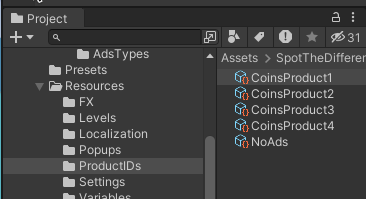
1. In the Unity Editor, navigate to your Project window.
2. Go to `Assets >` GameToolkit `> Resources > ProductIDs`.
3. Here you'll find the product definitions for your IAPs.\ <br>

   <figure><img src="https://2423037410-files.gitbook.io/~/files/v0/b/gitbook-x-prod.appspot.com/o/spaces%2FixseEfHbM88cpcinnJo4%2Fuploads%2FqyAzknlIMwOD2h6kvdRg%2Fimage.png?alt=media&amp;token=ab33c53b-9798-4763-928b-24307c268cb4" alt=""><figcaption></figcaption></figure>

### Coin Products Setup

You have multiple coin products available:

* CoinsProduct1
* CoinsProduct2
* CoinsProduct3
* CoinsProduct4

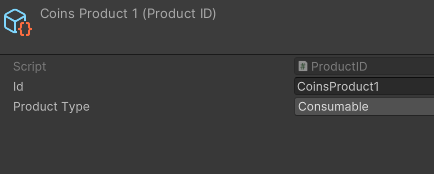
For each Coin Product:

1. Select the product in the Project window.
2. In the Inspector, you'll see the following settings:
   * **Id**: The unique identifier for the product (e.g., "CoinsProduct1")
   * **Product Type**: Set to "Consumable"

Example for CoinsProduct1:

* Id: CoinsProduct1
* Product Type: Consumable\ <br>

  <figure><img src="https://2423037410-files.gitbook.io/~/files/v0/b/gitbook-x-prod.appspot.com/o/spaces%2FixseEfHbM88cpcinnJo4%2Fuploads%2FeiM2D7oMEhwdnhuMY0Kn%2Fimage.png?alt=media&amp;token=469dacd7-431a-4b52-8442-75e3e92d8663" alt=""><figcaption></figcaption></figure>

### No Ads Product Setup

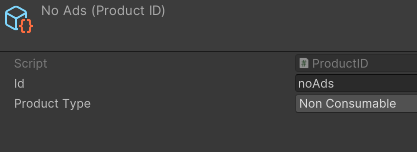
To set up the No Ads product:

1. Select the "NoAds" product in the Project window.
2. In the Inspector, configure the following:
   * **Id**: Set to "noAds"
   * **Product Type**: Set to "Non Consumable"\ <br>

     <figure><img src="https://2423037410-files.gitbook.io/~/files/v0/b/gitbook-x-prod.appspot.com/o/spaces%2FixseEfHbM88cpcinnJo4%2Fuploads%2FiBWEFsxt8l1YwLDBO6EE%2Fimage.png?alt=media&amp;token=c62735fd-ab1b-4803-ad07-db9789ba8723" alt=""><figcaption></figcaption></figure>

### Best Practices

1. **Unique Identifiers**: Ensure each product has a unique Id that matches the identifier in your app store console (Google Play Store, Apple App Store, etc.).
2. **Consumable vs Non-Consumable**: Double-check that coin products are set as "Consumable" and the No Ads product is set as "Non Consumable".
3. **Naming Convention**: Maintain a clear naming convention for easy management, especially if you plan to add more products in the future.
4. **Version Control**: Keep these product definitions under version control to track changes over time.

### Integration Steps

1. **Store Integration**: Ensure your game's store UI references these product Ids correctly when initiating purchases.
2. **Purchase Validation**: Implement proper purchase validation logic in your game to verify and process these products when purchased.
3. **Store Listing**: Update your app store listings with the corresponding product information, ensuring the Ids match exactly.

### Technical Note

These product definitions are used by Unity's IAP system to manage in-app purchases. Make sure you have the Unity IAP package installed and properly configured in your project.

By following this setup, you'll have a structured system for managing in-app purchases in your Spot the Difference game, allowing players to buy coins and remove ads seamlessly.


# Ads mediation (Levelplay/IronSource) setup

### Installation <a href="#installation" id="installation"></a>

* Install Ads mediation using [Package manager](https://docs.unity3d.com/Manual/upm-ui.html) type 'Ads mediation' in search
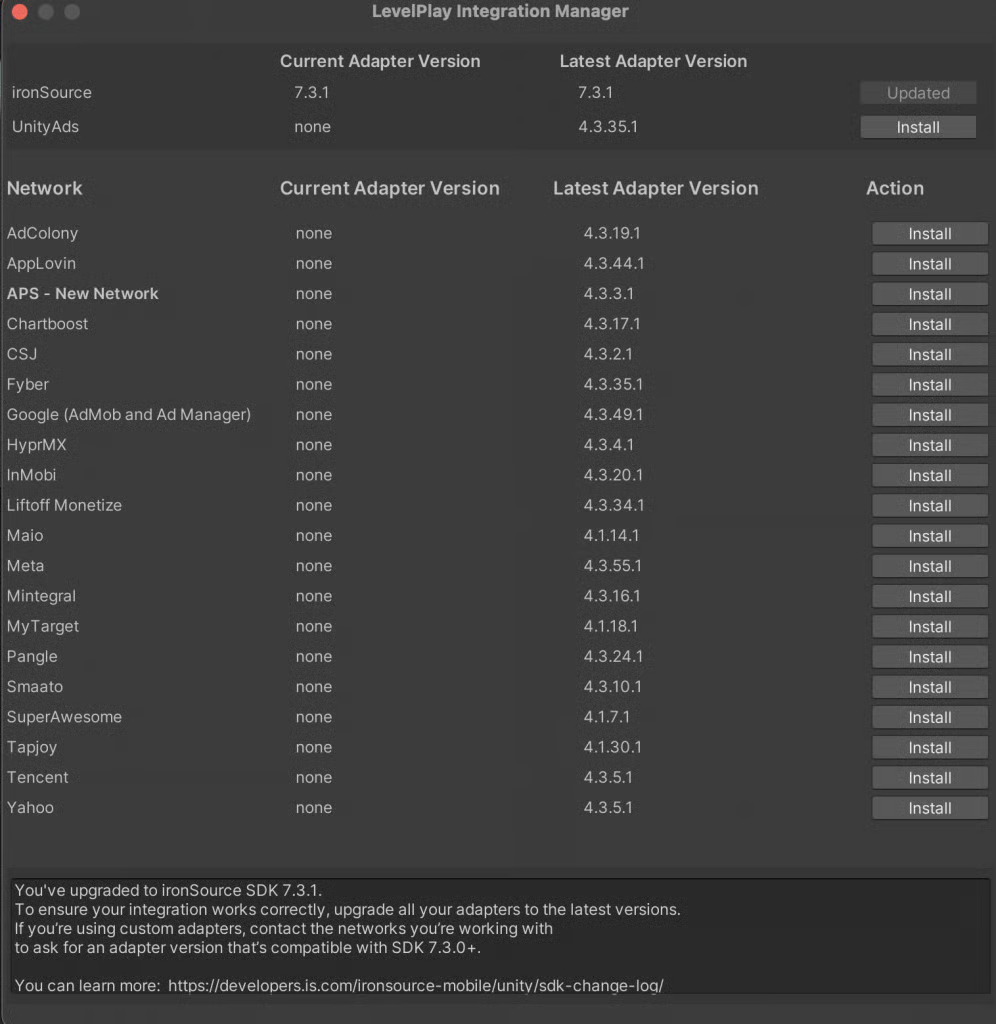
* Go to Ads mediation -> Network ManagerInstall the adapters of your preferred ad networks. Make sure to follow the ad network integration guides on the menu to your left to properly set up the ad networks. Update IronSource adapter to a latest available version.​

<figure><img src="https://2423037410-files.gitbook.io/~/files/v0/b/gitbook-x-prod.appspot.com/o/spaces%2FixseEfHbM88cpcinnJo4%2Fuploads%2FGpaOFbb3kASDYk1ubWMa%2Fimage.png?alt=media&amp;token=d4b5286f-ae91-462e-85c9-d044070674d0" alt=""><figcaption></figcaption></figure>

### Setup <a href="#setup" id="setup"></a>

* Use [Ads settings ](https://app.gitbook.com/o/G3NJ6hsnsQeEHwEGnbe9/s/GB7CK9gu3AIGgNgqIdcY/tutorials/ads-setup/ads-settings)to fill your app id and placements id from ironSource account
* Use [Mediation Networks Guides ](https://developers.is.com/ironsource-mobile/unity/admob-mediation-guide/#step-1)to setup networks you are going to use for mediation


# Unity Ads Integration Guide

1. Window->Package manager and install Advertisement Legacy<br>

   <figure><img src="https://2423037410-files.gitbook.io/~/files/v0/b/gitbook-x-prod.appspot.com/o/spaces%2FixseEfHbM88cpcinnJo4%2Fuploads%2FJqsYC2uWDYRbh7QBS4ki%2Fimage.png?alt=media&amp;token=60bedc5c-0cc6-4a2c-8ad6-e1238385e65d" alt=""><figcaption></figcaption></figure>
2. Copy the game id from the Unity ads service to the game editor<br>

   <figure><img src="https://lh6.googleusercontent.com/rgTw1FIiv2RZ1iCydiB2sr21UE4zPbdLxe1kzBY1lvxC8VvA6so0K8cR6f2WqJSRLfhJCUhfHt6DoFGQALJgleHL2Q6TJJ0ipMjKHvQs7eLjgah9bBS-DXH1cec3PNPvrOz2o_D8jeEq4X1al0CVpg" alt=""><figcaption></figcaption></figure>
3. Test the ads in the Unity Editor first<br>

   <figure><img src="https://2423037410-files.gitbook.io/~/files/v0/b/gitbook-x-prod.appspot.com/o/spaces%2FixseEfHbM88cpcinnJo4%2Fuploads%2FsSYuReJhTVfwwOmsmE48%2Fimage.png?alt=media&amp;token=a5fc41cd-aa13-4705-860d-c010cd1f5faa" alt=""><figcaption><p>How Unity ads looks in editor</p></figcaption></figure>


# Google Mobile ads integration

<mark style="color:red;">**Warning:**</mark> we are not related for proper work of this plugin

### Installation <a href="#installation" id="installation"></a>

* Download the latest Admob release [here](https://github.com/googleads/googleads-mobile-unity/releases)
* Run and import downloaded package

  <figure><img src="https://docs.candy-smith.com/~gitbook/image?url=https%3A%2F%2F3431102767-files.gitbook.io%2F%7E%2Ffiles%2Fv0%2Fb%2Fgitbook-x-prod.appspot.com%2Fo%2Fspaces%252FGB7CK9gu3AIGgNgqIdcY%252Fuploads%252FdeesGQ1ICZRppMdj9CFA%252Fimage.png%3Falt%3Dmedia%26token%3D4991502c-fcc8-4e8c-b448-80efa9f6baf8&#x26;width=768&#x26;dpr=4&#x26;quality=100&#x26;sign=faec88ff&#x26;sv=2" alt=""><figcaption></figcaption></figure>

### Setup <a href="#setup" id="setup"></a>

1. Go to your Google Mobile Ads account [https://apps.admob.com](https://apps.admob.com/)
2. Add new app to monetise. [Help](https://support.google.com/admob/answer/2773509)
3. Copy app id and ads id and past it into [Ads settings](https://docs.candy-smith.com/bubble-shooter-toolkit/tutorials/ads-setup/ads-settings) to Admob Android or iOS profile
4. Put your app id to **Assets > Google Mobile Ads > Settings**

   <figure><img src="https://docs.candy-smith.com/~gitbook/image?url=https%3A%2F%2F3431102767-files.gitbook.io%2F%7E%2Ffiles%2Fv0%2Fb%2Fgitbook-x-prod.appspot.com%2Fo%2Fspaces%252FGB7CK9gu3AIGgNgqIdcY%252Fuploads%252Fh4a1eeSHuOXgOG30gdC2%252Fimage.png%3Falt%3Dmedia%26token%3D3ef3e659-9b64-4097-aa4d-27e85087dffa&#x26;width=768&#x26;dpr=4&#x26;quality=100&#x26;sign=d1913d1&#x26;sv=2" alt=""><figcaption></figcaption></figure>

&#x20;  5\. Put your ID to the ads settings of the game template<br>

<figure><img src="https://lh3.googleusercontent.com/41G08AF3MFV738lIzCzfWp9If8yleOwx7jrWNLafD2o4k89Y6kIMCiV-r20yI6zePXLaq-PzDdMQuOCxvTqbg1ZErTRaBQnvunrskx9lz00_x_jqY6_sUEoWdx2f8lZodPBNgPLaI4-_85EMK7FUOw" alt=""><figcaption></figcaption></figure>

[Google mobile ads (admob) support](https://github.com/googleads/googleads-mobile-unity/issues)&#x20;

## Troubleshooting

1. If you cannot see your ad use [Sample ad units](https://developers.google.com/admob/ios/test-ads#sample_ad_units) to test it\
   Sometimes it requires a couple of days to activate your new ad if you need more info please contact [Google support](https://admob.google.com/home/request-consult/)
2. Android building problem. Try this<br>

   <figure><img src="https://lh5.googleusercontent.com/aCr4Z-jedKCFfU2hLpUFuigcD36aandzmnJ7sV5ID-vLtvARrFgYSddllJWRY3nHvOf5GVuBTnoDQWs6Px2LaoHCWT9D4mqU082qAkuhptTFC5B6GEhUIibxfPt02SOrDb_a2fCbpf-6pJxGLgKA3g" alt=""><figcaption></figcaption></figure>
3. \
   Delete GoogleMobileAds and Plugins/Android/GoogleMobileAdsPlugin folders and reimport it

   <figure><img src="https://lh5.googleusercontent.com/ourjI08wg3GN6B-OvZeV-tjyQJrZxrRB6FHf9tU-vclY2dVB9glxdUdOx4irrvszlbtWP1ez6xSdTARnZGZGjEeml-2ZnO6vz5YFx9SV932rtxaowRZV-Le5Q_NdRzVtV2M7xdpAxpQ8XmJEhbwAQw" alt=""><figcaption></figcaption></figure>
4. If you have Gradle building problem try this\
   For Win  to clear the .gradle folder inside my %Userfolder%\
   For Mac you can run rm -rf $HOME/.gradle/caches/ in terminal
5. If you use Admob and Chartboost at the same time you should delete Plugins/Android/ChartboostSDK/android-support-v4.jar
6. If you able to see test ads but can’t see real ads
   1. Try to change package id.&#x20;
   2. Try to publish the game
   3. As far as you able to see test ads google says problem can be only in particular admob account, package or adUnit id<br>
7. If you have problems with building for android:

Make sure you haven’t support libraries twice, delete the libraries (marked with red line)<br>

<figure><img src="https://lh3.googleusercontent.com/SGxeKxxgKK5eSQ4ZGmJUJiTcS3lTJVtGUsm5PmOkqM1EKfePwF5j-p3y6I8WxsajJqVKe_UccU6jRJiXVlRhJbflwtIV2wqxILpUhM2pyvxjsVGFC9lOPrJMjohqvuYDEQVLaqZvt0herwkdVfcpkw" alt=""><figcaption></figcaption></figure>

<br>


# Ads settings

After you have created app in your ads account with ads like Banner, Interstitial and Rewarded you need to enter you appID and Placement ID (ads id) . You can create separate ad for each case in the game, that is why we hava separate placement for each event.

Access Ads settings via menu Tools->GameTemplate ->Settings->Ads settings

<figure><img src="https://2423037410-files.gitbook.io/~/files/v0/b/gitbook-x-prod.appspot.com/o/spaces%2FixseEfHbM88cpcinnJo4%2Fuploads%2FUNk73zouDzEXbfSwDjrx%2Fimage.png?alt=media&amp;token=6fd5aa45-2c0c-4b8b-9d99-a1d9b63385d1" alt="" width="563"><figcaption><p>Ads settings window</p></figcaption></figure>

### Ads settings:

* **Name** of the ad profile
* **Enable** - enables and disables profile (*several profiles on the same platrform will be shown in order and availability )*
* **Test in editor** - some networks have no ability to test in editor and throws an error
* **Platform** of the ad
* **App id**  - you should take from the ad network account
* **Ads Handler** - is the script of integration, represents particular ad network you going to use for the ad
* **Ad elements:**
  * **Placement id** you should take from ad network account
  * **Ad reference** is the type of the ad, for rewarded ad it is also a reference to gameObject [(How to setup rewarded ads)](#rewarded-a-ds)
  * **Popup** is popup which triggers interstitial. You can setup separate **placement id** for a popup for deeper analytics.
  * Show On Open/Close - a moment to open an ad before or after popup

### Rewarded ads

How to setup rewarded adsYou can find example of using rewarded ads in next popups: Resources/Popups

* **LifeShop**
* **LuckySpin**
* **PreFail**
* **PreFailTime**

To add rewarded ad for a popup add **RewardedButtonHandler** component

<figure><img src="https://2423037410-files.gitbook.io/~/files/v0/b/gitbook-x-prod.appspot.com/o/spaces%2FixseEfHbM88cpcinnJo4%2Fuploads%2FGDB4DT8CJSSFrjyc2kaZ%2Fimage.png?alt=media&amp;token=2ebae492-db56-4e29-9bd2-2400efb5e03a" alt="" width="563"><figcaption><p>RewardedButtonHandler using in the LifeShop popup</p></figcaption></figure>

* Choose **Ad Reference** which represents a type of an add but you can create separate references for a rewarded ad for each placement id to separate analitycs.
* Assign **rewarded button** which call a rewarded ad
* Assign a **complete event**, if the rewarded ad successfully completed the event will trigger the method you will assign. In example we call LifeShop.GetLife after the player watched rewarded ad to award him with an extra life.

Troubleshooting:

* Make sure you can see the ads in the editor
* Try get logs from your device, sometime NO FILL is the reason you cannot see the ads. This means no ads available currently for the specific region


# Add rewarded ads to a button

1. Enable **IsRewarded** flag to make the button show rewarded ad and execute the function attached to **OnClick**<br>

   <figure><img src="https://2423037410-files.gitbook.io/~/files/v0/b/gitbook-x-prod.appspot.com/o/spaces%2FixseEfHbM88cpcinnJo4%2Fuploads%2FotVALGklZXh2kKaqQ3Ma%2Fimage.png?alt=media&amp;token=c7e1dfe5-d828-4698-a8c6-9fe83a49ccaf" alt=""><figcaption></figcaption></figure>


# Ads user consent (UMP)

Effectiveness is contingent upon its implementation.

<mark style="color:red;">**Warning:**</mark> we are not related for proper work of this plugin

### Installation <a href="#installation" id="installation"></a>

* Download the latest Admob release [here](https://github.com/googleads/googleads-mobile-unity/releases)
* Run and import downloaded package

  <figure><img src="https://docs.candy-smith.com/~gitbook/image?url=https%3A%2F%2F3431102767-files.gitbook.io%2F%7E%2Ffiles%2Fv0%2Fb%2Fgitbook-x-prod.appspot.com%2Fo%2Fspaces%252FGB7CK9gu3AIGgNgqIdcY%252Fuploads%252FdeesGQ1ICZRppMdj9CFA%252Fimage.png%3Falt%3Dmedia%26token%3D4991502c-fcc8-4e8c-b448-80efa9f6baf8&#x26;width=768&#x26;dpr=4&#x26;quality=100&#x26;sign=faec88ff&#x26;sv=2" alt=""><figcaption></figcaption></figure>

### Setup <a href="#setup" id="setup"></a>

1. Go to your Google Mobile Ads account [https://apps.admob.com](https://apps.admob.com/)
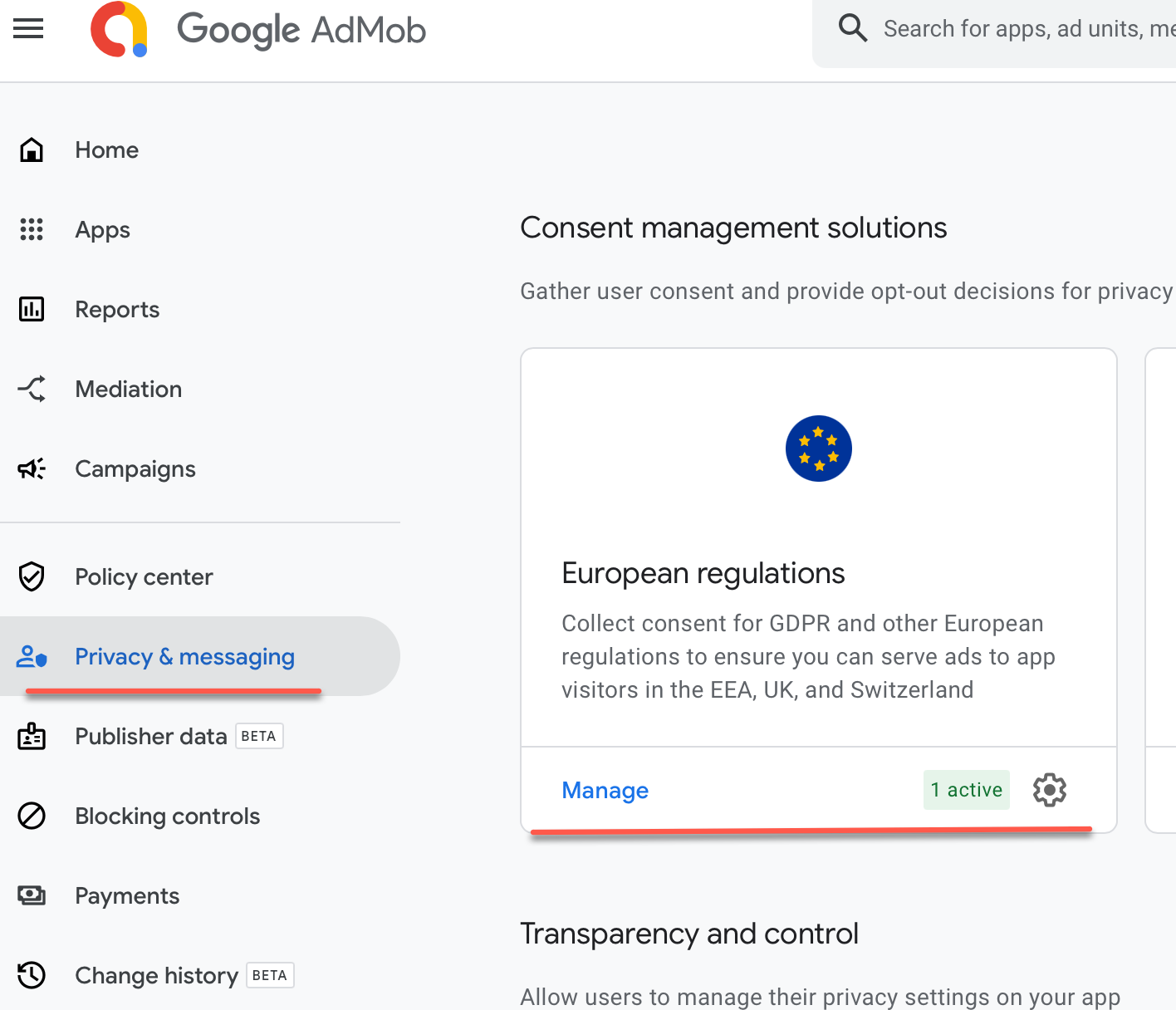
2. In the left menu, open **Privacy & messaging**.
3. Select EU and press Create

<figure><img src="https://2423037410-files.gitbook.io/~/files/v0/b/gitbook-x-prod.appspot.com/o/spaces%2FixseEfHbM88cpcinnJo4%2Fuploads%2FgiMtgv8TnkHPPpb0OxdC%2Fimage.png?alt=media&amp;token=a759598c-123d-4e41-9062-a46618045f55" alt=""><figcaption></figcaption></figure>

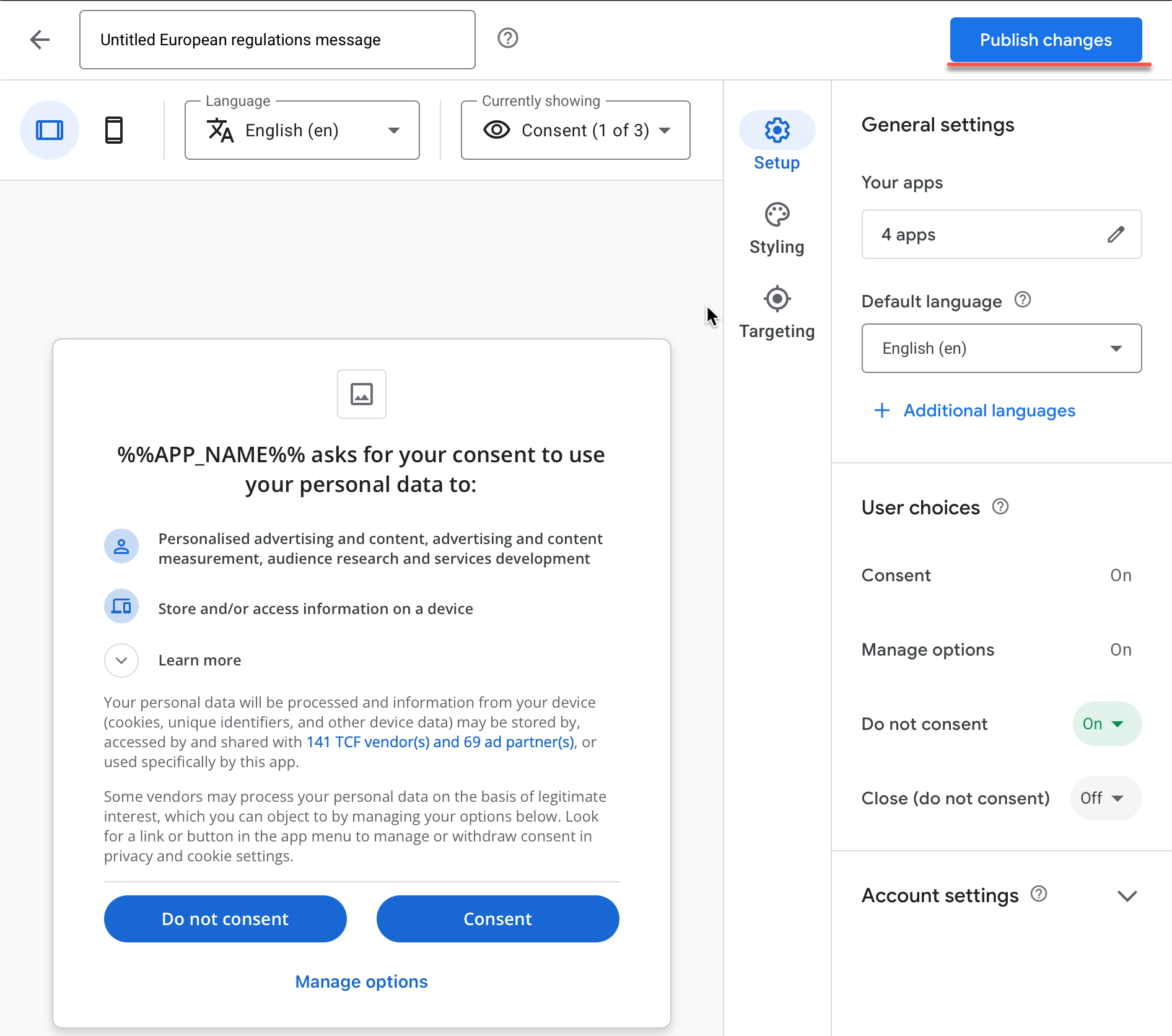
6. Follow the steps, assign apps and design the dialog. Eventually you should have this, Press Publish changes<br>

   <figure><img src="https://2423037410-files.gitbook.io/~/files/v0/b/gitbook-x-prod.appspot.com/o/spaces%2FixseEfHbM88cpcinnJo4%2Fuploads%2Ftxl9zv8D0ZQxpyVzNrJs%2Fimage.png?alt=media&amp;token=48e56731-bcbb-49fc-bd6e-f5c581452fd3" alt=""><figcaption></figcaption></figure>

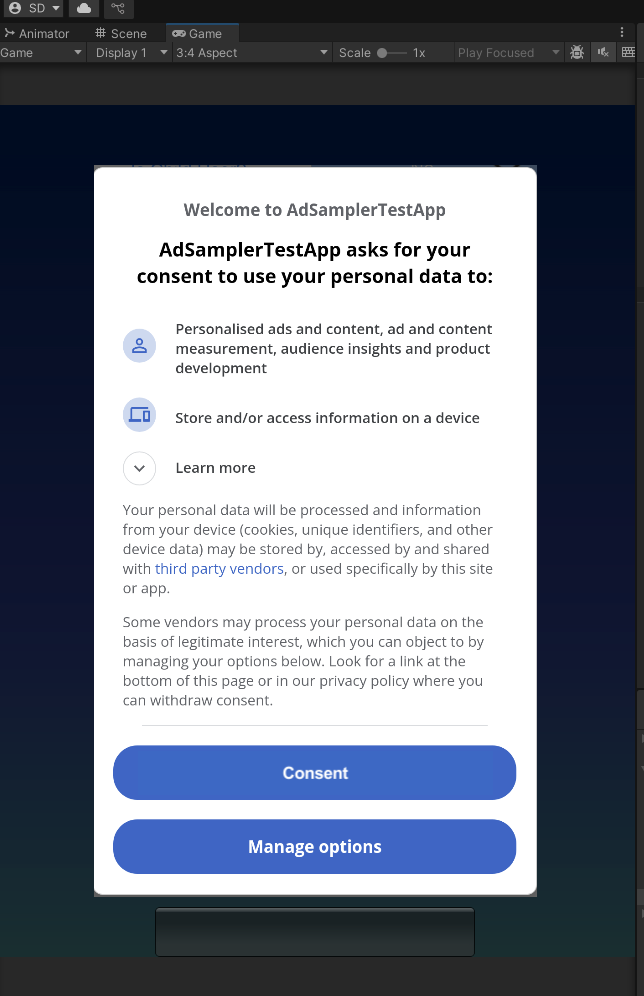
7. Test the consent window in Unity. That will appear instantly.\ <br>

   <figure><img src="https://2423037410-files.gitbook.io/~/files/v0/b/gitbook-x-prod.appspot.com/o/spaces%2FixseEfHbM88cpcinnJo4%2Fuploads%2FtU3yRSDOylgckUKd64dI%2Fimage.png?alt=media&amp;token=03601008-4818-44fc-9afd-0061b24d7b64" alt=""><figcaption></figcaption></figure>


# Localization details

To make text localized you should use LocalizedTextMeshProUGUI component or convert TextMeshPro component by Tools/Replace TMP to LocalizedTMP<br>

<figure><img src="https://2423037410-files.gitbook.io/~/files/v0/b/gitbook-x-prod.appspot.com/o/spaces%2FixseEfHbM88cpcinnJo4%2Fuploads%2FDoQLVBOB8zEEv8sCVIDX%2Fimage.png?alt=media&amp;token=6aea3384-fc05-4124-b17d-051190abeb39" alt=""><figcaption></figcaption></figure>

You will have InstaceID field which associated with key in the localization txt file<br>

<figure><img src="https://2423037410-files.gitbook.io/~/files/v0/b/gitbook-x-prod.appspot.com/o/spaces%2FixseEfHbM88cpcinnJo4%2Fuploads%2F3xwHic5NqzN3fKSstvN1%2Fimage.png?alt=media&amp;token=06bbafb3-271d-41ce-8ce1-dd6861384cf9" alt="" width="375"><figcaption></figcaption></figure>

<figure><img src="https://2423037410-files.gitbook.io/~/files/v0/b/gitbook-x-prod.appspot.com/o/spaces%2FixseEfHbM88cpcinnJo4%2Fuploads%2F7VF5oPFxwJ5NG5njDXG9%2Fimage.png?alt=media&amp;token=6dffcf05-cf33-4a63-b735-087cde6bad37" alt=""><figcaption></figcaption></figure>

To test the language in Unity go to menu Resources/Settings/Debug settings, select Test language<br>


# Font setup

[List of supported languages by Unity](https://docs.unity3d.com/ScriptReference/SystemLanguage.html)&#x20;

<br>

1. Copy file from /Resources/Localization/English.txt\
   ![](https://lh7-rt.googleusercontent.com/docsz/AD_4nXdjXGpayxFowSfqQl9Qrwc874lrtmfrL8g7DnSVxnZqC4FvNXcBLpGzneTBffIs3gBsxmOdMRLlqcYRs-nGAMUmewp5xfEndlGTMHSERAM-1l1GXKOYBo3UidHb2-_pDkxierSXIFFvhnypV8Dr6JtcNA?key=XTV5tGF-nOd6z5zdwRp6jw)
2. Rename the copied file into a language you wish to translate\ <br>
3. Translate the content of the file keeping the line numbers, I have created the Russian.txt as an example\ <br>
4. You can find your new font [here](https://fonts.google.com/) or on another site. Make sure your font supports desired language. Then copy it into SweetSugar/Fonts\ <br>
5. Go to Window TextMeshPro->Font asset creator\
   ![](https://lh7-rt.googleusercontent.com/docsz/AD_4nXc6s2AXPzOEixCdFEKsd45L2ow9xAKX0jn_vlQiw1TqMQzRhCZHtrlkADleBniTLCb2BA6meRHN1OOchmwEIq_hKEIEXXqTw03EgRWxqDiwi9yXdRDjfLCn1SHb3BWkuj8a9veKq3VUkGZEXoavXYAzQw?key=XTV5tGF-nOd6z5zdwRp6jw)
6. Select your font
7. In Character Set select Unicode Range (Hex)\ <br>
8. Check the Unicode table to find your language [here](https://symbl.cc/en/unicode/blocks/)
9. In the site, for example, I selected Cyrillic characters\
   ![](https://lh7-rt.googleusercontent.com/docsz/AD_4nXeOODEJwOs3JtjAI4ZTlcdKlHjXOPb5HIE9O4Cv5nDm620mXbbOaYNlz5A-MX7VTDXudyLMmuKq6MLXVKDVEeRAvZ0s5sqGNMrE9E-lfNu_3ghSvjp6C4M31TLQqcWHVue_9WmljhPcIofFscB4Y4azfkM?key=XTV5tGF-nOd6z5zdwRp6jw)
10. Set the range into Character Sequence (Hex) of the Font Asset Creator. (don’t copy it from the site to avoid wrong symbols, just type it)
11. In Character Set select 'Unicode Range (Hex)'
12. Press Generate Font Altas and Save it into the project, use a different name than font name\
    ![](https://lh7-rt.googleusercontent.com/docsz/AD_4nXfgXqMmnB7xA-TgTxNxDbtb93M7_8YjuR9QKLBbLY2nGK9HkhkT05WH91zmHzEL-a3woGL-MGxAsTqrCYVazuSwN6h2Xh7He_yUI1rGYZNuvtGuMhClTu93c351pg52lIZgWbbX2L1LYxCg2b2LEuPspY4?key=XTV5tGF-nOd6z5zdwRp6jw)
13. In the Project window select SweetSugar/TextMesh Pro/Resources/TMP Settings\
    ![](https://lh7-rt.googleusercontent.com/docsz/AD_4nXfdvN6YBwSZWd5QBUhZ5qBzvyYHMa4-Y-wv9UxuiFz2f97HTa7DE4etQWE2Ts56EdHTMTjAjq5wNn1W2YuxWftmsoQDE4L6A6c7b-NJ2DJHUmYDMNcyBecSwJHUzMFxzsBNXrghy9qFSe4P_9pT1qMdNkM?key=XTV5tGF-nOd6z5zdwRp6jw)
14. Add your created Font Asset in Fallback Font Assets list\
    ![](https://lh7-rt.googleusercontent.com/docsz/AD_4nXfb0jIg9Ggb44gsYiFV9wnmltNfVDkngDhsliTxUq142K2_ga04ECqdc4bDtKY_XL-EEKhpJAmthZRcvPYPkROQik4Zkrg4d7pDzQe0ppAH-I6P2ffFQ0vl7CoX2fDEnSvjId12Ofk1G1-_0e6VScAuiA?key=XTV5tGF-nOd6z5zdwRp6jw)\ <br>
15. To test the language in Unity go to menu Resources/Settings/Debug settings, select Test language\
    ![](https://lh7-rt.googleusercontent.com/docsz/AD_4nXd8KgXRQJhNaIU83wv_9QRGRDdysYCfVxZKcCsTY8zOklqWGGBqki4fIUPBKrmKfa7tcnRCs2sG4wTg6YWl3b1J1ojjH7G8DYMa4nzy410VPt6aH7FqAXE0lKD4-xxKGQNFTBiq8W9dhSVF29-xNO65P60?key=XTV5tGF-nOd6z5zdwRp6jw)

You can add your text in the English.txt file, but don’t change indexes. Only text. If you wish to add your new line - add it to the end of the file with a new index


# Sprite atlas and editor. Editor artifacts

For convenience of reskining editor uses the gameplay sprites directly. You can change sprites and see the changes in the editor.

**Problem Description:** However somehow in the runtime it may be strange to see an atlas instead of sprites in the editor.

<figure><img src="https://2423037410-files.gitbook.io/~/files/v0/b/gitbook-x-prod.appspot.com/o/spaces%2FixseEfHbM88cpcinnJo4%2Fuploads%2FRufV78bPSC8mZdq7xGQl%2Fimage.png?alt=media&amp;token=8cfd95ca-e9de-46be-a73b-034df8973484" alt="" width="360"><figcaption></figcaption></figure>

**Solution:** To avoid this issue. Swich the **Sprite Packer** to **Enable for Builds**

<figure><img src="https://2423037410-files.gitbook.io/~/files/v0/b/gitbook-x-prod.appspot.com/o/spaces%2FixseEfHbM88cpcinnJo4%2Fuploads%2FJyljBIneWzns420Z7oHO%2Fimage.png?alt=media&amp;token=fd7575cc-9c68-4810-9665-6a9a959c5897" alt=""><figcaption></figcaption></figure>

And you will see the editor fine during the runtime.

<figure><img src="https://2423037410-files.gitbook.io/~/files/v0/b/gitbook-x-prod.appspot.com/o/spaces%2FixseEfHbM88cpcinnJo4%2Fuploads%2F2epGEJoG2kaDCtQSaxKJ%2Fimage.png?alt=media&amp;token=1ab3b84a-22a2-46dc-b0dd-faee2e5e475c" alt=""><figcaption></figcaption></figure>


# README

The kit includes one common analytics pipeline with four selectable providers:

* Unity Analytics
* Firebase Analytics
* GameAnalytics
* ByteBrew

```
Gameplay, ads, and purchases
            ↓
AnalyticsEventTracker / AdsListener
            ↓
      IAnalyticsService
            ↓
   Selected analytics provider
```

The common runtime assembly is `CandySmith.Analytics`. Each provider implementation is isolated in its own assembly, so Firebase, GameAnalytics, and ByteBrew are optional dependencies.

## Common settings

Open:

```
Assets/HomeDesignMatch3Kit/Resources/Settings/GameSettings.asset
```

Use the `Analytics` section:

* `Analytics Provider` selects the provider used at runtime.
* `Enable Analytics` enables or disables analytics collection.

Unity Analytics is selected by default.

Only the selected provider is initialized. The other provider folders may remain in the project.

Optional provider assemblies use SDK-specific assembly definition constraints. Therefore, missing Firebase, GameAnalytics, or ByteBrew SDKs do not produce compilation errors.

{% hint style="warning" %}
If a provider is selected without its SDK and scripting define, the game reports an explicit initialization error instead of silently switching to another provider.
{% endhint %}

## Consent and data collection

`Enable Analytics` is the kit-level collection switch. For production, keep analytics disabled until the game's privacy and consent flow allows data collection.

The runtime service exposes:

```csharp
IAnalyticsService.SetDataCollectionEnabled(bool enabled);
```

{% hint style="info" %}
The kit-level setting does not replace platform-specific privacy requirements such as iOS App Tracking Transparency, Firebase consent configuration, or advertising network consent requirements.
{% endhint %}

## Provider documentation

* [Unity Analytics](/main/general-info/analytics/unity-analytics)
* [Firebase Analytics](/main/general-info/analytics/firebase)
* [GameAnalytics](/main/general-info/analytics/gameanalytics)
* [ByteBrew](/main/general-info/analytics/bytebrew)
* [Adding custom events and consent](/main/general-info/analytics/custom-events)
* [Troubleshooting](/main/general-info/analytics/troubleshooting)


# unity analytics

Unity Analytics is the default analytics provider.

The Unity Analytics package is referenced through the Unity Package Manager. Custom event schemas and funnels must exist in the selected Unity Gaming Services environment before the game can send custom events.

## Unity Analytics Schema Setup Wizard

Open:

```
HomeDesignMatch3Kit > Settings > Analytics Schema Setup
```

<figure><img src="https://2423037410-files.gitbook.io/~/files/v0/b/gitbook-x-prod.appspot.com/o/spaces%2FixseEfHbM88cpcinnJo4%2Fuploads%2FqGfWa2WkX9zJHR99VeN5%2Fimage.png?alt=media&amp;token=eb816003-ccc7-432d-af35-2ca07ed209ad" alt=""><figcaption></figcaption></figure>

The wizard contains four steps:

{% stepper %}
{% step %}

## Connect the Unity project

1. Select `Authorize Unity Editor` and sign in with the buyer's Unity ID.
2. Select `Link Project` and link the buyer's Unity Gaming Services project.
3. Select `Select Environment` and choose the environment used by the game.
4. Select `Refresh Status`.

The `Review Events` button becomes available only when the Unity ID, organization, project, project ID, and environment are available.

Use a test environment during development and a production environment for the release build.
{% endstep %}

{% step %}

## Review the analytics schema

The wizard displays all events and funnels included in the kit.

Review the schema before publishing it to the selected environment.

The wizard also displays a special note about Unity's standard `adImpression` event.
{% endstep %}

{% step %}

## Populate Unity Analytics

Select:

```
Populate Events
```

The wizard uses the authenticated Unity Editor session to create or update:

* analytics parameters;
* custom event schemas;
* event descriptions;
* missing event parameters;
* analytics funnels.

The operation is safe to run again. Existing definitions are reused, incomplete events are updated, and duplicates are not intentionally created.

The Unity ID must have permissions to manage events and funnels in the buyer's UGS project.

A `403 Forbidden` response usually means that:

* Analytics is not enabled for the project;
* the Unity ID does not have permission to manage events;
* the Unity ID does not have permission to manage funnels.
  {% endstep %}

{% step %}

## Verify the setup

After publishing, select:

```
Open Unity Analytics Event Manager
```

Verify the created event schemas and funnels in the Unity Dashboard.
{% endstep %}
{% endstepper %}

## Unity Analytics IDs

No Unity Analytics IDs are hard-coded in the asset.

There are no Unity Analytics ID fields in `GameSettings`.

The wizard reads all required IDs from the Unity Editor and the active UGS environment.

| Value           | Source                                                                             | Enter manually? |
| --------------- | ---------------------------------------------------------------------------------- | --------------- |
| Organization ID | Organization of the linked Unity Cloud project                                     | No              |
| Project ID      | UGS project linked in `Edit > Project Settings > Services`                         | No              |
| Environment ID  | Active environment selected in `Edit > Project Settings > Services > Environments` | No              |

If the project or environment is changed, select `Refresh Status` before continuing.

The schemas are created only in the currently selected environment. They are not automatically created in every environment.

## Are Unity Analytics events added manually?

No.

For the events listed below, the `Populate Events` button performs the Event Manager setup automatically.

It creates missing parameters, creates missing custom events, enables incomplete events, updates descriptions, adds missing parameters, and creates missing funnels.

Unity's standard `adImpression` event is handled separately. The wizard does not create a custom event named `ad_impression`.

At runtime, the kit maps `ad_impression` to Unity Analytics' standard ad impression event.

If the wizard cannot be used, select:

```
Copy Schema Checklist
```

Then create the custom events and parameters manually in Unity Analytics Event Manager.

Funnels must be created manually if the wizard is not used.

## Custom event schemas

Parameter names and types are case-sensitive.

| Event               | Parameters                                                                                                         |
| ------------------- | ------------------------------------------------------------------------------------------------------------------ |
| `gameplay_entered`  | `level_number` — INTEGER                                                                                           |
| `level_started`     | `level_number` — INTEGER; `attempt_number` — INTEGER                                                               |
| `level_completed`   | `level_number` — INTEGER; `attempt_number` — INTEGER; `duration_sec` — FLOAT; `score` — INTEGER; `stars` — INTEGER |
| `level_failed`      | `level_number` — INTEGER; `attempt_number` — INTEGER; `duration_sec` — FLOAT; `fail_reason` — STRING               |
| `popup_opened`      | `popup_id` — STRING; `level_number` — INTEGER                                                                      |
| `popup_closed`      | `popup_id` — STRING; `popup_result` — STRING; `duration_sec` — FLOAT; `level_number` — INTEGER                     |
| `ad_completed`      | `ad_provider` — STRING; `placement_id` — STRING; `ad_type` — STRING                                                |
| `ad_reward_granted` | `ad_provider` — STRING; `placement_id` — STRING; `ad_type` — STRING                                                |
| `ad_show_failed`    | `ad_provider` — STRING; `placement_id` — STRING; `ad_type` — STRING                                                |
| `ad_clicked`        | `ad_provider` — STRING; `placement_id` — STRING; `ad_type` — STRING                                                |
| `iap_started`       | `product_id` — STRING                                                                                              |
| `iap_completed`     | `product_id` — STRING                                                                                              |
| `iap_failed`        | `product_id` — STRING; `fail_reason` — STRING                                                                      |

## Automatically tracked events

* `AnalyticsEventTracker` tracks gameplay entry.
* `AnalyticsEventTracker` tracks level start, completion, and failure.
* `AnalyticsEventTracker` tracks popup open and close events.
* `AnalyticsEventTracker` tracks IAP start, completion, and failure.
* `AdsListener` tracks ad impressions.
* `AdsListener` tracks ad completion, reward, failure, and click events.

Game code does not need to call a different API for each analytics provider.

All events are sent through the selected `IAnalyticsService` implementation.

## Unity Analytics funnels

The wizard creates the following funnels:

| Funnel                                    | Steps                                                   |
| ----------------------------------------- | ------------------------------------------------------- |
| `HomeDesignMatch3Kit - Level Progression` | `level_completed` with `level_number` 1 → 2 → 3 → 4 → 5 |
| `HomeDesignMatch3Kit - First Purchase`    | `iap_started` → `iap_completed`                         |
| `HomeDesignMatch3Kit - Rewarded Ad`       | `ad_completed` → `ad_reward_granted`                    |

Funnels are created in the selected environment and use a 30-day duration filter.

## Official documentation

* [Configure a project for Unity Cloud](https://docs.unity.com/en-us/cloud/projects/configure-project-for-unity-cloud)
* [Create a custom Unity Analytics event](https://docs.unity.com/en-us/analytics/events/custom-event)
* [Copy custom events to another environment](https://docs.unity.com/en-us/analytics/events/copy-custom-events-to-another-environment)


# custom events

## Adding a new analytics event

The included event list is automatic, but adding a new event requires three changes.

{% stepper %}
{% step %}

### Add the event name

Add the stable event name to:

```
AnalyticsEventNames
```

Example:

```csharp
public const string TutorialCompleted = "tutorial_completed";
```

{% endstep %}

{% step %}

### Add the schema

If Unity Analytics schema provisioning is required, add the event and its parameters to:

```
AnalyticsSchemaCatalog
```

Define:

* event name;
* description;
* parameter names;
* parameter types;
* parameter descriptions.

Parameter names must match the names used by the runtime event.
{% endstep %}

{% step %}

### Emit the event

Send the event from the relevant runtime system through:

```
IAnalyticsService
```

The event is then routed to the selected provider.

Firebase and ByteBrew can send a new generic event without provider-specific mapping.

GameAnalytics sends generic events as design events unless the event requires special progression or ad mapping.
{% endstep %}
{% endstepper %}

After adding a Unity Analytics schema, run:

```
HomeDesignMatch3Kit > Settings > Analytics Schema Setup > Populate Events
```

Run the wizard for every UGS environment where the schema is required.

## Analytics consent

`Enable Analytics` is the main kit-level collection switch.

The game initializes the selected provider and then applies the value of:

```csharp
GameSettings.enableAnalytics
```

For a production privacy flow:

{% stepper %}
{% step %}
Keep analytics disabled before consent.
{% endstep %}

{% step %}
Display the appropriate privacy or consent UI.
{% endstep %}

{% step %}
Enable analytics only after the user grants consent.
{% endstep %}

{% step %}
Disable analytics if consent is rejected or withdrawn.
{% endstep %}
{% endstepper %}

The runtime service exposes:

```csharp
IAnalyticsService.SetDataCollectionEnabled(bool enabled);
```

{% hint style="warning" %}
The kit-level setting does not replace:

* iOS App Tracking Transparency;
* platform privacy requirements;
* Firebase consent configuration;
* advertising network consent requirements.
  {% endhint %}


# bytebrew

Use ByteBrew when the buyer's project uses the ByteBrew analytics platform.

## ByteBrew setup

{% stepper %}
{% step %}

### Import the official ByteBrew Unity SDK

{% endstep %}

{% step %}

### Create a ByteBrew GameObject

Open:

```
Window > ByteBrew > Create ByteBrew GameObject
```

{% endstep %}

{% step %}

### Keep one ByteBrew GameObject

Keep exactly one ByteBrew GameObject in the first scene.
{% endstep %}

{% step %}

### Open ByteBrew settings

{% endstep %}

{% step %}

### Enable the target platforms

{% endstep %}

{% step %}

### Copy the buyer's platform-specific Game IDs

Copy the Game IDs from the ByteBrew Dashboard.
{% endstep %}

{% step %}

### Copy the buyer's SDK Key

Copy the SDK Key from the ByteBrew Dashboard.
{% endstep %}

{% step %}

### Enter the values in the ByteBrew settings inspector

{% endstep %}

{% step %}

### Add the SDK define if needed

If the installed package does not define it automatically, add:

```
BYTEBREW_SDK
```

{% endstep %}

{% step %}

### Select ByteBrew in GameSettings

Select `ByteBrew` in `GameSettings`.
{% endstep %}
{% endstepper %}

## ByteBrew IDs and SDK Key

The following values belong in ByteBrew settings:

* Android Game ID
* iOS Game ID
* Web Game ID, if applicable
* SDK Key

{% hint style="warning" %}
Do not add these values to:

* `GameSettings`
* HomeDesignMatch3Kit source files
* the analytics provider code
  {% endhint %}

The provider:

* Sends common events as ByteBrew custom events.
* Converts common analytics parameters to strings.
* Ignores events raised before ByteBrew initialization is complete.

This integration does not use offline event caching for ByteBrew.

{% hint style="info" %}
The Unity Analytics Schema Setup Wizard is not required for ByteBrew.
{% endhint %}

## Official documentation

* [ByteBrew Unity SDK](https://docs.bytebrew.io/sdk/unity)
* [ByteBrew App Settings](https://docs.bytebrew.io/dashboard/gamesettings)


# firebase

Use Firebase Analytics when the buyer's project already uses Firebase or Firebase/Google Analytics reporting.

## Firebase setup

{% stepper %}
{% step %}

## Import the Firebase SDK

Import the official Firebase Unity SDK.
{% endstep %}

{% step %}

## Import Firebase Analytics

Import the Firebase Analytics package, for example `FirebaseAnalytics.unitypackage`.
{% endstep %}

{% step %}

## Register applications

Register the Android and iOS applications in the buyer's Firebase project.
{% endstep %}

{% step %}

## Download configuration files

Download the platform configuration files.
{% endstep %}

{% step %}

## Add configuration files to Unity

Place the configuration files directly in the Unity project's `Assets` folder:

**Android**

```
google-services.json
```

**iOS**

```
GoogleService-Info.plist
```

{% endstep %}

{% step %}

## Verify file names

Make sure the file names are exact and do not contain suffixes such as `(1)` or `(2)`.
{% endstep %}

{% step %}

## Add the scripting define

```
FIREBASE_ANALYTICS
```

{% endstep %}

{% step %}

## Select Firebase

Select `Firebase` in `GameSettings`.
{% endstep %}
{% endstepper %}

## Firebase IDs and configuration

Firebase project and application identifiers belong in the official Firebase configuration files:

* `google-services.json`
* `GoogleService-Info.plist`

Do not add Firebase IDs to:

* `GameSettings`
* the HomeDesignMatch3Kit source files
* the analytics provider code

The provider:

* checks and fixes Firebase dependencies;
* initializes the default Firebase app;
* keeps analytics collection disabled until enabled by the kit setting or consent flow;
* converts common analytics parameter types;
* sends events through `FirebaseAnalytics.LogEvent`.

The Unity Analytics Schema Setup Wizard is not required for Firebase.

Firebase events are defined by the event names and parameters sent through the Firebase SDK and are inspected in Firebase or Google Analytics reporting.

## Official documentation

* [Firebase for Unity setup](https://firebase.google.com/docs/unity/setup)
* [Firebase Analytics events](https://firebase.google.com/docs/analytics/unity/events)


# gameanalytics

Use GameAnalytics when the buyer's project uses the GameAnalytics platform.

## GameAnalytics setup

{% stepper %}
{% step %}

## Install the GameAnalytics Unity SDK

Install the official GameAnalytics Unity SDK through its supported UPM or custom package workflow.

Alternatively, import the official GameAnalytics Unity package.
{% endstep %}

{% step %}

## Open the GameAnalytics window

Open:

```
Window > GameAnalytics
```

{% endstep %}

{% step %}

## Configure the keys

Configure the buyer's `game key` and `secret key`.
{% endstep %}

{% step %}

## Create the GameAnalytics object

Create exactly one GameAnalytics object in the first scene.

The GameAnalytics object must be present when the game starts.

Only one GameAnalytics object should exist in the entire game.
{% endstep %}

{% step %}

## Save the scene

Save the scene.
{% endstep %}

{% step %}

## Add the SDK define if needed

If the installed package does not define it automatically, add:

```
GAMEANALYTICS_SDK
```

{% endstep %}

{% step %}

## Select GameAnalytics

Select `GameAnalytics` in `GameSettings`.
{% endstep %}
{% endstepper %}

## GameAnalytics IDs and keys

The following values belong in the GameAnalytics settings:

* `game key`
* `secret key`

{% hint style="warning" %}
Do not add these keys to:

* `GameSettings`
* HomeDesignMatch3Kit source files
* the analytics provider code
  {% endhint %}

## GameAnalytics event mapping

The provider maps events as follows:

* Level start, completion, and failure are sent as GameAnalytics progression events.
* Ad impression, completion, reward, failure, and click are sent through the native GameAnalytics ad API.
* Gameplay, popup, and IAP events are sent as GameAnalytics design events.
* Common analytics parameters are sent as custom fields.

{% hint style="info" %}
The Unity Analytics Schema Setup Wizard is not required for GameAnalytics.
{% endhint %}

## Official documentation

* [GameAnalytics Unity SDK](https://docs.gameanalytics.com/event-tracking-and-integrations/sdks-and-collection-api/game-engine-sdks/unity/)


# troubleshooting

## Review Events is disabled

Check the following:

{% stepper %}
{% step %}

### Unity Editor is authorized

{% endstep %}

{% step %}

### The buyer's UGS project is linked

{% endstep %}

{% step %}

### An editor environment is selected

{% endstep %}

{% step %}

### Refresh the project

Use `Refresh Status`.
{% endstep %}
{% endstepper %}

## Unity Analytics returns 403 Forbidden

Verify that:

* Analytics is enabled for the buyer's Unity project.
* The Unity ID has permission to manage events.
* The Unity ID has permission to manage funnels.
* The correct UGS project and environment are selected.

## Unity Analytics does not receive events

Verify that:

* `Unity` is selected as the analytics provider.
* `Enable Analytics` is enabled.
* The Unity project is linked to UGS.
* Unity Services initializes successfully.
* The correct UGS environment is selected.
* Custom event schemas exist in that environment.

## Firebase provider is unavailable

Verify that:

* The Firebase Unity SDK is imported.
* The Firebase Analytics package is imported.
* `google-services.json` exists for Android.
* `GoogleService-Info.plist` exists for iOS.
* File names are exact.
* `FIREBASE_ANALYTICS` is defined.
* `Firebase` is selected in `GameSettings`.

## GameAnalytics provider is unavailable

Verify that:

* The GameAnalytics SDK is imported.
* Exactly one GameAnalytics object exists.
* The object is present in the first scene.
* The game key is configured.
* The secret key is configured.
* `GAMEANALYTICS_SDK` is defined when required.
* `GameAnalytics` is selected in `GameSettings`.

## ByteBrew provider is unavailable

Verify that:

* The ByteBrew SDK is imported.
* Exactly one ByteBrew object exists.
* The object is present in the first scene.
* The correct platform is enabled.
* Game IDs are configured.
* The SDK Key is configured.
* `BYTEBREW_SDK` is defined when required.
* `ByteBrew` is selected in `GameSettings`.

## Events are not visible immediately

{% hint style="info" %}
Analytics dashboards are not always real-time.
{% endhint %}

Test events on a device or development build and allow the selected analytics service time to process incoming events.


# Specification

Description of all game objects, as well as the location of the sprites for easy search for reskin.

## **# Main Items**

<mark style="color:green;">**Sprites --> GameScene --> Items**</mark>

<table data-header-hidden><thead><tr><th width="254"></th><th></th><th></th><th data-hidden></th><th data-hidden>Image</th><th data-hidden>Description</th><th data-hidden>Sprite Name</th><th data-hidden></th></tr></thead><tbody><tr><td><div><figure><img src="https://4278897526-files.gitbook.io/~/files/v0/b/gitbook-x-prod.appspot.com/o/spaces%2FAZW1WdzQFhJApXWZBzmi%2Fuploads%2FZP7DvRqI0PIi5NsFLkM5%2F1.png?alt=media&amp;token=4ee5e015-3dc3-482a-a22f-c8b589b0a545" alt=""><figcaption></figcaption></figure></div></td><td><p><mark style="color:orange;"><strong>7 Basic Color Items.</strong></mark> </p><p>To destroy them, need to match at least three items of the same color or more.</p></td><td>item.png</td><td><img src="https://4278897526-files.gitbook.io/~/files/v0/b/gitbook-x-prod.appspot.com/o/spaces%2FAZW1WdzQFhJApXWZBzmi%2Fuploads%2FgZOzqSPvPwF6SC75bY9q%2F1.png?alt=media&amp;token=f699cf32-0717-4cae-8048-212faab98377" alt="" data-size="original"></td><td><img src="https://4278897526-files.gitbook.io/~/files/v0/b/gitbook-x-prod.appspot.com/o/spaces%2FAZW1WdzQFhJApXWZBzmi%2Fuploads%2FDQ3uU1Uajj7b88Y2g2op%2F1.png?alt=media&amp;token=b098ace2-0e2b-457c-a000-8d041e21f133" alt="" data-size="original"></td><td><mark style="color:orange;"><strong>6 Basic Color Items.</strong></mark> To destroy them, need to match at least three items of the same color or more.</td><td>Item_1-6.png</td><td></td></tr></tbody></table>

## # Obstacles and Collectable Items

<mark style="color:green;">**Sprites --> GameScene --> Items**</mark>

<table data-header-hidden><thead><tr><th width="76.33333333333331"></th><th width="165"></th><th width="308"></th><th></th></tr></thead><tbody><tr><td>1</td><td><img src="https://4278897526-files.gitbook.io/~/files/v0/b/gitbook-x-prod.appspot.com/o/spaces%2FAZW1WdzQFhJApXWZBzmi%2Fuploads%2FOGOuKRTaExAau6JcEjzi%2Fcollectable.png?alt=media&amp;token=f9ca5741-c970-4259-b37a-afd0e12ace65" alt="" data-size="original"></td><td><mark style="color:orange;"><strong>Big Container.</strong></mark> <br>Takes up 4 game cells. <br>Contains <strong>9</strong> <strong>collectible items</strong>. To open the lid, you need to destroy a combination of game items near the container or activate any booster or effect from bonus items. In total, it has <strong>10 levels</strong> before complete elimination from the game field.<br><br>One bonus item or booster can destroy only one gem.</td><td>big_box.png</td></tr><tr><td>2</td><td><div><figure><img src="https://4278897526-files.gitbook.io/~/files/v0/b/gitbook-x-prod.appspot.com/o/spaces%2FAZW1WdzQFhJApXWZBzmi%2Fuploads%2FSbF7LHbtqZsYsTTfBsvI%2Fgrass-100x100.png?alt=media&amp;token=53349a88-12f7-418c-a9a8-4ae9a1582add" alt=""><figcaption></figcaption></figure></div></td><td><mark style="color:orange;"><strong>Grass.</strong></mark> <br>It's located on the game field under game items. It has 2 destruction levels. To destroy it, players must destroy the object placed directly above this block.</td><td>game_item_a.png</td></tr><tr><td>3</td><td><img src="https://4278897526-files.gitbook.io/~/files/v0/b/gitbook-x-prod.appspot.com/o/spaces%2FAZW1WdzQFhJApXWZBzmi%2Fuploads%2FGkCnr6NiFtyg0TNTXpbh%2Fwooden-3.png?alt=media&amp;token=7697ed40-a520-40b2-9e1a-2cd500990a01" alt="" data-size="original"></td><td><mark style="color:orange;"><strong>Box.</strong></mark> <br>Has 3 levels. Does not move when items fall. Will be destroyed after destroying any items or boosters near this block.</td><td>game_item_c.png</td></tr><tr><td>4</td><td><img src="https://4278897526-files.gitbook.io/~/files/v0/b/gitbook-x-prod.appspot.com/o/spaces%2FAZW1WdzQFhJApXWZBzmi%2Fuploads%2FrZCWqSVmS0wwprHQRTRt%2Fmail.png?alt=media&amp;token=efc89655-4e45-4dfe-9614-e73b52761978" alt="" data-size="original"></td><td><mark style="color:orange;"><strong>Mail.</strong></mark> <br>It can be hidden behind various game obstacles (wooden boxes, grass, etc.).</td><td>extra-item-2x3.png</td></tr><tr><td>5</td><td><img src="https://4278897526-files.gitbook.io/~/files/v0/b/gitbook-x-prod.appspot.com/o/spaces%2FAZW1WdzQFhJApXWZBzmi%2Fuploads%2F1J3ZXfc69kO2VTmRRYr1%2Fweb.png?alt=media&amp;token=2d70df3d-436d-4458-97a2-fa7bef1dbbce" alt="" data-size="original"></td><td><p><mark style="color:orange;"><strong>Cage Item.</strong></mark></p><p>Holds an item inside. It can be removed after destroying the item.</p></td><td>game_item_b.png</td></tr><tr><td>6</td><td><img src="https://4278897526-files.gitbook.io/~/files/v0/b/gitbook-x-prod.appspot.com/o/spaces%2FAZW1WdzQFhJApXWZBzmi%2Fuploads%2Fy95B3b6sgb36LT3hb0dh%2Fmusic.png?alt=media&amp;token=b3696026-3522-4da1-afe5-d1f6527f38fc" alt="" data-size="original"></td><td><mark style="color:orange;"><strong>Music Box.</strong></mark><br>Unbreakable. Destroy the main objects near the record player to get a music plate.</td><td>music-box-item Folder</td></tr><tr><td>7</td><td><img src="https://4278897526-files.gitbook.io/~/files/v0/b/gitbook-x-prod.appspot.com/o/spaces%2FAZW1WdzQFhJApXWZBzmi%2Fuploads%2FSA06KfmKU05WTq9BRIQS%2Fpiggy.png?alt=media&amp;token=df5350f0-96b6-48d3-b2fe-af70a6b91c41" alt="" data-size="original"></td><td><mark style="color:orange;"><strong>Piggy bank.</strong></mark> <br>To destroy this item, the player needs to create a match-3 nearby, use a booster, or be hit by special bonus items. When destroyed, a coin pops out that is the player's objective. Object remains in place and doesn't fall with other items.<br></td><td>piggy_bank.png<br><br>coins-anim Folder</td></tr><tr><td>8</td><td><img src="https://4278897526-files.gitbook.io/~/files/v0/b/gitbook-x-prod.appspot.com/o/spaces%2FAZW1WdzQFhJApXWZBzmi%2Fuploads%2FVnoTBwMIAu1lf3myw2jj%2Fglass.png?alt=media&amp;token=cc9cc7b3-f476-432f-8aa0-a587d8a220d6" alt="" data-size="original"></td><td><mark style="color:orange;"><strong>Bubble item.</strong></mark> <br>The item cannot be moved when it is inside this object. Can be removed after destroying an item inside</td><td>game_item_g.png</td></tr><tr><td>9</td><td><img src="https://4278897526-files.gitbook.io/~/files/v0/b/gitbook-x-prod.appspot.com/o/spaces%2FAZW1WdzQFhJApXWZBzmi%2Fuploads%2FHWKARj3tKR5DthkzusH4%2Fhoney.png?alt=media&amp;token=11ba1af1-89b3-4c17-8642-2add6a84f8e3" alt="" data-size="original"></td><td><mark style="color:orange;"><strong>Spread item.</strong></mark><br>This item needs to be spread across the entire game field. To achieve this, you must destroy items covering it.</td><td>game_item_f.png</td></tr><tr><td>10</td><td><img src="https://4278897526-files.gitbook.io/~/files/v0/b/gitbook-x-prod.appspot.com/o/spaces%2FAZW1WdzQFhJApXWZBzmi%2Fuploads%2F2l2TD1yHfRBNp34avpXZ%2Ftoy.png?alt=media&amp;token=b2420725-d371-4f75-9822-77d9ea1924ef" alt="" data-size="original"></td><td><mark style="color:orange;"><strong>Toy.</strong></mark> <br>To obtain this item, you need to bring it down to the bottom boundary of the game field. It can be either large (2x2) or small (1x1).</td><td>collectable item Folder</td></tr><tr><td>11</td><td><img src="https://4278897526-files.gitbook.io/~/files/v0/b/gitbook-x-prod.appspot.com/o/spaces%2FAZW1WdzQFhJApXWZBzmi%2Fuploads%2FXVFJ5WlU1vSonJLEA64W%2Fcloud.png?alt=media&amp;token=79cbf010-5a38-4611-9d12-4408f39a7e3a" alt="" data-size="original"></td><td><mark style="color:orange;"><strong>Cover Item.</strong></mark> <br>It covers game objects, hiding them from the player but not containing them inside itself. To destroy this object, you need to destroy game objects that are touching it.</td><td>cover_item.png</td></tr><tr><td>12</td><td><img src="https://4278897526-files.gitbook.io/~/files/v0/b/gitbook-x-prod.appspot.com/o/spaces%2FAZW1WdzQFhJApXWZBzmi%2Fuploads%2FOLELoVmuVh00AFJcYpVL%2Fteleport.png?alt=media&amp;token=34942149-184b-4bf1-b310-535a844738bf" alt="" data-size="original"></td><td><mark style="color:orange;"><strong>Teleports.</strong></mark> <br>Moves items to the specified location.</td><td>teleport.png</td></tr><tr><td>13</td><td><div><figure><img src="https://4278897526-files.gitbook.io/~/files/v0/b/gitbook-x-prod.appspot.com/o/spaces%2FAZW1WdzQFhJApXWZBzmi%2Fuploads%2FF8807tEePXnKxxqcHm3J%2Fflask-200x200.png?alt=media&amp;token=15e99e6f-418a-414b-97ac-76f7e5996aae" alt=""><figcaption></figcaption></figure></div></td><td><mark style="color:orange;"><strong>Colored Extra Items .</strong></mark> <br>It has 4 levels and stays in place. It contains 4 randomly colored flasks. To remove it, destroy the flasks by matching game items of the same colors. One bonus item or booster can destroy only one colored bottle.<br><br><mark style="color:red;"><strong>*</strong></mark> <em>When you select the goal of destroying colored boxes in the game, you will see an icon that is common to all colors (Multicolor flask icon).</em></td><td>big-box_2.png<br><br>game-item_l.png (for flasks)</td></tr><tr><td>14</td><td><img src="https://4278897526-files.gitbook.io/~/files/v0/b/gitbook-x-prod.appspot.com/o/spaces%2FAZW1WdzQFhJApXWZBzmi%2Fuploads%2Fsy2CdVD4B79hilqcOyDO%2Fcs3.png?alt=media&amp;token=fb6f91f8-ca9d-4471-a40b-26415a0e971b" alt="" data-size="original"></td><td><mark style="color:orange;"><strong>Vase.</strong></mark><br>It has 2 levels. To destroy it, create a match-3 next to it, use a booster, or get hit by bonus items. It falls with other items.</td><td>breakable-item.png</td></tr><tr><td>15</td><td><img src="https://4278897526-files.gitbook.io/~/files/v0/b/gitbook-x-prod.appspot.com/o/spaces%2FAZW1WdzQFhJApXWZBzmi%2Fuploads%2FTAu5G9S4YuuWIjjlz70H%2Fdispenser.png?alt=media&amp;token=c0767b4a-6303-47eb-88d9-7d8078de4480" alt="" data-size="original"></td><td><mark style="color:orange;"><strong>Spawner.</strong></mark> <br>It generates a random game item</td><td>spawner-item.png</td></tr><tr><td>16</td><td><img src="https://4278897526-files.gitbook.io/~/files/v0/b/gitbook-x-prod.appspot.com/o/spaces%2FAZW1WdzQFhJApXWZBzmi%2Fuploads%2FDwumRhWxP4HCAanlT1Wi%2Fchoco.png?alt=media&amp;token=5052799c-b846-4168-bceb-87e1de860daf" alt="" data-size="original"></td><td><mark style="color:orange;"><strong>Thriving.</strong></mark> <br>Absorbs any candy in a random order. It can be removed after destroying any candy nearby. In this case, the block does not expand.</td><td>game_item_d.png</td></tr><tr><td>17</td><td><img src="https://4278897526-files.gitbook.io/~/files/v0/b/gitbook-x-prod.appspot.com/o/spaces%2FAZW1WdzQFhJApXWZBzmi%2Fuploads%2FaHSCV4k3PgXFJL54AzqW%2Fcoin-100x100.png?alt=media&amp;token=e5567455-b461-4909-b6ad-5b311de55566" alt="" data-size="original"></td><td><mark style="color:$warning;"><strong>Coins.</strong></mark><br>Game target. As well as a currency that is awarded to the player after completing a level.</td><td>item_08.png</td></tr><tr><td>18</td><td><img src="https://4278897526-files.gitbook.io/~/files/v0/b/gitbook-x-prod.appspot.com/o/spaces%2FAZW1WdzQFhJApXWZBzmi%2Fuploads%2Fha5zyQ2kWKLLfV1aWRfR%2Fbutton.png?alt=media&amp;token=67fc6baf-7034-49b2-b7b0-776b3ab0e87b" alt="" data-size="original"></td><td><mark style="color:orange;"><strong>Button.</strong></mark><br>Can be removed after destroying any candy nearby. This block can be swapped with any candy for a match of 3 or more.</td><td>game_item_e.png</td></tr><tr><td>19</td><td><img src="https://4278897526-files.gitbook.io/~/files/v0/b/gitbook-x-prod.appspot.com/o/spaces%2FAZW1WdzQFhJApXWZBzmi%2Fuploads%2Fle2LvKdZVZV78IbFGuBo%2Fobstacle.png?alt=media&amp;token=a5525b10-9dff-4587-9202-dde2c2c586e5" alt="" data-size="original"></td><td><mark style="color:orange;"><strong>Separator.</strong></mark> <br>Separates game objects. Is an obstacle.</td><td>obstacle-bar.png</td></tr><tr><td>20</td><td><img src="https://4278897526-files.gitbook.io/~/files/v0/b/gitbook-x-prod.appspot.com/o/spaces%2FAZW1WdzQFhJApXWZBzmi%2Fuploads%2FcsYgFRg4YT4qu1xrRrcd%2F%2B5.png?alt=media&amp;token=2cb9a2c2-10a5-4449-8be7-6e0397e2c2eb" alt="" data-size="original"></td><td><p><mark style="color:orange;"><strong>Extra Moves / Time.</strong></mark> </p><p>If a game object has a label +5, it means that after destroying this object, the player is granted an additional 5 moves/seconds.</p></td><td>plus-5-text.png</td></tr><tr><td>21</td><td><img src="https://4278897526-files.gitbook.io/~/files/v0/b/gitbook-x-prod.appspot.com/o/spaces%2FAZW1WdzQFhJApXWZBzmi%2Fuploads%2FTb7fDwRfSDv9uz4nFzrJ%2Fing.png?alt=media&amp;token=a8ef52e6-5501-4c63-9dce-f5f31ffa5abb" alt="" data-size="original"></td><td><mark style="color:orange;"><strong>Ingredients.</strong></mark><br>To collect these items, you need to let them drop to the bottom of the game field.</td><td>ingredient_01(02).png</td></tr></tbody></table>

## # Bonus items

<mark style="color:green;">**Sprites --> GameScene --> Bonus Items**</mark>

{% hint style="info" %}
To activate a bonus item, TAP it or SWAP it with any item next to it.
{% endhint %}

<table data-header-hidden><thead><tr><th width="63"></th><th width="139"></th><th></th></tr></thead><tbody><tr><td>1</td><td><img src="https://4278897526-files.gitbook.io/~/files/v0/b/gitbook-x-prod.appspot.com/o/spaces%2FAZW1WdzQFhJApXWZBzmi%2Fuploads%2FJe9BEmMqdq5zFClr0GEY%2Fbomb_bonus.png?alt=media&amp;token=93e49b84-3ca2-40b6-93a4-ec47829f0681" alt="" data-size="original"></td><td><mark style="color:orange;"><strong>Bomb.</strong></mark> <br>A bonus item is created when you match 5 objects in a T or L shape. It destroys 9 game items around it. To activate it, simply tap on it or combine it with another game booster.</td></tr><tr><td>2</td><td><img src="https://4278897526-files.gitbook.io/~/files/v0/b/gitbook-x-prod.appspot.com/o/spaces%2FAZW1WdzQFhJApXWZBzmi%2Fuploads%2FDrTAJyLeC8NfemNvvZfc%2Fvert-hor%20bomb.png?alt=media&amp;token=842d1635-17f0-4af1-9e88-7891f364f89c" alt="" data-size="original"></td><td><mark style="color:orange;"><strong>Vertical / Horizontal Rocket.</strong></mark> <br>Bonus items are created by matching 4 items of the same color horizontally or vertically. When activated, they destroy everything in the direction of the explosion. To activate them, simply tap on them or combine them with another game booster.</td></tr><tr><td>3</td><td><img src="https://4278897526-files.gitbook.io/~/files/v0/b/gitbook-x-prod.appspot.com/o/spaces%2FAZW1WdzQFhJApXWZBzmi%2Fuploads%2FwJbq10NZUa28LBEJ628v%2Frocket.png?alt=media&amp;token=b34963a8-bf7f-49c1-b5d0-1e71a148ae44" alt="" data-size="original"></td><td><mark style="color:orange;"><strong>Flying Bomb.</strong></mark> <br>Bonus items can be created when you match 4 objects in an O shape. When activated, they destroy random items on the game field. To activate them, simply tap on them or combine them with another game booster.</td></tr><tr><td>4</td><td><img src="https://4278897526-files.gitbook.io/~/files/v0/b/gitbook-x-prod.appspot.com/o/spaces%2FAZW1WdzQFhJApXWZBzmi%2Fuploads%2FtsBk3Fvk8gBfy5O4mfAq%2Fmulticolor_bonus.png?alt=media&amp;token=fd1e0061-a59e-447d-baa3-1e5b08ea8b36" alt="" data-size="original"></td><td><mark style="color:orange;"><strong>Multicolor. Multicolor bomb.</strong></mark> <br>When 5 objects match in a single row, a bonus item is created. Combining a Multicolor bomb with any items will remove all candies of the same color from the game field.</td></tr></tbody></table>

## # Boosters

<mark style="color:green;">**Sprites --> GameScene --> Bonus Items**</mark>

<table data-header-hidden><thead><tr><th width="72"></th><th width="134"></th><th></th></tr></thead><tbody><tr><td>1</td><td><img src="https://4278897526-files.gitbook.io/~/files/v0/b/gitbook-x-prod.appspot.com/o/spaces%2FAZW1WdzQFhJApXWZBzmi%2Fuploads%2FKr4MQUBp70clUCtfWPm5%2Fhammer.png?alt=media&amp;token=e6f9a176-2523-4d6a-b678-592f7a73bb45" alt="" data-size="original"></td><td><mark style="color:green;"><strong>Hammer.</strong></mark> Destroys one chosen item on the game field.</td></tr><tr><td>2</td><td><img src="https://4278897526-files.gitbook.io/~/files/v0/b/gitbook-x-prod.appspot.com/o/spaces%2FAZW1WdzQFhJApXWZBzmi%2Fuploads%2FcYNCfPsQ3cbxCGxK1ahe%2Fvacuum-cleaner.png?alt=media&amp;token=84624d79-990f-4982-9f1d-132f15fc33b7" alt="" data-size="original"></td><td><mark style="color:green;"><strong>Vacuum Сleaner.</strong></mark> Destroys one horizontal row.</td></tr><tr><td>3</td><td><img src="https://4278897526-files.gitbook.io/~/files/v0/b/gitbook-x-prod.appspot.com/o/spaces%2FAZW1WdzQFhJApXWZBzmi%2Fuploads%2FJrrsdVDXgbeQG6oTlPrH%2Froller.png?alt=media&amp;token=4eebbe78-443a-459d-9124-1a0ef6bd9297" alt="" data-size="original"></td><td><mark style="color:green;"><strong>Paint Roller</strong></mark>. Destroys one vertical column.</td></tr><tr><td>4</td><td><img src="https://4278897526-files.gitbook.io/~/files/v0/b/gitbook-x-prod.appspot.com/o/spaces%2FAZW1WdzQFhJApXWZBzmi%2Fuploads%2F4FYQlTuMZNyX7vgPh9pU%2Fdice.png?alt=media&amp;token=06e785bf-1332-4a58-9f72-b5203aea5c8f" alt="" data-size="original"></td><td><mark style="color:green;"><strong>Dice.</strong></mark> Shuffles the main game objects.</td></tr><tr><td>5 </td><td><img src="https://4278897526-files.gitbook.io/~/files/v0/b/gitbook-x-prod.appspot.com/o/spaces%2FAZW1WdzQFhJApXWZBzmi%2Fuploads%2FVROEAZGH58c2Fop3Qy8f%2F5.png?alt=media&amp;token=18b0a51a-3f3a-4fa3-9e5e-3cfb8d2f1e94" alt="" data-size="original"></td><td><mark style="color:green;"><strong>Extra Moves / Times.</strong></mark> Add 5 steps or 30 sec after a loss so that the player can continue the game</td></tr></tbody></table>


# Project Navigator (Unity Search)

Project Navigator extends Unity Search with framework-aware asset indexing, allowing you to instantly find project resources without browsing the Project window.

Type `nav:` followed by a keyword, for example:

* `nav: character`
* `nav: boosters`
* `nav: popup`
* `nav: sprites`
* `nav: animations`

The search returns matching project resources, including:

* Objects in the scene
* Prefabs
* ScriptableObjects
* Sprites
* Animations
* Project settings
* Other framework resources

Project Navigator automatically indexes framework-specific assets such as boosters, popup prefabs, shop resources, gameplay settings, and other commonly used project files.

Tip

Double-click a search result to open the asset directly, or select it to highlight the asset in the Project window.

<figure><img src="https://4278897526-files.gitbook.io/~/files/v0/b/gitbook-x-prod.appspot.com/o/spaces%2FAZW1WdzQFhJApXWZBzmi%2Fuploads%2FRuAgshOPPx4QtGGi9S1v%2Fimage.png?alt=media&amp;token=64b31cd5-0247-421d-a7da-55b34ebb6bee" alt=""><figcaption></figcaption></figure>


# Shortcuts

## Gameplay

Gameplay shortcuts are available only when Debug Settings > Enable Hotkeys is enabled.

| Shortcut | Action                                                  |
| -------- | ------------------------------------------------------- |
| W        | Instantly win the level.                                |
| L        | Instantly lose the level.                               |
| M        | Set the remaining moves to 1.                           |
| R        | Restart the current level.                              |
| S        | Switch to the next sub-level.                           |
| G        | Regenerate the board when no valid moves are available. |
| Space    | Regenerate the board when no valid moves are available. |
| F4       | Save the current replay to the Resources folder.        |
| F5       | Save the current replay session.                        |
| F6       | Play the saved replay session.                          |
| Esc      | Back button mapping.                                    |

Note

`F4`, `F5`, and `F6` are available only when the `GAMEPLAY_REPLAY` scripting define is enabled.

Keyboard shortcuts can be customized in:

`Resources/Settings/DebugSettings`

***

### Stage

| Shortcut | Action                                                     |
| -------- | ---------------------------------------------------------- |
| O        | Complete the current stage and purchase all stage objects. |
| I        | Open the win popup with a test reward.                     |

These shortcuts are intended for testing in the Unity Editor.

***

### Meta Navigation

| Shortcut | Action                              |
| -------- | ----------------------------------- |
| A        | Open the previous meta-game canvas. |
| D        | Open the next meta-game canvas.     |

***

### Level Editor

| Shortcut         | Action                                          |
| ---------------- | ----------------------------------------------- |
| Ctrl/Cmd + S     | Save the current level.                         |
| Ctrl/Cmd + Enter | Generate a level using the AI Generator prompt. |

Note

Ctrl is used on Windows, Cmd on macOS.

***

### Stage Editor

| Shortcut     | Action                                                |
| ------------ | ----------------------------------------------------- |
| Enter        | Apply the stage number entered in the stage selector. |
| Numpad Enter | Apply the stage number entered in the stage selector. |

***

### Unity Editor

| Shortcut             | Action                                   |
| -------------------- | ---------------------------------------- |
| C                    | Open the Level Editor.                   |
| X                    | Open the Stage Editor.                   |
| Alt + Z              | Open the Global Target Editor.           |
| Alt + 1              | Switch to the Main scene.                |
| Alt + 2              | Switch to the Game scene.                |
| Alt + R              | Reset PlayerPrefs.                       |
| F1                   | Set the Game View aspect ratio to 3:4.   |
| F2                   | Set the Game View aspect ratio to 8:19.  |
| F3                   | Set the Game View aspect ratio to 10:16. |
| Ctrl/Cmd + Shift + = | Scale selected particle systems up.      |
| Ctrl/Cmd + Shift + - | Scale selected particle systems down.    |
| Ctrl/Cmd + ]         | Select the next TMP material preset.     |
| Ctrl/Cmd + \[        | Select the previous TMP material preset. |

###


# Video Tutorials

[How to Use the Level Editor](https://youtu.be/WAhG0di6b-A)

[How to Prepare a New Stage Background and Items](https://youtu.be/rzV4NeIHfII)

[How to Build Your Stage in the Stage Editor](https://youtu.be/6fBQPAwA5N8)

[How to Animate Scene Objects](https://youtu.be/CbEwH48k84Y)


# Level editor

[Video TUTORIAL](https://youtu.be/WAhG0di6b-A)

To open **Level Editor,** follor the menu **HomeDesignMatch3Kit->Editors->Level Editor** or key **C**

<figure><img src="https://4278897526-files.gitbook.io/~/files/v0/b/gitbook-x-prod.appspot.com/o/spaces%2FAZW1WdzQFhJApXWZBzmi%2Fuploads%2Fyx6crJeb1hAjSDeoEccK%2Fimage.png?alt=media&amp;token=7da6c1fb-42ac-46c2-aa1b-5c6da2239155" alt="" width="273"><figcaption></figcaption></figure>

### Main Level Settings<br>

| Field       | Description                                                                                                         |
| ----------- | ------------------------------------------------------------------------------------------------------------------- |
| LevelEditor | Editor title.                                                                                                       |
| Test level  | Runs the level                                                                                                      |
| Save        | Saves the current level. Ctrl+S / Cmd+S can also be used.                                                           |
| Level       | Current level number.                                                                                               |
| Sub level   | Current sub-level and total number of sub-levels.                                                                   |
| Targets     | List of level objectives, including target type, color, and amount.                                                 |
| Limit       | Level limit: MOVES or TIME.                                                                                         |
| Color Items | Colored items available in the level. The number in parentheses is the value displayed by the editor for that item. |
| Tutorial    | Tutorial type used for the level.                                                                                   |
| Field size  | Number of columns and rows in the field.                                                                            |

Changing the field size recreates the current sub-level field and clears the existing layout.

### Level Navigation

<figure><img src="https://4278897526-files.gitbook.io/~/files/v0/b/gitbook-x-prod.appspot.com/o/spaces%2FAZW1WdzQFhJApXWZBzmi%2Fuploads%2FkDdndfw4jlGQfu3YgJEO%2Fimage.png?alt=media&amp;token=86111a57-7d92-4625-9d5b-f2248f54f6be" alt=""><figcaption></figcaption></figure>

* < — open the previous level.
* \> — open the next level.
* \>> — open the latest available level.
* \+ — create a new level.
* \- — delete the current level.

### Sub-Level Navigation

* << — open the previous sub-level.
* \>> — open the next sub-level.
* 1 / 1 — current sub-level number and total count.
* \+ — add a new sub-level.
* \- — delete the current sub-level.

### Editor Tools

Click the foldout arrow to expand or collapse the Tools panel.

Tools panel

<img src="https://4278897526-files.gitbook.io/~/files/v0/b/gitbook-x-prod.appspot.com/o/spaces%2FAZW1WdzQFhJApXWZBzmi%2Fuploads%2FGqpmEgGvpaSIhzZ67HVZ%2Funknown.png?alt=media&amp;token=c46f0919-3c0d-49c0-9b1e-12d7b2b06f59" alt="" height="114" width="624">

| Button  | Description                                                                                            |
| ------- | ------------------------------------------------------------------------------------------------------ |
| Clear   | Clears the data associated with the active tab.                                                        |
| Fill    | Fills available cells with the selected block. Select a block first.                                   |
| -1      | Removes one block layer from a cell. Click a cell with the left mouse button after selecting the tool. |
| Hole    | Converts a cell into an empty field cell.                                                              |
| Refresh | Fully resets the field, including holes, items, teleports, spawners, and directions.                   |

Use LMB (left mouse button) to paint across multiple cells. Use RMB (right mouse button) to remove cell content or the top block layer. Ctrl+LMB can also be used for removal.

### Palette Tabs

#### Blocks

Blocks palette

<img src="https://4278897526-files.gitbook.io/~/files/v0/b/gitbook-x-prod.appspot.com/o/spaces%2FAZW1WdzQFhJApXWZBzmi%2Fuploads%2FBnnl5HTagHcU65Bll9v5%2Funknown.png?alt=media&amp;token=ae52700f-2619-49da-aaec-c51da17a363c" alt="" height="149" width="624">

Contains blocks and obstacles available for placement.

Select a block and click a field cell to place it. The editor checks whether multi-cell blocks fit inside the field.

Additional controls:

* Separator — adds a separator to a cell. Available directions are LEFT, RIGHT, UP, DOWN, and NONE.
* \+ — creates a new block.

#### Items

Items palette

<img src="https://4278897526-files.gitbook.io/~/files/v0/b/gitbook-x-prod.appspot.com/o/spaces%2FAZW1WdzQFhJApXWZBzmi%2Fuploads%2FHXyDSKeCqRiocYZnClAR%2Funknown.png?alt=media&amp;token=8898be18-a239-462d-974e-35d008bee092" alt="" height="203" width="624">

Contains colored items, bonuses, and other gameplay objects.

The Keep cell clear until the game starts button marks a cell that must remain empty until gameplay begins.

* Use LMB on an item to select it.
* Use LMB on a field cell to place the selected item.
* \+ — creates a new item.

#### Directions

Directions tab

<img src="https://4278897526-files.gitbook.io/~/files/v0/b/gitbook-x-prod.appspot.com/o/spaces%2FAZW1WdzQFhJApXWZBzmi%2Fuploads%2FpnY3fffmA4bWrIwFEOqP%2Funknown.png?alt=media&amp;token=99f3cb23-d67d-49db-aa73-f28a1b40db4d" alt="" width="268">

Used to configure item movement directions.

* Each arrow shows the configured movement direction for that cell.
* Set Enter Point — assigns an entry point to a cell.
* Set Regular Direction — restores regular cell behavior.
* Rotate One Arrow — rotates the direction of one cell.
* Rotate All — rotates all field directions.
* Default — resets directions to the default state.

A red indicator on the Directions tab means that directions have changed and should be reviewed.

#### Teleports

Teleports tab

<img src="https://4278897526-files.gitbook.io/~/files/v0/b/gitbook-x-prod.appspot.com/o/spaces%2FAZW1WdzQFhJApXWZBzmi%2Fuploads%2FQsNGsgPuTQsgMqt9d2og%2Funknown.png?alt=media&amp;token=e924dfd6-41b2-4d42-9435-86698546120a" alt="" width="265">

Create a teleport connection with two clicks:

1. Click the source cell.
2. Click the destination cell.

The editor displays a red line with an arrow between the cells. Click a teleport cell again to remove the connection.

#### The red line and arrow show the configured source-to-destination direction.

#### Spawner

Spawner tab

<img src="https://4278897526-files.gitbook.io/~/files/v0/b/gitbook-x-prod.appspot.com/o/spaces%2FAZW1WdzQFhJApXWZBzmi%2Fuploads%2FstxsWP7rQDzkI0aiC4Uo%2Funknown.png?alt=media&amp;token=d69461de-1c2e-412f-aa6e-0c7cc0e9c479" alt="" width="270">

Used to create and configure item spawners.

Modes:

* Add — creates a spawner on the selected cell.
* Edit — opens an existing spawner for editing.
* Remove — removes a spawner.

Spawner settings include:

* Each percentage controls the spawn probability of its corresponding item. When configuring two items, confirm the project's normalization rules before assuming the values must total 100%.
* Hide Spawner — hides the spawner visual.
* Item Prefab 1 and Percentage — first item and its spawn probability.
* Item Prefab 2 and Percentage 2 — second item and its spawn probability.
* Close — closes the settings popup.

Ingredient only from spawner allows ingredients to be generated only by spawners.

### Layer

Use the Layer control when working with blocks that contain multiple layers. The slider selects the visible layer, and the layer value can also be entered manually.

### Generator

Generator tab

<img src="https://4278897526-files.gitbook.io/~/files/v0/b/gitbook-x-prod.appspot.com/o/spaces%2FAZW1WdzQFhJApXWZBzmi%2Fuploads%2Fuu8kL3bYfNOpzOlVBjHb%2Funknown.png?alt=media&amp;token=6bff245b-16e3-442b-8552-b49f9965aef5" alt="" width="413">

Contains procedural field-generation tools.

The Generator tab calls field cells "squares"; this guide uses "cell" consistently.

Parameters:

* Fill Percentage — percentage of filled cells.
* Blocks to Add — block types that can be generated.
* Add Items to Squares — adds items to generated cells.
* Item Placement % — item placement probability.
* Select Item Type — selects the item to generate.
* Symmetrical Generation — enables horizontal symmetry.

Buttons:

* Generate Random Grid — creates a random field layout.
* Generate Blocks — adds selected blocks to the existing field.
* Generate Items — places the selected item on random cells.
* Clear Grid — removes blocks and items while preserving holes.
* Clear Item Selection — clears the selected item.
* AI Generator — opens AI-based level generation.

The editor automatically updates related targets and target counts when objects are added or removed.

\ <br>


# Offer System

<figure><img src="https://4278897526-files.gitbook.io/~/files/v0/b/gitbook-x-prod.appspot.com/o/spaces%2FAZW1WdzQFhJApXWZBzmi%2Fuploads%2FE8wXiML9skED3l1QUYfo%2Fimage.png?alt=media&amp;token=b2a21df2-f02b-45d8-b319-01529e4cf172" alt=""><figcaption></figcaption></figure>

The Offer System is used to display entry points to special offers and features directly on the main game screen.

Each Offer Icon acts as a button that gives the player access to a specific offer or feature. When the player taps an icon, the configured popup is opened.

For example, Offer Icons can be used for:

* Special Offers / Bundles — open a popup where the player can purchase a bundle containing coins, boosters, lives, or other rewards.
* No Ads — open an offer for removing advertisements.
* Lucky Spin — give the player access to the Lucky Spin feature.
* Timed Offers — display limited-time bundles or rewards with a countdown directly on the icon.
* Rewarded Offers — allow the player to receive configured rewards after watching a rewarded ad.

This makes the Offer System suitable not only for IAP bundles, but also for other promotional or reward-based features that need an entry point on the game screen.

<figure><img src="https://4278897526-files.gitbook.io/~/files/v0/b/gitbook-x-prod.appspot.com/o/spaces%2FAZW1WdzQFhJApXWZBzmi%2Fuploads%2FLInNGxcROp0pfYEwmBvI%2Fimage.png?alt=media&amp;token=5cb6da79-f0bc-4679-8349-fd57e212e55f" alt=""><figcaption></figcaption></figure>

### Setting Up Offer Icons

Offer Icons are configured in Offer Manager Settings.

1. Open Offer Manager Settings.
2. Find the Offer Icons list.
3. Click + to add a new icon.
4. Assign the required Icon ScriptableObject.
5. Select the icon Mode.
6. Click Edit to configure the selected Icon.

Each Icon ScriptableObject contains the visual settings, popup, bundle, price, Store ID, timer, and other settings associated with that offer. Offer Icons open OfferPopup instances. Support for arbitrary feature popups such as Lucky Spin requires a separate popup-opening flow.

### Offer Modes

Each Offer Icon can use one of the following modes:

#### Constant

Constant icons remain active while they are registered and available. They can still be removed after the offer is accepted or completed but not depend from time.

Use this mode for features or offers that should always be accessible, such as:

* No Ads
* Lucky Spin
* Permanent bundles or store shortcuts

#### Timed

Timed icons are intended for limited-time offers.

The icon can display a countdown showing how much time remains before the offer expires. This is useful for special bundles, temporary promotions, and recurring offers.

For example, a timed chest icon can show `00:34:02`, indicating how much time remains before the offer expires.

### Typical Flow

A typical bundle offer works as follows:

Offer Icon → Offer Popup → Bundle → Purchase/Reward

The player sees the Offer Icon on the main screen and taps it. The configured popup opens and displays the offer details, such as the included rewards, price, and remaining time.

After the player successfully purchases the offer—or completes the required rewarded ad—the configured bundle rewards are granted to the player.

### Adding a New Offer

To add a new offer:

1. Create or select an Icon ScriptableObject.
2. Add it to Offer Manager Settings → Offer Icons.
3. Choose Constant or Timed mode.
4. Click Edit and configure the Icon.
5. Assign the popup that should open when the player taps the icon.
6. Configure the bundle and purchase or rewarded-ad settings.

Once configured, the Offer Manager handles displaying the icon and providing access to the corresponding offer.

<figure><img src="https://4278897526-files.gitbook.io/~/files/v0/b/gitbook-x-prod.appspot.com/o/spaces%2FAZW1WdzQFhJApXWZBzmi%2Fuploads%2Fm9GjXn0eP4StmrDdDsZh%2Fimage.png?alt=media&amp;token=8b37f840-26c0-4a33-8a95-584b169b6a76" alt=""><figcaption></figcaption></figure>

### Offer Manager Settings

Offer Manager Settings controls the offer icons available via **HomeDesignMatch3Kit->Editors->Offer editor** or CMD+K "Offer editor"

The Offer Icons list defines which offer buttons can be displayed to the player. Each entry contains an Icon configuration and a Mode that determines how that icon is displayed.

#### Adding an Offer Icon

To add an offer:

1. Open Offer Manager Settings.
2. In Offer Icons, click the + button.
3. Assign an Icon ScriptableObject.
4. Select the required Mode.
5. Click Edit to configure the selected Icon.

Use the − button to remove an entry from the list.

#### Icon

The Icon field references an Icon ScriptableObject.

It contains the configuration for that offer icon, including its appearance, popup, timer, bundle, price, Store ID, and rewarded-ad settings.

Click Edit to open the selected Icon configuration.

#### Mode

The Mode determines when the icon is available.

Constant — the icon is always available. Use it for permanent offers or features such as No Ads or Lucky Spin.

Timed — the icon is available for a configured period of time and can display a countdown. Use it for limited-time offers, temporary bundles, and recurring promotions.

For example, the configuration above contains:

* No Ads — Constant
* Lucky Spin — Constant
* Timed Chest Offer — Timed

After adding an Icon here, use Edit to configure what the player sees and what happens when the icon is selected.

<figure><img src="https://4278897526-files.gitbook.io/~/files/v0/b/gitbook-x-prod.appspot.com/o/spaces%2FAZW1WdzQFhJApXWZBzmi%2Fuploads%2FgLxl14Lo6k0eErRN2mkM%2Fimage.png?alt=media&amp;token=6e63618a-e445-42fb-b25b-c6492c1859a6" alt=""><figcaption></figcaption></figure>

### Configuring an Offer Icon

Each offer uses an Icon ScriptableObject that defines its appearance, duration, popup, purchase settings, and rewards.

Click Edit next to an offer in Offer Manager Settings to open its Icon configuration.

#### Prefab

The Prefab field specifies the UI prefab used to display the offer.

Use Edit Prefab to modify the assigned prefab or Create Prefab Variant if you want to create a customized version while keeping the original prefab unchanged.

#### Icon Settings

These fields control the visual appearance of the offer:

* Border — sprite used for the icon border.
* Background — sprite displayed behind the main icon.
* Background Color — tint applied to the background.
* Icon — main offer image.
* Label — label or ribbon displayed on the icon.
* Font Size — size of the text displayed on the icon.

#### Title Details

Icon Title determines what information is displayed in the icon’s text area.

For timed offers, select Time Field to display the remaining offer time directly on the icon.

#### Time

The Time fields define how long the offer remains active.

For example, setting the duration to `1:00:00` creates an offer that remains available for 1 hour.

When the offer uses Timed mode in Offer Manager Settings, this remaining time is displayed as a countdown on the offer icon.

#### Time to Restart Icon

Time to Restart Icon defines the delay before an expired offer becomes available again.

For example, you can configure an offer to:

1. Be available for 1 hour.
2. Expire when its timer reaches zero.
3. Wait for the configured restart period.
4. Become available again with a new timer.

Use this setting for recurring timed offers.

#### Pack Settings

The Pack Settings section defines what happens when the player opens or purchases the offer.

* Popup — popup that opens when the player taps the offer icon.
* Bundle — Bundle ScriptableObject containing the items/rewards included in the offer.
* Price — price displayed for the offer.
* Store ID — Product ID used for the in-app purchase.
* Rewarded Ad — enable this option if the offer should be obtained by watching a rewarded ad instead of making a purchase.
* Rewarded Ad ID — rewarded-ad placement/reference used by the offer.

### Timed Offers

Timed Offers are limited-time offers that appear on the main game screen for a configured duration. After the active period ends, the offer becomes unavailable during its cooldown period and can appear again when the next cycle starts.

A Timed Offer uses two settings:

* Mode = Timed in OfferManagerSettings.
* IconTitle = TimeField in the IconScriptable.

The TimeField value defines how long the offer remains active. The Time to Restart Icon value defines the cooldown before the offer becomes active again.

Example:

Active duration: 1 hour Cooldown: 2 hours

The offer follows this repeating cycle:

Cooldown → Active for 1 hour → Cooldown for 2 hours → Active again

While the offer is active, the icon displays a countdown, for example:

00:34:02

When the timer reaches zero, the icon is hidden until the cooldown period ends.

#### Creating a Timed Offer

1. Create or select an IconScriptable.
2. Set IconTitle to TimeField.
3. Configure the active duration.
4. Configure Time to Restart Icon.
5. Assign the popup, bundle, and purchase settings.
6. Add the icon to OfferManagerSettings → Offer Icons.
7. Set the entry Mode to Timed.

The elapsed time is persisted between sessions, so the offer cycle continues even if the player closes and reopens the game. Each timed offer should have a unique asset name because the timer state is stored using the icon asset name.

Timed mode should always be used together with TimeField. If the icon uses a regular TitleField, it will not display a countdown or follow the intended active/cooldown cycle.


# How to Set Up Global Targets

**Global Targets** are time-limited tasks that players need to complete within a set time.

If the player completes the task in time, they receive a reward. Their current progress is displayed on the **Main Scene**.

If the player runs out of time, the current target is replaced with a new one.

You can manage Global Targets in the **Global Target Editor**

To open it, go to <mark style="color:green;">**HomeDesighnMatch3Kit -> Editor ->Global Target Editor**</mark>**&#x20;Alt + Z**

<figure><img src="https://4278897526-files.gitbook.io/~/files/v0/b/gitbook-x-prod.appspot.com/o/spaces%2FAZW1WdzQFhJApXWZBzmi%2Fuploads%2FI18ZbJizQyBJF1FXDhL2%2Fboost-settings-1.png?alt=media&amp;token=e9f0fc5e-5741-4fae-b5a7-d65068858229" alt=""><figcaption></figcaption></figure>

The **Global Target Editor** window will open. Place it anywhere you like.

<figure><img src="https://4278897526-files.gitbook.io/~/files/v0/b/gitbook-x-prod.appspot.com/o/spaces%2FAZW1WdzQFhJApXWZBzmi%2Fuploads%2F3jO85Jjsoylc9cm7nIl9%2Fboost-settings-2.png?alt=media&amp;token=3a9057a5-0b6d-4c98-ab1d-c1288174ee6b" alt=""><figcaption></figcaption></figure>

1. This is the **Global Targets Menu** in the game. It shows the current target, progress, time left, and reward.
2. Enable **Random Selection** to select Global Targets randomly. Disable it to use them in order. You can add, remove, or reorder targets at any time.
3. Click **+** to add a new Global Target.
4. Select the **Target** the player needs to collect or complete.
5. Set the **amount required** to complete the target.
6. Set the **time limit** for this target.
7. Select the **Reward** the player will receive.
8. Set the **reward amount**.
9. Click **X** to remove the Global Target.


# How to Use the Stage Editor

## Video Tutorials

[How to Prepare a New Stage Background and Items](https://youtu.be/rzV4NeIHfII)

[How to Build Your Stage in the Stage Editor](https://youtu.be/6fBQPAwA5N8)

[How to Animate Scene Objects](https://youtu.be/CbEwH48k84Y)

## How to open

To open the **Stage Editor**, go to <mark style="color:green;">**HomeDesignMatch3Kit -> Editors -> Stage Editor**</mark> **X** and place the window anywhere you like.

<figure><img src="https://4278897526-files.gitbook.io/~/files/v0/b/gitbook-x-prod.appspot.com/o/spaces%2FAZW1WdzQFhJApXWZBzmi%2Fuploads%2FqUHvplRObrdQsTWdzDFf%2FStage-editor-1.png?alt=media&amp;token=3b5aa1b8-c3f5-4ec8-b2a6-ae36cd6fd94d" alt=""><figcaption></figcaption></figure>

***

## What the Editor Consists Of

The **Stage Editor** is divided into four sections:

<figure><img src="https://4278897526-files.gitbook.io/~/files/v0/b/gitbook-x-prod.appspot.com/o/spaces%2FAZW1WdzQFhJApXWZBzmi%2Fuploads%2Fodc5sR7L4joWBIB9YUAa%2Fstage-editor-2.png?alt=media&amp;token=29df6d2f-23d0-48c8-bf0c-d902af92172c" alt=""><figcaption></figcaption></figure>

The **Stage Editor** is divided into four main sections:

1. **Background Settings** — set up the background for your Stage. \
   **Backgrounds:** <mark style="color:green;">**HomeDesignMatch3Kit → Sprites → Stages**</mark> (Each background is stored in the folder of the **Stage** where it is used.)\
   **Back icons:&#x20;**<mark style="color:green;">**HomeDesignMatch3Kit → Sprites → General UI → Popups → Select Area**</mark>
2. **Stage Objects & Order** — manage object relationships and their purchase order.
3. **Interactive Objects** — create and organize interactive objects.
4. **Stage Scene** — place and arrange objects in the scene.

***

## Section 1 — Main Settings

<figure><img src="https://4278897526-files.gitbook.io/~/files/v0/b/gitbook-x-prod.appspot.com/o/spaces%2FAZW1WdzQFhJApXWZBzmi%2Fuploads%2F6al7tXepiIQYd1TJzS4F%2Fstage-editor-SEC-1.png?alt=media&amp;token=ae899036-00de-4187-991e-ab145d0362ec" alt=""><figcaption></figcaption></figure>

1. Use the arrows to switch between **Stages**.
2. Enter a **Stage number** manually to jump directly to it.
3. Set the **Stage name**.
4. Set the **main background.**
5. Set the **colored Stage preview** shown in the **Areas** section (in game).
6. Set the **grayscale Stage preview** shown in the **Areas** section (in game).
7. **Total Stars** required to complete the Stage. This value is calculated from the stars assigned to all items in **Section 2**.
8. Click **Test Stage** to test the items configured in **Section 2**.
9. Click **Open** to open **Section 3** and create or edit Stage objects.
10. Use **+ / −** to create a new Stage or delete the current one.
11. **Gifts** — set the rewards players receive for completing the current Stage.

***

## How to Set a Reward for Completing a Stage

<figure><img src="https://4278897526-files.gitbook.io/~/files/v0/b/gitbook-x-prod.appspot.com/o/spaces%2FAZW1WdzQFhJApXWZBzmi%2Fuploads%2FZnWbglC00IVgnzloQQXF%2Fimage.png?alt=media&amp;token=bd76f927-8184-41ae-8201-99bda324ef5a" alt=""><figcaption></figcaption></figure>

Open the **Gifts** tab. Click **+** to add a reward, select the reward from the dropdown list, and set the amount. Use "**−"** to remove it.

***

## Section 2 — Object Dependencies & Purchase Order

In this section, you create relationships between the Stage Objects from **Section 3**.

First, create all objects for the current Stage and place them in the correct visual order so they overlap properly. Then define which objects are independent and which depend on others.

{% hint style="info" %}
For example, a **nightstand** can become available only after the **bed** is purchased. Items placed on the nightstand, such as a lamp or books, can appear only after the nightstand itself is purchased.
{% endhint %}

Independent objects can be placed at the top level and are marked as **1**. Objects that depend on them are marked as **2**, then **3**, and so on. If an object visually depends on several previously purchased items, make sure its position in the hierarchy reflects that purchase order.

<figure><img src="https://4278897526-files.gitbook.io/~/files/v0/b/gitbook-x-prod.appspot.com/o/spaces%2FAZW1WdzQFhJApXWZBzmi%2Fuploads%2FMUQgImx5sCDnqVyp7X8d%2Fstage-editor-SEC-2.png?alt=media&amp;token=1b6aadf3-974c-4c6d-85bc-0adcf53f1de1" alt=""><figcaption></figcaption></figure>

1. **Object Name** — enter it manually. This is the name players will see in the purchase menu.
2. **Collapse Arrow** — show or hide the object details.
3. **Stage Objects** — objects purchased together as one item. For example, one carpet purchase can include two carpet sprites. You can keep them together or split them into separate items.

{% hint style="info" %}
I recommend keeping objects separate when possible. Their animations will play one after another, and each purchased object will also get its own visual trail effect.<br>
{% endhint %}

<figure><img src="https://4278897526-files.gitbook.io/~/files/v0/b/gitbook-x-prod.appspot.com/o/spaces%2FAZW1WdzQFhJApXWZBzmi%2Fuploads%2Ffbor5AHmWrON9o0Abml9%2Fimage.png?alt=media&amp;token=7d4dc3f0-32de-46e2-beee-c3afeb07c8f1" alt=""><figcaption></figcaption></figure>

4. **Stars** — set how many stars are required to purchase this item.
5. **Icon** — assign the icon shown in the purchase menu. <mark style="color:green;">**HomeDesignMatch3Kit → Sprites → General UI → Popups → Select Items → Icons**</mark>
6. **+ Button** — add a child item. It will become available only after its parent item has been purchased.
7. **Delete** — removes the item and all objects linked under it. Plan your dependencies carefully before deleting.
8. **Hierarchy Lines** — help visualize the dependency chain between items.
9. **New Main Object** — creates a new top-level item marked as **1**, independent from the existing chains.

{% hint style="info" %}
You can create custom object animations with Unity’s **Animation Tool**. Otherwise, the default fade-in animation will be used.
{% endhint %}

***

## Section 3 — Creating Stage Objects

First, prepare all object sprites and save them in:

<mark style="color:green;">**Assets → HomeDesignMatch3Kit → Sprites → Stages → \[Current Stage Number]**</mark>

Click the <mark style="color:green;">**+ button**</mark> to create a new **Stage Object**. Rename it, then drag the required sprites into the new Stage Object

{% hint style="info" %}
Add sprites **one at a time**. Unity does not support adding multiple sprites at once here.
{% endhint %}

{% hint style="info" %}
If you want to create a custom animation using the **Animation Tool**, add the animation to the **Stage Object itself**, not to the objects inside it.
{% endhint %}

These **Stage Objects** are then assigned to items in **Section 2**.

For example, if you created **carpet\_1** and **carpet\_2**, you can create a **Carpets** item in Section 2 and assign both Stage Objects to it.

<figure><img src="https://4278897526-files.gitbook.io/~/files/v0/b/gitbook-x-prod.appspot.com/o/spaces%2FAZW1WdzQFhJApXWZBzmi%2Fuploads%2F0t2QVMX1FWFmt7eUj9v1%2Fimage.png?alt=media&amp;token=33c4d8a4-6b88-4656-8cf8-29d16bbefe5b" alt=""><figcaption></figcaption></figure>

<figure><img src="https://4278897526-files.gitbook.io/~/files/v0/b/gitbook-x-prod.appspot.com/o/spaces%2FAZW1WdzQFhJApXWZBzmi%2Fuploads%2FL4k1u64OalQQVNU6SpJp%2Fimage.png?alt=media&amp;token=9ba66b76-4b81-4e3c-9954-b421c9d13f13" alt=""><figcaption></figcaption></figure>

***

## Section 4 — Stage Scene

This is where you assemble your **Stage Objects** and place them in the correct positions in the room.

<figure><img src="https://4278897526-files.gitbook.io/~/files/v0/b/gitbook-x-prod.appspot.com/o/spaces%2FAZW1WdzQFhJApXWZBzmi%2Fuploads%2FkdA7ELgBuV4QFD4Bb74P%2Fimage.png?alt=media&amp;token=7bb803ea-fbe9-4191-807b-a6bbdc1ef178" alt=""><figcaption></figcaption></figure>

For a more detailed overview of the **Stage Editor**, please watch the video tutorial.


# Sprites shadow

## Adding a Projected Shadow to a Sprite

Use `SpriteProjectedShadow` when a sprite needs a simple projected shadow that works correctly with simple sprites and sprites packed into a texture atlas.

<figure><img src="https://4278897526-files.gitbook.io/~/files/v0/b/gitbook-x-prod.appspot.com/o/spaces%2FAZW1WdzQFhJApXWZBzmi%2Fuploads%2FthX7Ocbw4o6aI1cJCNnA%2Fimage.png?alt=media&amp;token=90a29730-758c-41c9-ba31-fed916c794c5" alt=""><figcaption></figcaption></figure>

### How It Works

`SpriteProjectedShadow` creates a child GameObject under the source sprite object.\
The child object contains its own `SpriteRenderer` and uses the `Projected Shadow` material.

The shadow renderer always uses the same sprite as the source renderer, so animated sprites are supported. The shadow shader samples the original sprite UVs directly and moves the shadow in the vertex shader. This avoids reading neighboring sprites from the atlas.

### Setup

1. Select the GameObject that has the source `SpriteRenderer`.
2. Add the component:

   `SpriteProjectedShadow`
3. The component will automatically:
   * find the source `SpriteRenderer`;
   * create a child object named `__ProjectedShadow`;
   * add a `SpriteRenderer` to the child object;
   * assign `Assets/HomeDesignMatch3Kit/Materials/Projected Shadow.mat`;
   * copy the source sprite, color, flip settings, mask interaction, and sorting settings.
4. Adjust the shadow material if needed:

   `Assets/HomeDesignMatch3Kit/Materials/Projected Shadow.mat`

### Sorting

The shadow is rendered behind the source sprite by default.

The component uses:

```csharp
sortingOrderOffset = -1;
```


# Settings


# Game Settings

<figure><img src="https://4278897526-files.gitbook.io/~/files/v0/b/gitbook-x-prod.appspot.com/o/spaces%2FAZW1WdzQFhJApXWZBzmi%2Fuploads%2FvsdLfpu4ft3NiWb042Uq%2Fimage.png?alt=media&amp;token=06e49ea3-19e7-4020-813d-28ea52e11dc1" alt=""><figcaption></figcaption></figure>

#### Default resources

The `Default settings` list defines the default value for each configured resource. Add a resource and set its `Default Value` when a resource needs a custom starting or maximum value.

#### Lives

* `Refill Life Cost` — coins required to refill lives.
* `Total Time For Rest Life` — the time required to restore a life, entered as hours, minutes, and seconds.
* `Lives` — the initial number of lives.

The life timer uses the configured life resource and the refill interval.

#### Continue after a failed level

* `Continue Price` — coins required to continue after failing a level.
* `Moves Continue` — moves granted by the continue action.
* `Time Continue` — seconds granted by the continue action in time-based levels.

#### Privacy and feature switches

* `Privacy Policy Url` — URL opened from the privacy-policy action in the settings popup.
* `Enable Ads` — enables or disables advertising globally.
* `Enable In Apps` — enables or disables in-app purchases.
* `Enable Analytics` — enables or disables analytics collection.
* `Coins` — initial coin balance.

Disable ads or in-app purchases for builds where those services are not configured. Provide a valid privacy-policy URL before release.


# Gameplay settings

Score and feedback

* `Show Score Popup` — displays score popups during gameplay.
* `Score Multiplier Curve` — controls the score multiplier as the combo or match value increases.
* `Show Popup Words` — displays words such as `Good!`, `Great!`, or `Fantastic!`.
* `Warning Time Threshold` — shows the low-time warning when this many seconds remain.
* `Warning Moves Threshold` — shows the low-moves warning when this many moves remain.

#### Rewards and continue values

* `Base Reward` — base coin reward for completing a level.
* `Stars Count` — number of stars awarded by the pre-win reward flow.
* `Extra Moves To Continue` — moves added by the gameplay continue flow.
* `Extra Time To Continue` — seconds added by the gameplay continue flow.

#### Falling items

* `Falling Acceleration Curve` — acceleration profile used while items fall.
* `Base Item Fall Speed` — base falling speed.
* `Diagonal Item Fall Speed Multiplier` — speed multiplier for diagonal falling paths.
* `Max Fall Speed Multiplier` — maximum falling-speed multiplier.
* `Curve Resolution` — number of samples taken from the acceleration curve for gameplay processing.

Change the falling curve and speed values together, then verify normal, diagonal, and long-distance falls in a test level.


# Boost settings

Boost settings contain two separate lists:

* `In Game Boosts` — boosters that can be used during a match-3 level.
* `Menu Play Boosts` — boosters selected before starting a level. These entries also contain `Count Items`, the number of items placed on the game field by the booster.

Each boost entry contains:

* `Title Localization Key` and `Description Localization Key` — localization keys for the boost name and description;
* `Title` and `Description` — fallback text used when a localization entry is unavailable;
* `Boost Resource` — the resource that identifies the booster;
* `Price` — cost of the booster purchase;
* `Purchasing Amount` — number of boosters granted by one purchase;
* `Start Count` — number of boosters given to a new player;
* `Open Level` — first level at which the booster becomes available;
* `Tutorial Localization Key` and `Tutorial Text` — localized and fallback tutorial text;
* `Icon Prefab` — booster icon used in the shop and gameplay UI.

Use a unique resource for each boost. If localization is enabled, fill in the localization keys and keep the fallback text readable for development and unsupported languages.


# Lucky spin settings

Spin settings control the Lucky Spin feature.

* `Cost To Spin` — coin cost of one paid spin.
* `Rewards` — list of possible rewards.

Each reward entry contains:

* `Resource` — resource granted to the player;
* `Count` — quantity granted;
* `Spin Reward Visual Prefab` — visual used on the wheel or spin result;
* `Reward Popup Visual Prefab` — visual used in the reward popup. If it is empty, the spin reward visual is reused.

Keep the reward resource, quantity, and both visual prefabs aligned. Test the paid-spin flow and reward popup in Play Mode.


# Daily bonus settings

<figure><img src="https://4278897526-files.gitbook.io/~/files/v0/b/gitbook-x-prod.appspot.com/o/spaces%2FAZW1WdzQFhJApXWZBzmi%2Fuploads%2F4lIL0hFENeRxqlecAKnb%2Fimage.png?alt=media&amp;token=a71427c8-4f65-41d4-a8ce-b67081f96a12" alt=""><figcaption></figcaption></figure>

Daily bonus settings define the reward streak displayed in the daily bonus popup.

* `Disable For WebGL` — disables the daily bonus feature for WebGL builds.
* `Rewards` — ordered reward list, one entry for each day in the streak.

Each reward entry contains:

* `Resource` — resource granted for that day;
* `Count` — quantity granted.

Keep the number of rewards aligned with the number of daily bonus day elements in the popup. The list order determines the day order.


# Shop settings

<figure><img src="https://4278897526-files.gitbook.io/~/files/v0/b/gitbook-x-prod.appspot.com/o/spaces%2FAZW1WdzQFhJApXWZBzmi%2Fuploads%2FtgPXJSMoOQbBpWj2XxKH%2Fimage.png?alt=media&amp;token=b29a5ea6-dff0-4b00-ae5b-9a456eb39d49" alt=""><figcaption></figcaption></figure>

`CoinsShopSettings` is the shop catalog. It does not contain the price or rewards of each product; it references the bundle assets that the coins shop displays.

* `Watch Ad Bundle` — bundle granted after a successful rewarded ad;
* `Shop Bundles` — purchasable bundles displayed in the shop.

The order of `Shop Bundles` is the display order in the coins shop. Remove a bundle from this list to hide it without deleting its asset.

The asset is:

`Assets/HomeDesignMatch3Kit/Resources/Settings/ShopSettings/CoinsShopSettings.asset`

The referenced product IDs must match the products configured in the Unity IAP provider. Test both the purchase flow and the rewarded-ad flow on a device or supported test environment.

### Coin bundles

Coin bundles are `ShopBundleScriptable` assets whose main reward is the `Coins` resource. The included project examples are stored in:

`Assets/HomeDesignMatch3Kit/Resources/Settings/ShopSettings/CoinsBundle*.asset`

Typical coin bundle fields are:

* `Bundle Name` — internal or display name, for example `100 Coins`;
* `Pack Elements` — the coin pack item and the number of coins granted;
* `Product ID` — the Unity IAP product assigned to the bundle;
* `Price` — fallback price shown in the Editor and when a localized store price is unavailable;
* `View Prefab` — UI prefab instantiated as the shop row;
* `Rewarded Ad Reference` — leave empty for a paid bundle.

For a coin bundle, add a `PackElementScriptable` whose `Resource` is `Coins`, then set its quantity in `Pack Elements`. The shop uses the first coin entry to calculate the main quantity displayed for the bundle.

#### Create or edit a coin bundle

1. Select an existing `CoinsBundle*.asset`, or create a `Shop Bundle` asset from `Assets > Create > HomeDesignMatch3Kit > Shop > Bundle`.
2. Set `Bundle Name`.
3. Add the coin `PackElementScriptable` to `Pack Elements` and set the quantity.
4. Assign a unique `Product ID` that exists in the Unity IAP configuration.
5. Set `Price` and assign the correct `View Prefab`.
6. Add the bundle to `CoinsShopSettings > Shop Bundles`.
7. Test that the displayed amount, localized price, purchase, and reward are correct.

Coin bundles can contain additional pack elements, but keep the main coin entry clear so that the shop quantity label remains meaningful.

###

### Shop bundle settings

Shop bundle assets define individual entries used by the coins shop. A shop bundle can contain coins, boosters, lives, or other `PackElementScriptable` rewards. The same asset type is used for coin bundles; coin bundles are simply configured with a `Coins` reward as their primary content.

* `Bundle Name` — display name;
* `Pack Elements` — resources and quantities granted by the bundle;
* `Product ID` — Unity IAP product reference;
* `Price` — price displayed by the shop;
* `View Prefab` — visual representation of the bundle in the shop;
* `Rewarded Ad Reference` — rewarded ad used for ad-based bundles;
* `Badge Type` — `Most Popular`, `Best Deal`, or `Hidden`;
* badge sprites and text materials — visuals used for the selected badge type.

#### Shop bundle types

**Paid shop bundle**

A paid bundle requires:

* a `Product ID` that matches a store product;
* a `Price` used as the fallback display price;
* a `View Prefab` containing the supported shop-bundle UI;
* one or more entries in `Pack Elements`.

When a player completes the purchase, the configured pack elements are granted and the shop popup closes.

**Watch-ad bundle**

The free watch-ad bundle is assigned to `CoinsShopSettings > Watch Ad Bundle` and normally contains:

* `Product ID` left empty;
* `Price` set to a descriptive value such as `FREE`;
* `Rewarded Ad Reference` assigned to a rewarded ad;
* `Pack Elements` containing the reward, usually coins;
* a `View Prefab` containing a `RewardedButtonHandler`.

The reward is granted only after the rewarded ad completes successfully. The view prefab must be compatible with the `ShopBundle` component.

**Non-consumable bundle**

For a non-consumable product such as `No Ads`, assign a non-consumable `Product ID`. After the product is recorded as purchased, the corresponding shop item is hidden on subsequent shop openings.

#### Bundle badges

Set `Badge Type` to:

* `Most Popular` — displays the most-popular badge;
* `Best Deal` — displays the best-deal badge;
* `Hidden` — hides the badge.

Assign the matching badge sprite and text material when using a visible badge. Badge text uses the localization keys `MOST_POPULAR` and `BEST_DEAL`.

#### Add a shop bundle to the shop

1. Create or edit the `ShopBundleScriptable` asset.
2. Configure its pack elements, product information, price, and view prefab.
3. Add the asset to `CoinsShopSettings > Shop Bundles`.
4. Place the list in the desired display order.
5. Verify that the view prefab contains a `ShopBundle` component.
6. Test the item in Play Mode and then in the store's test environment.

Paid bundles require a valid `Product ID` and a matching product configuration in the store dashboard. Use `Rewarded Ad Reference` only for ad-based bundles.


# Rocket target priority

Configure rocket target priority via `HomeDesignMatch3Kit/Settings/Rocket target priority settings`.&#x20;

The `Target Priorities` list defines the order in which rockets search level targets: entries at the top have the highest priority, and lower entries are used only after higher-priority targets have no valid targets on the board. Move a target up or down in the list to change rocket behavior; no numeric priority value is required.

<figure><img src="https://4278897526-files.gitbook.io/~/files/v0/b/gitbook-x-prod.appspot.com/o/spaces%2FAZW1WdzQFhJApXWZBzmi%2Fuploads%2Fvt8cZJ1iPlGHiik5fcBI%2Fimage.png?alt=media&amp;token=3e1fd10b-fd93-44f9-9659-00ebd7db8c28" alt=""><figcaption></figcaption></figure>


# Add new block (square)

### Open the Level Editor

In the Unity Editor, open:

HomeDesignMatch3Kit > Editors > Level Editor

<figure><img src="https://4278897526-files.gitbook.io/~/files/v0/b/gitbook-x-prod.appspot.com/o/spaces%2FAZW1WdzQFhJApXWZBzmi%2Fuploads%2FDakFdgxS29rujZDci9uN%2Fimage.png?alt=media&amp;token=63eb540b-30c6-4cc3-9419-84f6bf048e2e" alt=""><figcaption></figcaption></figure>

### Create the Block

1. Select the Blocks tab.
2. Click the + button at the end of the block palette.
3. Enter a unique name in the Name field.
4. Select a compatible prefab in the Template field.
5. Configure the block options.
6. Click Create.

<figure><img src="https://4278897526-files.gitbook.io/~/files/v0/b/gitbook-x-prod.appspot.com/o/spaces%2FAZW1WdzQFhJApXWZBzmi%2Fuploads%2FFRjg8dh8cgR5gpiQRkvY%2Fimage.png?alt=media&amp;token=59ce7f93-f8b4-4db2-b415-c50333a97c27" alt="" width="375"><figcaption></figcaption></figure>

The editor copies the selected template, applies the selected options, saves a new prefab, refreshes the asset database, and adds the prefab to the block palette.

### Block Options

#### Layered

Enable Layered to create a block with multiple damage layers.

The selected template must contain a LayeredBlock component.

Use Layer count to set the number of layers. Existing template layers are reused. If more layers are required, the last available layer is duplicated.

#### Keep Item Inside

Enable Keep item inside when an item should be allowed to enter the block but not leave it.

When enabled:

* items can move into the block;
* items cannot move out of the block.

When disabled, items cannot move into the block.

#### Item Position

Select how the block is rendered relative to an item occupying the same cell:

* Default — uses the template's default rendering order;
* AboveItem — renders the block above the item;
* UnderItem — renders the item above the block.

#### Size in Squares

Use Size in squares to define how many board cells the block occupies.

Both dimensions must be greater than zero.

For a multi-cell block, make sure that the template's visual hierarchy and layers match the selected size.

### Where the Prefab Is Saved

The new prefab is saved to:

Assets/HomeDesignMatch3Kit/Resources/Blocks/.prefab

After creation, the prefab is selected and highlighted in the Project window.

### Use the New Block in a Level

1. Select the new block in the Blocks palette.
2. Click cells in the level grid to paint the block.
3. Save the level asset.

Right-click a block in the palette to select and highlight its prefab in the Project window.

### Function Limitations

The editor copies the template's components, sprites, colliders, animations, and block behaviours.

It does not create:

* new gameplay scripts;
* new sprites;
* new animations;
* new collider setups;
* custom block behaviour.

For a block with new gameplay rules, create the required component first and use a prefab that already contains the required base setup as the template.


# Square setup

A Square is a single cell of the Match-3 game field. Its Inspector settings define item movement, block behavior, destruction rules, visual layering, and teleport configuration.

Use EmptySquare for a regular playable cell without an obstacle.

To select a square prefab you can use right click on the element of the **LevelEditor**

<figure><img src="https://4278897526-files.gitbook.io/~/files/v0/b/gitbook-x-prod.appspot.com/o/spaces%2FAZW1WdzQFhJApXWZBzmi%2Fuploads%2FEc5kcBDAwh804Qbrg58y%2Fimage.png?alt=media&amp;token=26fdb594-c98c-4018-be11-8e650f4ea921" alt=""><figcaption></figcaption></figure>

### General Settings

<figure><img src="https://4278897526-files.gitbook.io/~/files/v0/b/gitbook-x-prod.appspot.com/o/spaces%2FAZW1WdzQFhJApXWZBzmi%2Fuploads%2FbKzJIFnhhjXfnzpgX2lo%2Fimage.png?alt=media&amp;token=d0335823-e7d5-4297-b252-5a192455dd77" alt="" width="227"><figcaption></figcaption></figure>

#### Size In Squares

Defines how many grid cells the object occupies.

* 1 x 1 — regular square
* 2 x 2, 2 x 3, etc. — multi-cell block

The value must match the visual size of the prefab.

#### FX Prefab

The visual effect played when the square or block is damaged or destroyed.

Leave empty if no effect is required.

### Destroy Visual Mode

Destroy Visual Mode defines how a Sub Square looks when it is destroyed.

### Square Behaviour

Square Behaviour controls how items interact with the square.

#### Position Behaviour

| Field         | Description                              |
| ------------- | ---------------------------------------- |
| Can Move In   | Allows items to enter the square.        |
| Can Move Out  | Allows items to leave the square.        |
| Can Item Drag | Allows the occupying item to be dragged. |
| Above Item    | Renders the square above the item.       |
| Under Item    | Renders the square below the item.       |

#### Destroy Behaviour

| Field                                | Description                                            |
| ------------------------------------ | ------------------------------------------------------ |
| Cannot Be Destroyed                  | Makes the square indestructible.                       |
| Can Spread                           | Allows spread mechanics (for example, Jelly).          |
| Destroy By Item Inside               | The occupying item can damage the square.              |
| Prevent Item Inside Destroy          | Prevents the occupying item from being destroyed.      |
| Destroy By Item Outside              | Neighboring matches and bonuses can damage the square. |
| Prevent Item Matching                | Prevents the occupying item from matching.             |
| Prevent Item Targeting By Multicolor | Excludes the occupying item from multicolor targeting. |

### Sounds

Expand the Sounds section to configure audio effects.


# Add new Item

### Open the Level Editor

In the Unity Editor, open:

HomeDesignMatch3Kit > Editors > Level Editor

<figure><img src="https://4278897526-files.gitbook.io/~/files/v0/b/gitbook-x-prod.appspot.com/o/spaces%2FAZW1WdzQFhJApXWZBzmi%2Fuploads%2F4IOHsdvNxTHbu3zQni1y%2Fimage.png?alt=media&amp;token=1fc41be8-adea-4e6d-a521-6dc021d7f86f" alt=""><figcaption></figcaption></figure>

### Create the Item

1. Select the Items tab.
2. Click the + button at the end of the item palette.
3. Enter a unique name in the Name field.
4. Select a compatible prefab in the Template field.
5. Select the item kind.
6. Configure the item options.
7. Click Create.

<figure><img src="https://4278897526-files.gitbook.io/~/files/v0/b/gitbook-x-prod.appspot.com/o/spaces%2FAZW1WdzQFhJApXWZBzmi%2Fuploads%2FEK2SVYzgRBRzKe1uq8N7%2Fimage.png?alt=media&amp;token=f48d298a-b402-487e-9b3b-d0e114dfdc90" alt="" width="375"><figcaption></figcaption></figure>

The editor copies the selected template, applies the selected options, saves a new prefab, refreshes the asset database, and adds the item to the item palette.

### Item Options

#### Item Kind

Select one of the following item kinds:

* Colored — creates a regular colored match-3 item;
* CombinationBonus — creates an item that is generated by a board combination.

The template list is automatically filtered according to the selected item kind.

### Colored Items

Select Colored as the item kind.

#### Color

Use the Color field to assign the color index of the item.

Colored items use an ItemColored prefab template and are saved to:

Assets/HomeDesignMatch3Kit/Resources/Items/\_ColoredItems/.prefab

### Combination Bonuses

Select CombinationBonus as the item kind.

#### Bonus Type

Use the Bonus type field to select the ItemsTypes value of the bonus.

The selected template must contain a compatible ItemBonus implementation.

To setup bonus follow this page [Bonus item setup](/main/match-3-kit-home-design/customization/bonus-item-setup)

#### Size in Squares

Use Size in squares to define how many board cells the bonus occupies.

The bonus prefab is saved to:

Assets/HomeDesignMatch3Kit/Resources/Items/Bonuses/.prefab

The editor also creates a combination asset at:

Assets/HomeDesignMatch3Kit/Resources/Settings/Combinations/.asset

The new combination asset is initialized and opened automatically in the Combination Editor.

Configure the combination matrix by selecting the cells that participate in the combination. The combination asset's item type must match the item's currentType.

### Where the Prefab Is Saved

Colored items are saved to:

Assets/HomeDesignMatch3Kit/Resources/Items/\_ColoredItems/

Combination bonuses are saved to:

Assets/HomeDesignMatch3Kit/Resources/Items/Bonuses/

### Use the New Item in a Level

1. Select the new item in the Items palette.
2. Click cells in the level grid to place the item.
3. Save the level asset.

Right-click an item in the palette to select and highlight its prefab in the Project window.

### Function Limitations

The editor copies the template's components, sprites, colliders, animations, and item behaviours.

It does not create:

* new gameplay scripts;
* new sprites;
* new animations;
* new collider setups;
* custom item behaviour.

For an item with new gameplay rules, create the required component first and use a prefab that already contains the required base setup as the template.


# Item setup

<figure><img src="https://4278897526-files.gitbook.io/~/files/v0/b/gitbook-x-prod.appspot.com/o/spaces%2FAZW1WdzQFhJApXWZBzmi%2Fuploads%2FFcR6uZp3fEYrP9pWRZsM%2Fimage.png?alt=media&amp;token=b9548fdf-116c-4e71-9dad-2110c6ba8ae7" alt="" width="335"><figcaption></figcaption></figure>

`Item` is the base runtime component for match-3 pieces.

### Inspector fields

| Field                             | Type             | Description                                                                             |
| --------------------------------- | ---------------- | --------------------------------------------------------------------------------------- |
| **Destroy or damage FX**          | `GameObject`     | Visual effect played when the item is destroyed or damaged.                             |
| **Size in squares**               | `Vector2Int`     | Logical size of the item in board cells. Most items use `1×1`.                          |
| **Item Behaviour**                | `ItemBehaviour`  | Defines how the item behaves (matching, switching, explosions, neighbour damage, etc.). |
| **Item score**                    | `int`            | Score awarded when the item is destroyed.                                               |
| **Spawn amount**                  | `SpawnAmountObj` | Maximum number of bonus objects that can be spawned simultaneously.                     |
| **Outline Glow Material**         | `Material`       | Material used for the outline glow effect.                                              |
| **Base Speed**                    | `float`          | Initial falling speed.                                                                  |
| **Max Speed Multiplier**          | `float`          | Maximum falling speed multiplier.                                                       |
| **Acceleration Rate**             | `float`          | Acceleration applied while the item is falling.                                         |
| **Pre Win Coin Animation Prefab** | `GameObject`     | Prefab used for the pre-win coin animation.                                             |
| **Current Type**                  | `ItemsTypes`     | Default item type.                                                                      |
| **Plus Time**                     | `GameObject`     | Prefab for the time bonus object.                                                       |
| **Static On Start**               | `bool`           | Prevents the item from falling when the level starts.                                   |
| **Direct Sprite Renderer**        | `SpriteRenderer` | Optional sprite renderer used directly by the item.                                     |
| **FX Sound**                      | `AudioClip`      | Sound played when the destruction FX is triggered.                                      |
| **FX Sound Delay**                | `float`          | Delay before playing the FX sound.                                                      |
| **Appear Sound**                  | `AudioClip`      | Sound played when the item appears.                                                     |
| **Appear Sound Delay**            | `float`          | Delay before playing the appearance sound.                                              |

### Notes

* Inspector values define the default configuration of the item prefab.
* Runtime systems may change the item's type, color, and state during gameplay.
* Most gameplay behaviour is controlled through **Item Behaviour**.


# Bonus item setup

<figure><img src="https://4278897526-files.gitbook.io/~/files/v0/b/gitbook-x-prod.appspot.com/o/spaces%2FAZW1WdzQFhJApXWZBzmi%2Fuploads%2FimWY6tZN8CJVOkpARfCn%2Fimage.png?alt=media&amp;token=b9403926-d6c9-4008-8b20-18dd5468cc78" alt=""><figcaption></figcaption></figure>

<figure><img src="https://4278897526-files.gitbook.io/~/files/v0/b/gitbook-x-prod.appspot.com/o/spaces%2FAZW1WdzQFhJApXWZBzmi%2Fuploads%2FnO6eYfNHn9Ui9tjbKV7e%2Fimage.png?alt=media&amp;token=654308d5-a59c-4407-a4c6-5233f62046e6" alt=""><figcaption></figcaption></figure>

Defines the type of the bonus item used by the gameplay systems.

Examples:

* `BONUSBOMB` — bomb bonus
* `ROCKET` — rocket bonus
* `MULTICOLOR` — multicolor bonus

### Item Behaviour

Defines the basic behaviour of the item.

This field controls:

* Matching
* Switching
* Neighbour damage
* Explosion behaviour

### Outline Glow Material

Specifies the material used for the item’s outline glow effect.

### Base Speed

Defines the initial falling speed of the item.

### Max Speed Multiplier

Defines the maximum falling speed multiplier that can be applied to the item.

### Acceleration Rate

Defines how quickly the item accelerates while falling.

### Bonus Behaviour

Contains settings specific to bonus item activation.

#### Activate By Touch

Determines whether the bonus can be activated by touching or clicking it.

### Ignored Objects

Contains objects that should not receive damage or effects from this bonus item.

<figure><img src="https://4278897526-files.gitbook.io/~/files/v0/b/gitbook-x-prod.appspot.com/o/spaces%2FAZW1WdzQFhJApXWZBzmi%2Fuploads%2FgRZZaI3vqWnwX9Ez7ZfT%2Fimage.png?alt=media&amp;token=2239e9f3-ddcb-4881-906d-fe5cd64a9d5f" alt=""><figcaption></figcaption></figure>

## Combination Editor

The Combination Editor contains the settings that define how a bonus combination is detected and created.

### How to open the Combination Editor

1. Select a bonus item prefab in the Project window.
2. In the Inspector, find the `ItemBonus` component.
3. Click the `Combination Setup` button.

<figure><img src="https://4278897526-files.gitbook.io/~/files/v0/b/gitbook-x-prod.appspot.com/o/spaces%2FAZW1WdzQFhJApXWZBzmi%2Fuploads%2FF5ODVCK313zlfmrW9RJS%2Fimage.png?alt=media&amp;token=2f2590c1-ffa3-4762-a536-f7445ee808ea" alt=""><figcaption></figcaption></figure>

Combination settings are stored in:

`Assets/Resources/Settings/Combinations`

<figure><img src="https://4278897526-files.gitbook.io/~/files/v0/b/gitbook-x-prod.appspot.com/o/spaces%2FAZW1WdzQFhJApXWZBzmi%2Fuploads%2FvLjeNn5jM8QVjDMIsfLS%2Fimage.png?alt=media&amp;token=b23a64b7-8fed-41fc-a22e-af7eae0d11e7" alt=""><figcaption></figcaption></figure>

### Combination Editor fields

#### Item Type

Defines which bonus item is created by the combination.

The selected value must match the `Current Type` of the corresponding bonus prefab.

#### Priority

Defines the order in which combinations are checked.

If several combinations are possible, combinations with a higher priority are processed first.

#### Score For Combination

Defines the score awarded when the combination creates a bonus.

#### Can Be Rotated

Defines whether the combination pattern can be rotated.

When enabled, the pattern can be detected in different rotations.

When disabled, only the configured orientation and its supported mirrored orientation are used.

#### Matrix

Defines the main pattern required to create the bonus.

The matrix contains a 5×5 grid of cells.

Each cell can represent:

* An empty position
* A required item
* The main item that is swapped

The matrix is used during normal combination detection.

#### Matrix Prediction

Defines the patterns used by the move prediction system.

These patterns are used to find possible moves that can create the configured bonus.

Prediction patterns can include rotated and mirrored versions of the main matrix.

#### Add Matrix

Adds another combination pattern to the asset.

Use multiple matrices when the same bonus can be created by different patterns.

#### Remove Matrix

Removes the last combination pattern from the asset.

At least one matrix remains in the asset.


# Haptic Feedback System

<figure><img src="https://4278897526-files.gitbook.io/~/files/v0/b/gitbook-x-prod.appspot.com/o/spaces%2FAZW1WdzQFhJApXWZBzmi%2Fuploads%2F7fZigAf7K3t3H5kvn5M5%2Fimage.png?alt=media&amp;token=ee2d6ecd-447c-4b2f-bdca-15c09368b4ec" alt="" width="287"><figcaption></figcaption></figure>

The Haptic Feedback System provides configurable vibration feedback for game items.

Each item can define separate haptic patterns for its appearance and destruction directly in the Inspector. Available patterns include light, medium, heavy, double, and triple pulses. Selecting None\
disables haptic feedback for that event.

The system supports both iOS and Android using platform-specific vibration implementations.


# Overview

## Localization System Documentation

This document outlines how to use the localization system in your project.

### Overview

The localization system allows you to easily translate text in your game to different languages. It uses a key-based approach where you assign a unique key to each piece of text, and then provide translations for those keys in separate language files.

### Setting Up

1. Create a text file for each language you want to support (e.g., `English.txt`, `Spanish.txt`) in the `Resources/Localization/` folder.
2. In each language file, add your translations in the format `KEY : Translation`.

### Using Localized Text

#### In Code

To get localized text in your scripts:

```csharp
localizedText = LocalizationManager.GetText("KEY", "Default Text");
```

The second parameter is the default text to use if the key is not found.

#### In UI

For UI elements, use the `LocalizedTextMeshProUGUI` component instead of the regular `TextMeshProUGUI`:

1. Add the `LocalizedTextMeshProUGUI` component to your UI text element.
2. Set the `Instance ID` field to the key you want to use for this text.
3. Set the default text in the regular text field of the component.

### Language Files

Each language file should be a plain text file with key-value pairs:

```
KEY : Translation
ANOTHER_KEY : Another translation
```

### Placeholders

You can use placeholders in your translations for dynamic content. The system supports replacing placeholders using the `PlaceholderManager`.

#### Level Number Placeholder

For level numbers, use the following format in your translations:

```
LEVEL : Level {level}
```

In your code, you would then use:

```csharp
string levelText = LocalizationManager.GetText("LEVEL", "Level {level}");
levelText = PlaceholderManager.ReplacePlaceholders(levelText, new Dictionary<string, string> { { "level", currentLevel.ToString() } });
```

### Changing Languages

To change the current language:

```csharp
LocalizationManager.LoadLanguage(SystemLanguage.French);
```

### Automatic Language Detection

The system automatically detects the system language on non-editor platforms. In the Unity editor, it uses the language specified in the `DebugSettings` asset.

### Best Practices

1. Use descriptive keys that reflect the content or purpose of the text.
2. Keep your language files organized and consistent across all supported languages.
3. Test your localization with placeholder text to ensure UI elements adapt to different text lengths.
4. Regularly update your language files as you add new text to your game.

By following these guidelines, you can efficiently manage translations for your game across multiple languages.


# Convert your text to localized

* Tools-> Replace TextMeshPro with LocalizedTextMeshPro
* Set <mark style="color:blue;">Key</mark> into localization ID field
* Set <mark style="color:blue;">Key : Value</mark> into Resources/Localization/English.txt file
* Set this <mark style="color:blue;">Key</mark> into your other languages file


# Replay System

Use **GAMEPLAY\_REPLAY** in Projects Settings->Player->Scripting Define symbols to enable this mode&#x20;

The project includes an internal replay system for debugging, QA, and regression testing.

### What it records

A replay session stores:

* Level number
* Seed
* Initial field states
* Player moves
* Bonus activations
* Action timing

### Enable it

Add the `GAMEPLAY_REPLAY` scripting define symbol in Unity:

`Project Settings > Player > Scripting Define Symbols`

Without this define, replay recording and playback are disabled.

### Hotkeys

* `F4` - Save replay to `Assets/Tests/Resources/Replays`
* `F5` - Save replay to `Application.persistentDataPath/gameplay_replay.json`
* `F6` - Load and play the last saved replay

### How to use

1. Start a level.
2. Play normally.
3. Save the session with `F5`.
4. Press `F6` to load and replay it.

In the Unity Editor, `F4` saves the replay into the project so it can be used in tests.

### Notes

Replay playback recreates the level using the saved seed and initial board state, then replays the recorded actions in order.


# Runtime features

Right click on the game object to see the context menu

<figure><img src="https://4278897526-files.gitbook.io/~/files/v0/b/gitbook-x-prod.appspot.com/o/spaces%2FAZW1WdzQFhJApXWZBzmi%2Fuploads%2FPfcmlShVYUosUwar4enl%2Fimage.png?alt=media&amp;token=ef2ab7be-c493-44a7-8f11-bbd40e87c33d" alt=""><figcaption></figcaption></figure>


# Leadboard and cloud save setup

### 1. Link the Unity Project

1. Open the Unity Dashboard: [https://dashboard.unity3d.com](https://dashboard.unity3d.com/)
2. Select or create your project.
3. In Unity Editor, open: `Edit → Project Settings → Services`
4. Select `Use an existing Unity project ID`.
5. Choose your organization and Unity project.

### 2. Set Up Leaderboards

1. In the Unity Dashboard, open `Leaderboards`.
2. Create a leaderboard with these settings:
   * Leaderboard ID: `global_leaderboard`
   * Sort Order: `Descending`
   * Update Type: `Keep Best` or `Keep Latest`

The leaderboard ID must match the value in `LeaderboardSettings`.

### 3. Set Up Cloud Save

1. In the Unity Dashboard, open `Cloud Save`.
2. Click `Set up Cloud Save`.
3. Enable the service.

### 4. Set Up Cloud Code for Gifts

1. Go to  [https://cloud.unity.com/](https://cloud.unity.com/home/organizations/10170585042969/projects/65784a74-c686-4f46-aa4d-66dd84bde811/environments/58b5239f-77cc-4510-9733-5ceb27113279/cloud-code/scripts/SendGift) and open Cloud Code

2. Add  [SendGift.js](https://gist.github.com/dps999/6b1d5f611bc71a9183c79d8c5c43088d) to the cloud code

3. Add parameters:

   1. *receiverId* as string
   2. *senderId* as string
   3. *senderName* as string

4. Add [ClaimGift.js](https://gist.github.com/dps999/294df8763443601599ae1416a1533458) to the cloud code

5. Add parameters:
   1. giftId as string


# Authentication Setup

The kit uses **Unity Authentication** for player accounts. Cloud Save and Unity Leaderboards use the Unity `PlayerId` created by this service.

Configure providers in **Unity Dashboard → LiveOps → Authentication → Identity Providers** for the `production` environment.

### Android: Google Play Games

Google Play Games is already integrated in the kit through the included plugin in `Assets/GooglePlayGames`.

If the plugin is not included in your copy of the kit, download it from the [official Google Play Games Plugin for Unity releases](https://github.com/playgameservices/play-games-plugin-for-unity/releases). The kit currently uses plugin version `2.1.0`; do not import a second copy or upgrade the plugin without checking Unity/Android compatibility.

1. In Google Play Console, create or configure the Play Games project for:

   `com.candysmith.homedesignmatch3kit`
2. Configure the Android OAuth client with the package name and SHA-1 fingerprints for all signing certificates used for testing.
3. Create a Web OAuth client and add the test accounts in Play Console.
4. In Unity, open **Project settings → Services →Authentication →Add Google Play Games →**  paste **Client ID** and **Client secret** from the Play Console.
5. In Unity Authentication, add **Google Play Games / Google Play Services** and enter the Web client ID and Web client secret.
6. Test a signed APK or an AAB from an internal testing track on a physical Android device.

Register the debug, release/upload, and Google Play App Signing certificates when applicable.

Reference: [Unity Google Play Games Authentication](https://docs.unity.com/en-us/authentication/platform-signin/google-play-games).

### Android: Facebook Login

1. Create a Meta application and add **Facebook Login**.
2. Configure the Android package name and key hashes for the signing certificates.
3. Add the Facebook/Meta Unity SDK.
4. Add Facebook as an Identity Provider in Unity Dashboard using the Meta App ID and App Secret.
5. Add test users while the Meta application is in development mode.

Never store the Meta App Secret in the Unity project or Android client.

Reference: [Unity Facebook Authentication](https://docs.unity.com/en-us/authentication/platform-signin/facebook).

### Standard Google Sign-In

Standard Google Sign-In is separate from Google Play Games. It requires an external SDK that returns a Google ID token, a configured Google Identity Provider in Unity Dashboard, and the `SignInWithGoogleAsync` Unity Authentication flow.

The current Android Google button uses Google Play Games. Standard Google Sign-In is not included in the kit.

Reference: [Unity Google Authentication](https://docs.unity.com/en-us/authentication/platform-signin/google).

### Apple Sign In

Apple Sign In is configured for iOS:

1. Create an Apple App ID for the iOS Bundle ID.
2. Enable **Sign in with Apple**.
3. Add an Apple Sign In SDK to Unity.
4. Configure the Apple Identity Provider in Unity Dashboard.
5. Pass the Apple ID token to Unity Authentication.

The Unity Apple provider does not support the Apple Service ID and Android authorization-code flow. Apple login on Android requires a separate web/backend or custom OIDC solution.

Reference: [Unity Apple Authentication](https://docs.unity.com/en-us/authentication/platform-signin/apple).

### Account linking

Use the provider **Link** operation for a player who already has an anonymous account. This preserves the existing Unity `PlayerId`, leaderboard score, and Cloud Save data.

Use **Sign-In** when returning to an existing provider account on another device.

Google Play Games linking is already implemented. Apple, Facebook, and standard Google require their SDK token flow and linking implementation before enabling those buttons.


# Level Editor

The editor allows you to create levels for Adventure Mode. This mode has two targets: Collect game items and score the required number of points.

{% hint style="info" %}
**Hotkeys for testings**: \ <mark style="color:green;">**W**</mark> - Win\ <mark style="color:green;">**L**</mark> - Lose\ <mark style="color:green;">**D**</mark> - update the deck

Hotkeys can be changed in the debug settings
{% endhint %}

Go to <mark style="color:green;">**Tools**</mark> -> <mark style="color:green;">**BlockPuzzleGameToolkit**</mark> -> <mark style="color:green;">**Editor**</mark> -> <mark style="color:green;">**Level Editor**</mark> (or use hotkey <mark style="color:blue;">**C**</mark>)

<figure><img src="https://2636043456-files.gitbook.io/~/files/v0/b/gitbook-x-prod.appspot.com/o/spaces%2FylsttW53swa3nBL2KBDZ%2Fuploads%2FJaAwnt3UWJMvaPILf4F2%2Fimage.png?alt=media&amp;token=c221a2e7-0e49-4de5-8bdc-b99d34820d00" alt=""><figcaption></figcaption></figure>

### General Settings for Both Modes

<mark style="color:red;">**\*Saving is done automatically**</mark>

<figure><img src="https://2636043456-files.gitbook.io/~/files/v0/b/gitbook-x-prod.appspot.com/o/spaces%2FylsttW53swa3nBL2KBDZ%2Fuploads%2FY81d0kdfbsCJV87Z2nV3%2Fimage.png?alt=media&amp;token=f6205294-717b-4a70-8417-da7460e2aeeb" alt=""><figcaption></figcaption></figure>

<table data-header-hidden><thead><tr><th width="81"></th><th></th></tr></thead><tbody><tr><td>1</td><td>Button for testing the level</td></tr><tr><td>2</td><td>Level number</td></tr><tr><td>3</td><td>Previous/Next level</td></tr><tr><td>4</td><td>Save button</td></tr><tr><td>5</td><td>Add (+)/Remove (-) level</td></tr><tr><td>6</td><td>Number of rows and columns for the current level. You can adjust the values and click the RESIZE button.</td></tr><tr><td>7</td><td>Enabling timed levels and setting the seconds.</td></tr><tr><td>8</td><td>Level type: collect items, achieve the required score</td></tr><tr><td>9</td><td>Set the required Gems / Score and their quantity (<em>Gems / Score are set automatically in random generation but can be edited manually.</em>)</td></tr><tr><td>10</td><td>Add block</td></tr><tr><td>11</td><td>Clear Gamefield</td></tr><tr><td>12</td><td>Add block with Gem</td></tr><tr><td>13</td><td>Clear</td></tr><tr><td>14</td><td>Sets the percentage of empty cells for random generation.</td></tr><tr><td>15</td><td>Randomize button creates a random level. Remember to select the level type beforehand; otherwise, it will use the type from the previous level. The number of collectible game objects/points is set automatically, but you can adjust it manually if desired.</td></tr><tr><td>16</td><td>Uncheck to disable symmetrical level generation</td></tr></tbody></table>

### Level Type: BonusItem

<figure><img src="https://2636043456-files.gitbook.io/~/files/v0/b/gitbook-x-prod.appspot.com/o/spaces%2FylsttW53swa3nBL2KBDZ%2Fuploads%2F2wpm9ASAkWRikYoLvzjA%2Fimage.png?alt=media&amp;token=f9aa0f50-e161-42f4-9fe6-2cb264cff0ed" alt=""><figcaption></figcaption></figure>

<table data-header-hidden><thead><tr><th width="50"></th><th></th></tr></thead><tbody><tr><td>1</td><td>Place a bonus object on the game field</td></tr><tr><td>2</td><td>Place a block</td></tr><tr><td>3</td><td>Remove a block</td></tr><tr><td>4</td><td>Clear field</td></tr></tbody></table>

### Level Type: Score

<figure><img src="https://2636043456-files.gitbook.io/~/files/v0/b/gitbook-x-prod.appspot.com/o/spaces%2FylsttW53swa3nBL2KBDZ%2Fuploads%2FCM8qyuhwO4WspM4qZKN6%2Fimage.png?alt=media&amp;token=a1f597c5-c0dd-41d2-bb53-8d5c818e02aa" alt=""><figcaption></figcaption></figure>

<table><thead><tr><th width="51"></th><th></th></tr></thead><tbody><tr><td>1</td><td>Set the required score for victory</td></tr><tr><td>2</td><td>Place a block</td></tr><tr><td>3</td><td>Clear field</td></tr><tr><td>4</td><td>Remove a block</td></tr></tbody></table>


# How to Change or Add new Block

<figure><img src="https://2636043456-files.gitbook.io/~/files/v0/b/gitbook-x-prod.appspot.com/o/spaces%2FylsttW53swa3nBL2KBDZ%2Fuploads%2FadoaW4cRwlF9FCJ6HBZm%2Fimage.png?alt=media&amp;token=35d71c22-592f-41f9-8bdf-4288e9d832af" alt=""><figcaption></figcaption></figure>

1- Go to <mark style="color:green;">**Tools**</mark> -> <mark style="color:green;">**BlockPuzzleGameToolkit**</mark> -> <mark style="color:green;">**Editor**</mark> -> <mark style="color:green;">**Color editor**</mark>\ <mark style="color:red;">**\*Saving is done automatically.**</mark>\
[🎥 VIDEO Tutorial](https://www.youtube.com/watch?v=xjQBsciy97M)

In the inspector, you will see the editor. Use Unity tools to make changes.

<figure><img src="https://2636043456-files.gitbook.io/~/files/v0/b/gitbook-x-prod.appspot.com/o/spaces%2FylsttW53swa3nBL2KBDZ%2Fuploads%2FwOXja3oFzvA8IOjkiDPM%2Fimage.png?alt=media&amp;token=82527256-7eb8-4845-bdc1-17007b8091b3" alt=""><figcaption></figcaption></figure>

If you want to **create / delete** a new block -> use "+" and "-" buttons. \
If you want to rename the new block, you can find it at this path: <mark style="color:green;">**Project**</mark> -> <mark style="color:green;">**Assets**</mark> ->  <mark style="color:green;">**BlockPuzzleGameToolkit**</mark> -> <mark style="color:green;">**Resources**</mark> -> <mark style="color:green;">**Items**</mark>.&#x20;

<figure><img src="https://2636043456-files.gitbook.io/~/files/v0/b/gitbook-x-prod.appspot.com/o/spaces%2FylsttW53swa3nBL2KBDZ%2Fuploads%2Fe8rDUpVrGyGZZmDxK3XQ%2Fimage.png?alt=media&amp;token=80e86fda-f0ca-4cd2-8a2f-9a3bc6d6c01b" alt=""><figcaption></figcaption></figure>

### From 2.1 you can replace all sprites

* Replace the sprite, set color to the white
* Disable other sprites\ <br>

  <figure><img src="https://2636043456-files.gitbook.io/~/files/v0/b/gitbook-x-prod.appspot.com/o/spaces%2FylsttW53swa3nBL2KBDZ%2Fuploads%2FV04RREdSpkS7xX5klcox%2Fimage.png?alt=media&amp;token=a2de3950-1afe-45d9-9cc1-b393e20479a9" alt=""><figcaption></figcaption></figure>


# Timed Mode Settings

<figure><img src="https://2636043456-files.gitbook.io/~/files/v0/b/gitbook-x-prod.appspot.com/o/spaces%2FylsttW53swa3nBL2KBDZ%2Fuploads%2FSJoKb0wFoysxl5VMZalj%2Fimage.png?alt=media&amp;token=ba083683-3c3f-45a0-a238-376a1befb5f7" alt=""><figcaption></figcaption></figure>

<mark style="color:green;">**Tools**</mark> -> <mark style="color:green;">**BlockPuzzleGameToolkit**</mark> -> <mark style="color:green;">**Settings**</mark> -> <mark style="color:green;">**Game Settings**</mark> -> in Inspector: <mark style="color:green;">**Time Mode**</mark>\ <mark style="color:red;">Use the checkbox to enable/disable the Time Mode in the Main Scene. Set the session duration.</mark>


# Shape Editor

Go to <mark style="color:green;">**Tools**</mark> -> <mark style="color:green;">**BlockPuzzleGameToolkit**</mark> -> <mark style="color:green;">**Editor**</mark> -> <mark style="color:green;">**Shape editor**</mark>\ <mark style="color:red;">**\*Saving is done automatically.**</mark>

<figure><img src="https://2636043456-files.gitbook.io/~/files/v0/b/gitbook-x-prod.appspot.com/o/spaces%2FylsttW53swa3nBL2KBDZ%2Fuploads%2FEXctdSNwyHbrq35IDTTU%2Fimage.png?alt=media&amp;token=7e948e5a-8386-4bb4-b3c8-f0395367d5a3" alt=""><figcaption></figcaption></figure>

In the inspector, you will see the editor. \
🎥 [VIDEO Tutorial](https://www.youtube.com/watch?v=Qkujek-Afhs)\ <mark style="color:red;">**Click on the square to add/remove a block.**</mark><br>

<figure><img src="https://2636043456-files.gitbook.io/~/files/v0/b/gitbook-x-prod.appspot.com/o/spaces%2FylsttW53swa3nBL2KBDZ%2Fuploads%2FBNiE4W3QdyYFsOMhBmJs%2Fimage.png?alt=media&amp;token=ae927253-a8a1-491a-8d10-cff1b7b81066" alt=""><figcaption></figcaption></figure>

<table data-header-hidden><thead><tr><th width="54"></th><th></th></tr></thead><tbody><tr><td>1</td><td>Level toggle</td></tr><tr><td>2</td><td>Add/remove a new shape</td></tr><tr><td>3</td><td>Clear all button</td></tr><tr><td>4</td><td>Item spawn chance on the game field (in percentage)</td></tr><tr><td>5</td><td>Score required for spawn in classic mode</td></tr><tr><td>6</td><td>Level at which the current shape appears in adventure mode</td></tr></tbody></table>


# How to reskin PNG files

Go to <mark style="color:green;">**Assets**</mark> -> <mark style="color:green;">**BlockPuzzleGameToolkit**</mark> FOLDER -> <mark style="color:green;">**Sprites**</mark>

**For example**, you need to **reskin** the **big coin**.

1. Go to <mark style="color:green;">**Sprites**</mark> -> <mark style="color:green;">**general\_ui**</mark> folder \
   ![](https://content.gitbook.com/content/ylsttW53swa3nBL2KBDZ/blobs/lIIFywseRD07GydOZhit/image.png)<br>
2. **Open** the image **in a graphics editor**

   <figure><img src="https://content.gitbook.com/content/ylsttW53swa3nBL2KBDZ/blobs/y74QOgqFz171iLBdp3RW/image.png" alt=""><figcaption></figcaption></figure>
3. **Replace** it with your image\
   ![](https://content.gitbook.com/content/ylsttW53swa3nBL2KBDZ/blobs/GkemSy3cE207im6aeA09/2.png)<br>
4. Make sure the file **size doesn't change**

   <figure><img src="https://content.gitbook.com/content/ylsttW53swa3nBL2KBDZ/blobs/N2iRSQ3YTcuyhvaOyy8t/image.png" alt=""><figcaption></figcaption></figure>
5. **Save** your image in **PNG** format, **replacing** the one that needs to be reskinned
6. Great job!\
   ![](https://content.gitbook.com/content/ylsttW53swa3nBL2KBDZ/blobs/TnHK9tv2ydzl7t2n4aN7/image.png)\
   \
   Result:\
   ![](https://content.gitbook.com/content/ylsttW53swa3nBL2KBDZ/blobs/puwyJxsajYBEm3TcWL8W/image.png)
7. Do the same for all the images you want to modify.


# How to reskin game UI in Unity

1. Go to <mark style="color:green;">**Assets**</mark> **->&#x20;**<mark style="color:green;">**Resources**</mark>**&#x20;->&#x20;**<mark style="color:green;">**Popups**</mark><br>

   <figure><img src="https://2636043456-files.gitbook.io/~/files/v0/b/gitbook-x-prod.appspot.com/o/spaces%2FylsttW53swa3nBL2KBDZ%2Fuploads%2FfH7CaU1QilXuYKmOljCz%2Fimage.png?alt=media&amp;token=3f5e44ca-fe37-4e12-befb-10a3c9bddb8a" alt=""><figcaption></figcaption></figure>
2. Choose the UI that you want to modify. For example, let's select the **Daily Bonus UI**
3. Look in the **Inspector**
4. Select **Menus\_label Source Image**<br>

   <figure><img src="https://2636043456-files.gitbook.io/~/files/v0/b/gitbook-x-prod.appspot.com/o/spaces%2FylsttW53swa3nBL2KBDZ%2Fuploads%2FBVXgvg1EVIc5VD95b5a1%2Fimage.png?alt=media&amp;token=8bc9d817-ee7c-44a3-ba5c-f981c454bb91" alt=""><figcaption></figcaption></figure>
5. Change the color to the one you want<br>

   <figure><img src="https://2636043456-files.gitbook.io/~/files/v0/b/gitbook-x-prod.appspot.com/o/spaces%2FylsttW53swa3nBL2KBDZ%2Fuploads%2F739if8tOgCmzvGpTiWDv%2Fimage.png?alt=media&amp;token=1aa14e24-487a-4ba4-be74-101b8d007474" alt=""><figcaption></figcaption></figure>
6. Repeat the process for other images, buttons, and text elements<br>

   <figure><img src="https://2636043456-files.gitbook.io/~/files/v0/b/gitbook-x-prod.appspot.com/o/spaces%2FylsttW53swa3nBL2KBDZ%2Fuploads%2FPgU7J58xa6Ncej8kB4WF%2Fimage.png?alt=media&amp;token=6ba5bea6-f013-4935-b6e5-6e081e9522dd" alt=""><figcaption></figcaption></figure>
7. Use the **eyedropper tool** (pipette) to pick a color from any image or reference<br>

   <figure><img src="https://content.gitbook.com/content/ylsttW53swa3nBL2KBDZ/blobs/hLFYbDh2Kyhm07b5CpAk/image.png" alt=""><figcaption></figcaption></figure>

### How to Reskin / Add the backgrounds

1. To <mark style="color:orange;">**reskin / add**</mark> backgrounds, go to the <mark style="color:green;">**Sprites**</mark> -> <mark style="color:green;">**backgrounds**</mark> folder and <mark style="color:orange;">**replace / add**</mark> PNG files of the same size.
2. To <mark style="color:orange;">**change the background**</mark> in the <mark style="color:orange;">**main scene**</mark>, go to <mark style="color:green;">**Sprites folder**</mark> and replace `main-background.png` with your own background of the same size.


# Settings

Follow the menu Tools/BlockPuzzleGameToolkit/Settings/

<figure><img src="https://2636043456-files.gitbook.io/~/files/v0/b/gitbook-x-prod.appspot.com/o/spaces%2FylsttW53swa3nBL2KBDZ%2Fuploads%2FmPk8NWbvPtIc3lmMD24N%2Fimage.png?alt=media&amp;token=77dece02-9246-40da-ba52-141ed9bc1bd8" alt=""><figcaption></figcaption></figure>


# Lucky spin settings

Tools->BlockPuzzleGameToolkit->Settings->Lucky spin settings

<figure><img src="https://2636043456-files.gitbook.io/~/files/v0/b/gitbook-x-prod.appspot.com/o/spaces%2FylsttW53swa3nBL2KBDZ%2Fuploads%2FzuWeOUwTYOeO0UPLXwyF%2Fimage.png?alt=media&amp;token=c869b7a2-c036-4f25-bc7c-ec4bd8cbd4be" alt=""><figcaption></figcaption></figure>

<figure><img src="https://content.gitbook.com/content/ylsttW53swa3nBL2KBDZ/blobs/Ukyy7xuV9aVtl7fyhkcN/image.png" alt=""><figcaption></figcaption></figure>

1. `costToSpin`: The cost in currency to perform a spin.
2. `resource`: A reference to the resource object associated with the reward.
3. `rewardVisualPrefab`: The prefab representing the reward in the wheel and popup
4. `count`: The quantity or number of the resource given as a reward.


# Daily bonus settings

<figure><img src="https://2636043456-files.gitbook.io/~/files/v0/b/gitbook-x-prod.appspot.com/o/spaces%2FylsttW53swa3nBL2KBDZ%2Fuploads%2FfBSxmzvD3dq7Ro3HRGuf%2Fimage.png?alt=media&amp;token=dca54446-16bc-4aeb-aa4a-b8fbeb204eac" alt=""><figcaption></figcaption></figure>

<figure><img src="https://content.gitbook.com/content/ylsttW53swa3nBL2KBDZ/blobs/Ejr2mQ32UVgbUjyUvCE1/image.png" alt=""><figcaption><p>Tools->BlockPuzzleGameToolkit->Settings->Daily bonus settings</p></figcaption></figure>

* `resource`: A reference to the resource object associated with the reward.
* `count`: The number or quantity of the resource given as a reward.


# Game settings

Tools/SpotTheDifferences/GameToolKit

<figure><img src="https://2636043456-files.gitbook.io/~/files/v0/b/gitbook-x-prod.appspot.com/o/spaces%2FylsttW53swa3nBL2KBDZ%2Fuploads%2FoE18W3JSKB8rKUPwTrnH%2Fimage.png?alt=media&amp;token=fb3b99be-d46d-42cd-9008-f83a1f6ecdd4" alt=""><figcaption></figcaption></figure>

&#x20;On Start

• Coins

*Description*: The number of coins you start with at the beginning of the game. Coins can be used to continue the game or access special features.

\
Monetization

• Coins For Ad

*Description*: The number of coins you earn for watching an advertisement.&#x20;

Enable/disable monetization related stuff

GDPR Settings

• Privacy Policy URL

*Description*: This is a link to our Privacy Policy, where you can read about how your data is handled.&#x20;

\
Score Per Line

*Description*: The points you get for each completed line in the puzzle.

Reset Combo After Moves

*Description*: The number of moves after which your combo will reset if you don’t complete another line. Combos increase your score faster, so try to keep your streak going to maximize points!

#### &#x20;Continue Price

#### *Description*: The number of coins it costs to continue the game after losing. Paying the continue price lets you pick up where you left off instead of starting from the beginning.

\
Failed Timer Start

*Description*: This is the waiting period, in seconds, that starts if you lose. You’ll have to wait this long before you can try again, unless you use coins or watch an ad to continue immediately.

### Best Practices

1. Balance your in-game economy carefully. Ensure that the ratio between costs and rewards encourages engagement without making the game too easy or frustrating.
2. Test different configurations to find the optimal settings for player retention and monetization.
3. Regularly update your privacy policy URL to comply with current regulations.
4. Consider adjusting these settings based on player feedback and gameplay analytics after launch.


# Coins shop settings

Tools/BlockPuzzleGameToolkit/Settings/Shop Settings

<figure><img src="https://content.gitbook.com/content/ylsttW53swa3nBL2KBDZ/blobs/H8FUxirhd48xQY0qx6aj/image.png" alt=""><figcaption></figcaption></figure>

<figure><img src="https://2636043456-files.gitbook.io/~/files/v0/b/gitbook-x-prod.appspot.com/o/spaces%2FylsttW53swa3nBL2KBDZ%2Fuploads%2FCdfEJasZVS47vTuNFWi9%2Fimage.png?alt=media&amp;token=bf36a66f-79cc-41e5-b46d-a856c6152d4a" alt=""><figcaption></figcaption></figure>

### Coin Products Configuration

The Coins Shop Settings uses an array to define multiple coin purchase options. Each entry in the array represents a distinct product with its own Product ID and coin value.

#### Product Structure

Each coin product consists of two elements:

1. **Product ID**: A unique identifier for the in-app purchase product.
2. **Coin Value**: The number of coins the player receives upon purchasing this product.

#### Current Configuration

The image shows four coin products set up:

1. CoinsProduct1 (Product ID): 10 coins
2. CoinsProduct2 (Product ID): 25 coins
3. CoinsProduct3 (Product ID): 120 coins
4. CoinsProduct4 (Product ID): 150 coins

#### Adding or Removing Products

* To add a new coin product, click the '+' button at the bottom of the list.
* To remove a product, select it and click the '-' button.

### Best Practices

1. **Unique Product IDs**: Ensure each Product ID is unique and matches the identifier set up in your chosen in-app purchase platform (e.g., Google Play Store, Apple App Store).
2. **Value Progression**: Structure your coin products to offer better value for higher-priced options. This encourages players to consider larger purchases.
3. **Variety**: Offer a range of options to cater to different player spending habits, from small "impulse buy" amounts to larger quantities for committed players.
4. **Clear Labeling**: Although not shown in the Unity interface, make sure the in-game store clearly communicates the coin amounts and pricing for each product.
5. **Regular Updates**: Periodically review and adjust your coin products based on player purchasing patterns and feedback.


# Privacy and GDPR

To enable GDPR popup go to the main scene and enable GDPR game object

<figure><img src="https://content.gitbook.com/content/ylsttW53swa3nBL2KBDZ/blobs/hs1hlhcRjvZVn1FieLgm/image.png" alt=""><figcaption></figcaption></figure>

To edit URL check the [GameSettings](/main/block-puzzle-game-toolkit/settings/game-settings)


# Setting Up In-App Purchase Products

This guide will walk you through the process of setting up in-app purchase (IAP) products for your Spot the Difference game's store.

### Product Types Overview

Your game includes two main types of IAP products:

1. Coin Products: These are consumable items that players can purchase to obtain in-game coins.
2. No Ads Product: This is a non-consumable item that removes ads from the game when purchased.

### Locating the Product Definitions

1. In the Unity Editor, navigate to your Project window.
2. Go to `Assets >` BlockPuzzleGameToolkit `> Resources > ProductIDs`.
3. Here you'll find the product definitions for your IAPs.\ <br>

   <figure><img src="https://content.gitbook.com/content/ylsttW53swa3nBL2KBDZ/blobs/ZDeqRhMUpZQm9Kj7wv0G/image.png" alt=""><figcaption></figcaption></figure>

### Coin Products Setup

You have multiple coin products available:

* CoinsProduct1
* CoinsProduct2
* CoinsProduct3
* CoinsProduct4

For each Coin Product:

1. Select the product in the Project window.
2. In the Inspector, you'll see the following settings:
   * **Id**: The unique identifier for the product (e.g., "CoinsProduct1")
   * **Product Type**: Set to "Consumable"

Example for CoinsProduct1:

* Id: CoinsProduct1
* Product Type: Consumable\ <br>

  <figure><img src="https://content.gitbook.com/content/ylsttW53swa3nBL2KBDZ/blobs/vXaJak2REFND3xk4xDKX/image.png" alt=""><figcaption></figcaption></figure>

### No Ads Product Setup

To set up the No Ads product:

1. Select the "NoAds" product in the Project window.
2. In the Inspector, configure the following:
   * **Id**: Set to "noAds"
   * **Product Type**: Set to "Non Consumable"\ <br>

     <figure><img src="https://content.gitbook.com/content/ylsttW53swa3nBL2KBDZ/blobs/lAPY60y5FR9fh1WITCyn/image.png" alt=""><figcaption></figcaption></figure>

### Best Practices

1. **Unique Identifiers**: Ensure each product has a unique Id that matches the identifier in your app store console (Google Play Store, Apple App Store, etc.).
2. **Consumable vs Non-Consumable**: Double-check that coin products are set as "Consumable" and the No Ads product is set as "Non Consumable".
3. **Naming Convention**: Maintain a clear naming convention for easy management, especially if you plan to add more products in the future.
4. **Version Control**: Keep these product definitions under version control to track changes over time.

### Integration Steps

1. **Store Integration**: Ensure your game's store UI references these product Ids correctly when initiating purchases.
2. **Purchase Validation**: Implement proper purchase validation logic in your game to verify and process these products when purchased.
3. **Store Listing**: Update your app store listings with the corresponding product information, ensuring the Ids match exactly.

### Technical Note

These product definitions are used by Unity's IAP system to manage in-app purchases. Make sure you have the Unity IAP package installed and properly configured in your project.

By following this setup, you'll have a structured system for managing in-app purchases in your Spot the Difference game, allowing players to buy coins and remove ads seamlessly.


# Scrollable map

* Map is looping the segments with 20 levels length.
* All decor items inside the Levels object also will be repeated&#x20;

<figure><img src="https://2636043456-files.gitbook.io/~/files/v0/b/gitbook-x-prod.appspot.com/o/spaces%2FylsttW53swa3nBL2KBDZ%2Fuploads%2FljiI8Mjr5rZshXEJhpsi%2Fimage.png?alt=media&amp;token=b08c4deb-3bfa-4ddf-90f2-1837c441bd3c" alt=""><figcaption></figcaption></figure>

* The **map\_background** object stretches across all levels in the **Resources/Levels** folder.
* In the Inspector you can change the color

<figure><img src="https://2636043456-files.gitbook.io/~/files/v0/b/gitbook-x-prod.appspot.com/o/spaces%2FylsttW53swa3nBL2KBDZ%2Fuploads%2FhSqy0cpRuZvR0cTENYje%2Fimage.png?alt=media&amp;token=93dd6f8e-a51e-4d98-84c2-f5837670cbaf" alt=""><figcaption></figcaption></figure>

* Each level from the Resources/Levels folder will appear on the map
* The map pin can be changed in the **Prefabs/Map/Level\_1**


# How to prepare a background for your level

[VIDEO](https://www.youtube.com/watch?v=iZUw1Q93264) Guide

## <mark style="background-color:green;">Main Guide</mark>

1. Create a layered background template, planning in advance which elements will be displayed/changed. The document size is 2000x1244 px.<br>

   <figure><img src="https://120772374-files.gitbook.io/~/files/v0/b/gitbook-x-prod.appspot.com/o/spaces%2FDqBWm2nSW4GQ9A7vUAIq%2Fuploads%2FnEIJ3QZIMRWzoCz5b3o7%2Fimage.png?alt=media&amp;token=1ed4c7fa-fc5e-4767-958b-a60fc892ec30" alt=""><figcaption></figcaption></figure>
2. Save the background with these elements hidden.<br>

   <figure><img src="https://120772374-files.gitbook.io/~/files/v0/b/gitbook-x-prod.appspot.com/o/spaces%2FDqBWm2nSW4GQ9A7vUAIq%2Fuploads%2FTMvLgL61IqKSagVWugix%2Fimage.png?alt=media&amp;token=bdcdfa6d-1905-4a76-bcae-6b1b754c52ca" alt=""><figcaption></figcaption></figure>
3. Save each element used in the level to the folder with background.

   <figure><img src="https://120772374-files.gitbook.io/~/files/v0/b/gitbook-x-prod.appspot.com/o/spaces%2FDqBWm2nSW4GQ9A7vUAIq%2Fuploads%2FAwF3uqspJtngtcxwd6zp%2Fimage.png?alt=media&amp;token=722af2aa-8deb-4a16-82bd-de0994180342" alt=""><figcaption></figcaption></figure>


# How to create the LEVELS with EDITOR

Open Game Scene: Go to <mark style="color:green;">Tools</mark> -> <mark style="color:green;">SpotTheDifferencesGameToolkit</mark> -> <mark style="color:green;">Game scene</mark> OR use a hotkeys <mark style="color:orange;">Alt+2</mark>

<figure><img src="https://120772374-files.gitbook.io/~/files/v0/b/gitbook-x-prod.appspot.com/o/spaces%2FDqBWm2nSW4GQ9A7vUAIq%2Fuploads%2F6vd588ZDCZlFAL6BLI7C%2Fimage.png?alt=media&amp;token=782a33d5-b402-439e-9265-e7eeefe54549" alt=""><figcaption></figcaption></figure>

1. Go <mark style="color:green;">Tools</mark> -> <mark style="color:green;">SpotTheDifferencesGameToolkit</mark> -> <mark style="color:green;">Level Editor</mark> -> <mark style="color:green;">Editor</mark> OR use a hotkey <mark style="color:orange;">C</mark>

   <figure><img src="https://120772374-files.gitbook.io/~/files/v0/b/gitbook-x-prod.appspot.com/o/spaces%2FDqBWm2nSW4GQ9A7vUAIq%2Fuploads%2F5fbV6nWie5ipNNyyznY0%2Fimage.png?alt=media&amp;token=0fbc3052-0c81-4a8c-9468-5092dd309274" alt=""><figcaption></figcaption></figure>

2. The **Level Editor** tab is used to set the level number, background, enable/disable the timer, and create a new level. All other level settings are configured in the **Hierarchy** tab.

   <figure><img src="https://120772374-files.gitbook.io/~/files/v0/b/gitbook-x-prod.appspot.com/o/spaces%2FDqBWm2nSW4GQ9A7vUAIq%2Fuploads%2Fp2qGpVAdq0T7VthRmOPg%2Fimage.png?alt=media&amp;token=cb39bfd5-dbc9-4e88-b751-602d0bfd62f6" alt=""><figcaption></figcaption></figure>

3. **Create a new level** by clicking the **"+"** button.<br>

   <figure><img src="https://120772374-files.gitbook.io/~/files/v0/b/gitbook-x-prod.appspot.com/o/spaces%2FDqBWm2nSW4GQ9A7vUAIq%2Fuploads%2F14lMSW53jAd97w7g1fRz%2Fimage.png?alt=media&amp;token=b91ed973-89a7-4d46-8afd-a18cecc3e362" alt=""><figcaption></figcaption></figure>

4. **Set the desired background** for the level.

   <figure><img src="https://120772374-files.gitbook.io/~/files/v0/b/gitbook-x-prod.appspot.com/o/spaces%2FDqBWm2nSW4GQ9A7vUAIq%2Fuploads%2FMvlcGKSRF8P9vWg22OCj%2Fimage.png?alt=media&amp;token=21ac1d68-a4ea-43d8-90ed-400fd39f0598" alt=""><figcaption></figcaption></figure>

5. This background will also be displayed in the Play Menu

   <figure><img src="https://120772374-files.gitbook.io/~/files/v0/b/gitbook-x-prod.appspot.com/o/spaces%2FDqBWm2nSW4GQ9A7vUAIq%2Fuploads%2FNrpcwbHIy5u7S0TqGvVV%2Fimage.png?alt=media&amp;token=e056021a-ba84-4c91-ac62-815c4351cf84" alt=""><figcaption></figcaption></figure>

6. **Specify whether the level is timed.** If so, set the required number of seconds.

   <figure><img src="https://120772374-files.gitbook.io/~/files/v0/b/gitbook-x-prod.appspot.com/o/spaces%2FDqBWm2nSW4GQ9A7vUAIq%2Fuploads%2FiZ7t2Q1nQovsOEk7X3QC%2Fimage.png?alt=media&amp;token=fb597a50-1110-45ca-a8ca-1282765a786c" alt=""><figcaption></figcaption></figure>

7. For example, let's create Level 2. Click the **"+"** button. You'll see the same scene as in the very first level. This is the default scene, which we will modify.

   <figure><img src="https://120772374-files.gitbook.io/~/files/v0/b/gitbook-x-prod.appspot.com/o/spaces%2FDqBWm2nSW4GQ9A7vUAIq%2Fuploads%2Fc6gE3j7Al3gvJDiNKYWG%2Fimage.png?alt=media&amp;token=52d7f77f-fabf-4a66-8a8c-b7dabfdfd87e" alt=""><figcaption></figcaption></figure>

8. First, let's add a background for our level (it will also be displayed in the Play Menu).

   <figure><img src="https://120772374-files.gitbook.io/~/files/v0/b/gitbook-x-prod.appspot.com/o/spaces%2FDqBWm2nSW4GQ9A7vUAIq%2Fuploads%2FNBveEuk3E7Vm3V9EUDU7%2Fimage.png?alt=media&amp;token=4aecd5fe-1b89-4fff-9114-8e366a8d24c7" alt=""><figcaption></figcaption></figure>

9. We can make this a timed level, so check the box and set the time to 60 seconds, for example.

   <figure><img src="https://120772374-files.gitbook.io/~/files/v0/b/gitbook-x-prod.appspot.com/o/spaces%2FDqBWm2nSW4GQ9A7vUAIq%2Fuploads%2FLGpShxo7FMuWNDTJNOtb%2Fimage.png?alt=media&amp;token=cd7cce48-2984-4bf4-892c-3df967e2ffd5" alt=""><figcaption></figcaption></figure>

10. To add an object to the scene, go to the **Hierarchy** and click the **"+"** next to the word **Level**.

    <figure><img src="https://120772374-files.gitbook.io/~/files/v0/b/gitbook-x-prod.appspot.com/o/spaces%2FDqBWm2nSW4GQ9A7vUAIq%2Fuploads%2FhojPJzW3DX63UHVo8jOo%2Fimage.png?alt=media&amp;token=a971d81d-c26c-493e-840c-37f4865ec026" alt=""><figcaption></figcaption></figure>

11. A default **Stage Object** will be created.

    <figure><img src="https://120772374-files.gitbook.io/~/files/v0/b/gitbook-x-prod.appspot.com/o/spaces%2FDqBWm2nSW4GQ9A7vUAIq%2Fuploads%2FbOzwRcNW3TSJgmgCt4xb%2Fimage.png?alt=media&amp;token=aa549082-b896-4a6a-b0f0-37ad47a84b15" alt=""><figcaption></figcaption></figure>

12. Now, let's go to the folder with textures for this level. Since this is an example of creating Level 2, go to <mark style="color:green;">**Sprites**</mark>**&#x20;->&#x20;**<mark style="color:green;">**Backgrounds**</mark>**&#x20;->&#x20;**<mark style="color:green;">**background-2**</mark><mark style="color:green;">.</mark> Here you'll find all the objects we'll use to create the puzzle.<br>

    <figure><img src="https://120772374-files.gitbook.io/~/files/v0/b/gitbook-x-prod.appspot.com/o/spaces%2FDqBWm2nSW4GQ9A7vUAIq%2Fuploads%2FgrCPRI84MtmSeSsUDr2Q%2Fimage.png?alt=media&amp;token=4374b2c6-415a-46d4-bf1e-d1d52cbd4aac" alt=""><figcaption></figcaption></figure>

13. Now, we need to drag the necessary sprite into the **Hierarchy**, inside the **Stage Object** (drag the images one by one).<br>

    <figure><img src="https://120772374-files.gitbook.io/~/files/v0/b/gitbook-x-prod.appspot.com/o/spaces%2FDqBWm2nSW4GQ9A7vUAIq%2Fuploads%2F73DbAp1024DKvbkyHyOW%2Fimage.png?alt=media&amp;token=9550d454-cd41-4f09-ac55-a75c8a377f89" alt=""><figcaption></figcaption></figure>

    For example, these two sprites will be used as one element (an abstract painting in a frame), but they will look different on each screen. On the first screen, we will see **art-1**, and on the second, **art-2**.

14. Rename the **Stage Object** to something convenient for you, for your own ease.<br>

    <figure><img src="https://120772374-files.gitbook.io/~/files/v0/b/gitbook-x-prod.appspot.com/o/spaces%2FDqBWm2nSW4GQ9A7vUAIq%2Fuploads%2FsQutIh7tLUgUXSdMVJFD%2Fimage.png?alt=media&amp;token=831b6570-c3b6-41d8-9656-f073bf73abfa" alt=""><figcaption></figcaption></figure>

15. Initially, any added image appears on the first screen and in the workspace where we place all the objects.<br>

    <figure><img src="https://120772374-files.gitbook.io/~/files/v0/b/gitbook-x-prod.appspot.com/o/spaces%2FDqBWm2nSW4GQ9A7vUAIq%2Fuploads%2FdYqrb9LO2fsc1DLEfwkV%2Fimage.png?alt=media&amp;token=2474f9d8-bba8-4c52-9303-2db4e2921b84" alt=""><figcaption></figcaption></figure>

16. In the workspace, place both paintings inside the frame.<br>

    <figure><img src="https://120772374-files.gitbook.io/~/files/v0/b/gitbook-x-prod.appspot.com/o/spaces%2FDqBWm2nSW4GQ9A7vUAIq%2Fuploads%2Ff6qjP2KCeNdQoZt2cxDY%2Fimage.png?alt=media&amp;token=d31239b3-4c38-4c45-bfb5-127898797e52" alt=""><figcaption></figcaption></figure>

17. Next, go back to the **Hierarchy** and specify which picture should be shown on which screen. **1** stands for **Screen 1**, and **2** stands for **Screen 2**. Just click the number to change its value.<br>

    <figure><img src="https://120772374-files.gitbook.io/~/files/v0/b/gitbook-x-prod.appspot.com/o/spaces%2FDqBWm2nSW4GQ9A7vUAIq%2Fuploads%2Fhq21TQwhoAcL38zXvfSz%2Fimage.png?alt=media&amp;token=8f2a0dec-37a4-4466-a813-52977d6b9aef" alt=""><figcaption></figcaption></figure>

    Let's see how it looks. It works! We can see the first image on Screen 1 and the second image on Screen 2. They look very similar, but they are still different—take a closer look.<br>

    <figure><img src="https://120772374-files.gitbook.io/~/files/v0/b/gitbook-x-prod.appspot.com/o/spaces%2FDqBWm2nSW4GQ9A7vUAIq%2Fuploads%2Ffcf4os2NedwjN0Lf8PCL%2Fimage.png?alt=media&amp;token=79f0b951-e47f-4917-9cb8-0496bf44a9d9" alt=""><figcaption></figcaption></figure>

18. Let’s consider a scenario where the image will be visible on only one screen. To do this, create a **Stage Object** again by clicking the **"+"** button. Let’s say it’s a plant leaf in a pot. Drag the leaf into the **Stage Object**, rename the object. In the workspace, position it against the background. Then, in the editor, specify which screen you want this object to appear on. Let’s make it **Screen 2**. Perfect!<br>

    <figure><img src="https://120772374-files.gitbook.io/~/files/v0/b/gitbook-x-prod.appspot.com/o/spaces%2FDqBWm2nSW4GQ9A7vUAIq%2Fuploads%2FHOMJtRCD5OxIshJRc6C5%2Fimage.png?alt=media&amp;token=85eae59a-68f0-4443-a3a2-4f27a8d0bbca" alt=""><figcaption></figcaption></figure>

19. Now, let’s look at a scenario where one object overlaps another. It’s better not to do this, but if needed.\
    ![](https://120772374-files.gitbook.io/~/files/v0/b/gitbook-x-prod.appspot.com/o/spaces%2FDqBWm2nSW4GQ9A7vUAIq%2Fuploads%2FqPg8BD7CZLvwMKQGMzu0%2Fimage.png?alt=media\&token=87769736-91bd-45ac-aa95-046cdc336bf7)<br>

    Go to the **Inspector** and change the **Order in Layer** to a lower or higher number to adjust the layer.

    <figure><img src="https://120772374-files.gitbook.io/~/files/v0/b/gitbook-x-prod.appspot.com/o/spaces%2FDqBWm2nSW4GQ9A7vUAIq%2Fuploads%2FjG8HF6gwrdh5n0zFJwP4%2Fimage.png?alt=media&amp;token=4862ec88-c6ad-4e1c-bc9e-7295fb2cfd46" alt=""><figcaption></figcaption></figure>

20. Repeat these steps for all the planned objects.

21. Click **Play** to test the level.<br>

    <figure><img src="https://120772374-files.gitbook.io/~/files/v0/b/gitbook-x-prod.appspot.com/o/spaces%2FDqBWm2nSW4GQ9A7vUAIq%2Fuploads%2FuQgIO5r3FmVQnmfy4rB9%2Fimage.png?alt=media&amp;token=32ae91e9-29a1-4c9e-beda-2e1de60ff834" alt=""><figcaption></figcaption></figure>

22. You can delete a level in <mark style="color:green;">**Asset**</mark>**&#x20;->&#x20;**<mark style="color:green;">**Scenes**</mark>**.**<br>

    <figure><img src="https://120772374-files.gitbook.io/~/files/v0/b/gitbook-x-prod.appspot.com/o/spaces%2FDqBWm2nSW4GQ9A7vUAIq%2Fuploads%2FrADBvmzFS3c2PE5YR9z8%2Fimage.png?alt=media&amp;token=1bdaee33-3c97-44da-ae5f-8394cfd6aedd" alt=""><figcaption></figcaption></figure>

    And in <mark style="color:green;">**Assets**</mark>**&#x20;->&#x20;**<mark style="color:green;">**Resources**</mark>**&#x20;->&#x20;**<mark style="color:green;">**Levels**</mark><br>

    <figure><img src="https://120772374-files.gitbook.io/~/files/v0/b/gitbook-x-prod.appspot.com/o/spaces%2FDqBWm2nSW4GQ9A7vUAIq%2Fuploads%2F9kGx6Yn8DjAAhqMlIaB7%2Fimage.png?alt=media&amp;token=69b37fc2-0d59-4191-9896-d41b64c59e7e" alt=""><figcaption></figcaption></figure>

23. To test the whole game, go to the **Main Scene**, then go to <mark style="color:green;">**Tools**</mark>**&#x20;->&#x20;**<mark style="color:green;">**SpotTheDifferencesGameToolkit**</mark>**&#x20;->&#x20;**<mark style="color:green;">**Game scene**</mark> OR use the hotkey <mark style="color:orange;">**Alt+1**</mark>. Then, press **Play** in Unity.

24. To reset settings, go to <mark style="color:green;">**Tools**</mark>**&#x20;->&#x20;**<mark style="color:green;">**SpotTheDifferencesGameToolkit**</mark>**&#x20;->&#x20;**<mark style="color:green;">**Reset PlayerPref**</mark>

***

🎥 For a more detailed overview, watch our [VIDEO](https://www.youtube.com/watch?v=15LgQ6llv4k) guide

❓ If you have any further questions, don't hesitate to ask us. We will be happy to help you understand the project on [DISCORD](https://discord.gg/dE3WS8d)\
\
**💖** Thank you for choosing our Assets! **💖**


# VIDEO Tutorials

[How to prepare a background for your level in a graphic editor](https://www.youtube.com/watch?v=iZUw1Q93264)

[How to use an EDITOR](https://www.youtube.com/watch?v=15LgQ6llv4k)

[Spot The Differences Game Toolkit – Create Your Own Backgrounds & Items with AI](https://youtu.be/NZ5orzXYrZQ)


# How to reskin PNG files

Go to <mark style="color:green;">**Assets**</mark> -> <mark style="color:green;">**SpotTheDifferencesGameToolkit**</mark> FOLDER -> <mark style="color:green;">**Sprites**</mark>

**For example**, you need to **reskin** the **big coin**.

1. Go to <mark style="color:green;">**Sprites**</mark> -> <mark style="color:green;">**general\_ui**</mark> folder \
   ![](https://120772374-files.gitbook.io/~/files/v0/b/gitbook-x-prod.appspot.com/o/spaces%2FDqBWm2nSW4GQ9A7vUAIq%2Fuploads%2Fn5YeCyWlRlttHpxFikKS%2Fimage.png?alt=media\&token=71dca559-1c08-480f-8ee0-bc99f0f6c0b3)<br>
2. **Open** the image **in a graphics editor**

   <figure><img src="https://120772374-files.gitbook.io/~/files/v0/b/gitbook-x-prod.appspot.com/o/spaces%2FDqBWm2nSW4GQ9A7vUAIq%2Fuploads%2FJ5BBepMhr0k44oYnEBjA%2Fimage.png?alt=media&amp;token=47dc94f6-7d55-400d-a40c-d72199c6e1e3" alt=""><figcaption></figcaption></figure>
3. **Replace** it with your image\
   ![](https://120772374-files.gitbook.io/~/files/v0/b/gitbook-x-prod.appspot.com/o/spaces%2FDqBWm2nSW4GQ9A7vUAIq%2Fuploads%2FHD9CCM92US6jJl48INqD%2F2.png?alt=media\&token=50c4126d-80d0-4e69-a741-e76a401e16a1)<br>
4. Make sure the file **size doesn't change**

   <figure><img src="https://120772374-files.gitbook.io/~/files/v0/b/gitbook-x-prod.appspot.com/o/spaces%2FDqBWm2nSW4GQ9A7vUAIq%2Fuploads%2FGhV3gtjo0FcatERFpq7H%2Fimage.png?alt=media&amp;token=9d748125-8564-4b54-a3e8-802db47408e0" alt=""><figcaption></figcaption></figure>
5. **Save** your image in **PNG** format, **replacing** the one that needs to be reskinned
6. Great job!\
   ![](https://120772374-files.gitbook.io/~/files/v0/b/gitbook-x-prod.appspot.com/o/spaces%2FDqBWm2nSW4GQ9A7vUAIq%2Fuploads%2FCinU6DEKn4lT5IBYmzRr%2Fimage.png?alt=media\&token=ec757599-4b05-434f-9de4-2c7f44774cca)\
   \
   Result:\
   ![](https://120772374-files.gitbook.io/~/files/v0/b/gitbook-x-prod.appspot.com/o/spaces%2FDqBWm2nSW4GQ9A7vUAIq%2Fuploads%2Fcq9Cxk2dk4sAvsDhmVT3%2Fimage.png?alt=media\&token=2b2b7c3a-1ab9-4571-8df4-d8d1eb568dec)
7. Do the same for all the images you want to modify.


# How to reskin game GUI in Unity

1. Go to **Assets -> Resources -> Popups**<br>

   <figure><img src="https://120772374-files.gitbook.io/~/files/v0/b/gitbook-x-prod.appspot.com/o/spaces%2FDqBWm2nSW4GQ9A7vUAIq%2Fuploads%2FJ1GFHqjAQt46scEV7jLb%2Fimage.png?alt=media&amp;token=3941c580-9e6f-4d29-a975-ef66f23c24c8" alt=""><figcaption></figcaption></figure>
2. Choose the UI that you want to modify. For example, let's select the **Settings UI**
3. Look in the **Inspector**
4. Select **Menus\_label Source Image**<br>

   <figure><img src="https://120772374-files.gitbook.io/~/files/v0/b/gitbook-x-prod.appspot.com/o/spaces%2FDqBWm2nSW4GQ9A7vUAIq%2Fuploads%2F1IRWiINvJDEyCkTRQMhG%2Fimage.png?alt=media&amp;token=37533251-c9c3-45ca-81e8-82ce3d1a7f45" alt=""><figcaption></figcaption></figure>
5. Change the color to the one you want<br>

   <figure><img src="https://120772374-files.gitbook.io/~/files/v0/b/gitbook-x-prod.appspot.com/o/spaces%2FDqBWm2nSW4GQ9A7vUAIq%2Fuploads%2FKhICnq8yPcBRs9ZXQG5H%2Fimage.png?alt=media&amp;token=3236dfa0-bc94-4d73-953f-73a9bf4a38c0" alt=""><figcaption></figcaption></figure>
6. Repeat the process for other images, buttons, and text elements<br>

   <figure><img src="https://120772374-files.gitbook.io/~/files/v0/b/gitbook-x-prod.appspot.com/o/spaces%2FDqBWm2nSW4GQ9A7vUAIq%2Fuploads%2FqSBBKqAsGI6i8GKI13BQ%2Fimage.png?alt=media&amp;token=85383bae-83ed-4e64-abb6-6b047e161a79" alt=""><figcaption></figcaption></figure>
7. Use the **eyedropper tool** (pipette) to pick a color from any image or reference<br>

   <figure><img src="https://120772374-files.gitbook.io/~/files/v0/b/gitbook-x-prod.appspot.com/o/spaces%2FDqBWm2nSW4GQ9A7vUAIq%2Fuploads%2FJXyznNmfKMp4fc2LfBHx%2Fimage.png?alt=media&amp;token=05264fee-0182-4312-81d1-ee7182c79f9a" alt=""><figcaption></figcaption></figure>
8. To change the background, reskin the <mark style="color:orange;">**main-background.png**</mark> file. You can find it in the <mark style="color:orange;">**Sprites**</mark>**&#x20;->&#x20;**<mark style="color:orange;">**general-ui**</mark> folder. The background is a gradient, so to reskin it, you'll need to use a graphic editor.


# Settings

Follow the menu Tools/SpotTheDifferencesGameToolKit/Settings/

<figure><img src="https://120772374-files.gitbook.io/~/files/v0/b/gitbook-x-prod.appspot.com/o/spaces%2FDqBWm2nSW4GQ9A7vUAIq%2Fuploads%2FWkjrfhzRG6L17DwJtXlE%2Fimage.png?alt=media&amp;token=0d23a483-4657-4456-a992-23d3c62c44fe" alt=""><figcaption></figcaption></figure>


# Lucky spin settings

Tools->SpoTheDifferencesGameToolKit->Settings->Lucky spin settings

<figure><img src="https://120772374-files.gitbook.io/~/files/v0/b/gitbook-x-prod.appspot.com/o/spaces%2FDqBWm2nSW4GQ9A7vUAIq%2Fuploads%2FsPu8L5IzT5kMBpUmNnz7%2Fimage.png?alt=media&amp;token=29bdbdd2-f656-4b61-9a7a-7c8d5b227110" alt=""><figcaption></figcaption></figure>

<figure><img src="https://120772374-files.gitbook.io/~/files/v0/b/gitbook-x-prod.appspot.com/o/spaces%2FDqBWm2nSW4GQ9A7vUAIq%2Fuploads%2FL5xPkQu126qIIVKuJ7DR%2Fimage.png?alt=media&amp;token=bd5e53b8-79d9-4653-b238-781715eeb6f1" alt=""><figcaption></figcaption></figure>

1. `costToSpin`: The cost in currency to perform a spin.
2. `resource`: A reference to the resource object associated with the reward.
3. `rewardVisualPrefab`: The prefab representing the reward in the wheel and popup
4. `count`: The quantity or number of the resource given as a reward.


# Daily bonus settings

<figure><img src="https://120772374-files.gitbook.io/~/files/v0/b/gitbook-x-prod.appspot.com/o/spaces%2FDqBWm2nSW4GQ9A7vUAIq%2Fuploads%2FtU7VQnFbuYKnOE1VtSYq%2Fimage.png?alt=media&amp;token=a7a96377-51e4-4576-a758-949b801194f6" alt=""><figcaption></figcaption></figure>

<figure><img src="https://120772374-files.gitbook.io/~/files/v0/b/gitbook-x-prod.appspot.com/o/spaces%2FDqBWm2nSW4GQ9A7vUAIq%2Fuploads%2FibHBSlwQiHFVZN9RL3My%2Fimage.png?alt=media&amp;token=93f0095b-0264-41a2-84e7-0381f636c4dc" alt=""><figcaption><p>Tools->SpotTheDIfferencesGameToolKit->Settings->Daily bonus settings</p></figcaption></figure>

* `resource`: A reference to the resource object associated with the reward.
* `count`: The number or quantity of the resource given as a reward.


# Game settings

Tools/SpotTheDifferences/GameToolKit

<figure><img src="https://120772374-files.gitbook.io/~/files/v0/b/gitbook-x-prod.appspot.com/o/spaces%2FDqBWm2nSW4GQ9A7vUAIq%2Fuploads%2FYFsY47babvN1ZHsE0wYs%2Fimage.png?alt=media&amp;token=3dc1565d-b8d9-42a5-bc0d-a0fa188341a6" alt=""><figcaption></figcaption></figure>

#### On Start

* **Coins**: Set the initial number of coins players receive when starting the game. Default: 10
* **Tips On Start**: Define how many tips are available to players at the beginning. Default: 3

#### Tips Settings

* **Tips Amount Purchase**: Number of tips received when purchasing. Default: 3
* **Tips Price**: Cost in coins to purchase tips. Default: 10
* **Tips For Ads**: Tips rewarded for watching an ad. Default: 1
* **Tips For Win**: Tips awarded upon completing a level. Default: 1

#### Lives Settings

* **Lives Price**: Cost in coins to purchase additional lives. Default: 20
* **Lives**: Set the starting number of lives. Default: 3
* **Lives For Ads**: Lives rewarded for watching an ad. Default: 1

#### Time Settings

* **Time For Ads**: Additional time (in seconds) granted for watching an ad. Default: 30
* **Time Price**: Cost in coins to purchase additional time. Default: 20
* **Refill Time**: Time (in seconds) for lives to regenerate. Default: 60

#### Monetization

* **Coins For Ad**: Coins rewarded for watching an ad. Default: 2

#### GDPR Settings

* **Privacy Policy Url**: Link to your game's privacy policy. Update this field with your specific URL.

#### Miscellaneous

* **Show loading screen between scenes**: Toggle to enable/disable a loading screen between game scenes.

### Best Practices

1. Balance your in-game economy carefully. Ensure that the ratio between costs and rewards encourages engagement without making the game too easy or frustrating.
2. Test different configurations to find the optimal settings for player retention and monetization.
3. Regularly update your privacy policy URL to comply with current regulations.
4. Consider adjusting these settings based on player feedback and gameplay analytics after launch.


# Coins shop settings

Tools/SpotTheDifferencesGameToolKit/Shop Settings

<figure><img src="https://120772374-files.gitbook.io/~/files/v0/b/gitbook-x-prod.appspot.com/o/spaces%2FDqBWm2nSW4GQ9A7vUAIq%2Fuploads%2FGEA6BmG3aBDewLFGjUyc%2Fimage.png?alt=media&amp;token=c6acb31a-2df8-481d-b96b-a852cdeb6d99" alt=""><figcaption></figcaption></figure>

<figure><img src="https://120772374-files.gitbook.io/~/files/v0/b/gitbook-x-prod.appspot.com/o/spaces%2FDqBWm2nSW4GQ9A7vUAIq%2Fuploads%2F7NsnMrCA3ah7NgsoUf1V%2Fimage.png?alt=media&amp;token=a16c5bab-f704-4161-9525-8ce7becd32c0" alt=""><figcaption></figcaption></figure>

### Coin Products Configuration

The Coins Shop Settings uses an array to define multiple coin purchase options. Each entry in the array represents a distinct product with its own Product ID and coin value.

#### Product Structure

Each coin product consists of two elements:

1. **Product ID**: A unique identifier for the in-app purchase product.
2. **Coin Value**: The number of coins the player receives upon purchasing this product.

#### Current Configuration

The image shows four coin products set up:

1. CoinsProduct1 (Product ID): 10 coins
2. CoinsProduct2 (Product ID): 25 coins
3. CoinsProduct3 (Product ID): 120 coins
4. CoinsProduct4 (Product ID): 150 coins

#### Adding or Removing Products

* To add a new coin product, click the '+' button at the bottom of the list.
* To remove a product, select it and click the '-' button.

### Best Practices

1. **Unique Product IDs**: Ensure each Product ID is unique and matches the identifier set up in your chosen in-app purchase platform (e.g., Google Play Store, Apple App Store).
2. **Value Progression**: Structure your coin products to offer better value for higher-priced options. This encourages players to consider larger purchases.
3. **Variety**: Offer a range of options to cater to different player spending habits, from small "impulse buy" amounts to larger quantities for committed players.
4. **Clear Labeling**: Although not shown in the Unity interface, make sure the in-game store clearly communicates the coin amounts and pricing for each product.
5. **Regular Updates**: Periodically review and adjust your coin products based on player purchasing patterns and feedback.


# Privacy and GDPR

To enable GDPR popup go to the main scene and enable GDPR game object

<figure><img src="https://120772374-files.gitbook.io/~/files/v0/b/gitbook-x-prod.appspot.com/o/spaces%2FDqBWm2nSW4GQ9A7vUAIq%2Fuploads%2FdmdvsAFdZzxEoG0sqdA8%2Fimage.png?alt=media&amp;token=14c38709-ced3-4779-8391-224ea044556e" alt=""><figcaption></figcaption></figure>

To edit URL check the [GameSettings](/main/spot-the-differences-game-toolkit/settings/game-settings)


# Visual tutorial

By default we have tutorial on the Level\_1 scene

To setup visual tutorial follow these steps:

* Drag Tutorial object to a level scene you want to show the tutorial (if you don't have it on scene)\
  ![](https://120772374-files.gitbook.io/~/files/v0/b/gitbook-x-prod.appspot.com/o/spaces%2FDqBWm2nSW4GQ9A7vUAIq%2Fuploads%2F0DHfWW5wk0hQD31E8VxX%2Fimage.png?alt=media\&token=62e88752-e1cb-4a29-80c1-5e191c20e842)
* Select object you want to highlight with tutorial\
  ![](https://120772374-files.gitbook.io/~/files/v0/b/gitbook-x-prod.appspot.com/o/spaces%2FDqBWm2nSW4GQ9A7vUAIq%2Fuploads%2FDcUZcrcChYe9kzu67IqQ%2Fimage.png?alt=media\&token=e4978df1-0982-4859-b2ed-8c834d07a182)

Currently tutorial contains 2 steps: touch the element and demonstrating of zooming control

You need to select new elements to hightlight


# Setting Up In-App Purchase Products

This guide will walk you through the process of setting up in-app purchase (IAP) products for your Spot the Difference game's store.

### Product Types Overview

Your game includes two main types of IAP products:

1. Coin Products: These are consumable items that players can purchase to obtain in-game coins.
2. No Ads Product: This is a non-consumable item that removes ads from the game when purchased.

### Locating the Product Definitions

1. In the Unity Editor, navigate to your Project window.
2. Go to `Assets > SpotTheDifferences > Resources > ProductIDs`.
3. Here you'll find the product definitions for your IAPs.\ <br>

   <figure><img src="https://120772374-files.gitbook.io/~/files/v0/b/gitbook-x-prod.appspot.com/o/spaces%2FDqBWm2nSW4GQ9A7vUAIq%2Fuploads%2FZW4PliMvRP7IeEXvRfXw%2Fimage.png?alt=media&amp;token=e8f44425-c915-4d6f-bb26-e43dc93aaba8" alt=""><figcaption></figcaption></figure>

### Coin Products Setup

You have multiple coin products available:

* CoinsProduct1
* CoinsProduct2
* CoinsProduct3
* CoinsProduct4

For each Coin Product:

1. Select the product in the Project window.
2. In the Inspector, you'll see the following settings:
   * **Id**: The unique identifier for the product (e.g., "CoinsProduct1")
   * **Product Type**: Set to "Consumable"

Example for CoinsProduct1:

* Id: CoinsProduct1
* Product Type: Consumable\ <br>

  <figure><img src="https://120772374-files.gitbook.io/~/files/v0/b/gitbook-x-prod.appspot.com/o/spaces%2FDqBWm2nSW4GQ9A7vUAIq%2Fuploads%2Fi4S5Vg6zmQOFGz1zsUeF%2Fimage.png?alt=media&amp;token=c2cd26a3-c149-4d04-9fb4-48c2fe22adcf" alt=""><figcaption></figcaption></figure>

### No Ads Product Setup

To set up the No Ads product:

1. Select the "NoAds" product in the Project window.
2. In the Inspector, configure the following:
   * **Id**: Set to "noAds"
   * **Product Type**: Set to "Non Consumable"\ <br>

     <figure><img src="https://120772374-files.gitbook.io/~/files/v0/b/gitbook-x-prod.appspot.com/o/spaces%2FDqBWm2nSW4GQ9A7vUAIq%2Fuploads%2FKkgPXv2zizkETTeUtell%2Fimage.png?alt=media&amp;token=5a2e8cb6-52ce-4a9a-88d1-71232be92fd5" alt=""><figcaption></figcaption></figure>

### Best Practices

1. **Unique Identifiers**: Ensure each product has a unique Id that matches the identifier in your app store console (Google Play Store, Apple App Store, etc.).
2. **Consumable vs Non-Consumable**: Double-check that coin products are set as "Consumable" and the No Ads product is set as "Non Consumable".
3. **Naming Convention**: Maintain a clear naming convention for easy management, especially if you plan to add more products in the future.
4. **Version Control**: Keep these product definitions under version control to track changes over time.

### Integration Steps

1. **Store Integration**: Ensure your game's store UI references these product Ids correctly when initiating purchases.
2. **Purchase Validation**: Implement proper purchase validation logic in your game to verify and process these products when purchased.
3. **Store Listing**: Update your app store listings with the corresponding product information, ensuring the Ids match exactly.

### Technical Note

These product definitions are used by Unity's IAP system to manage in-app purchases. Make sure you have the Unity IAP package installed and properly configured in your project.

By following this setup, you'll have a structured system for managing in-app purchases in your Spot the Difference game, allowing players to buy coins and remove ads seamlessly.


# Item color

Resources->Items->ItemTemplate<br>

<figure><img src="https://120772374-files.gitbook.io/~/files/v0/b/gitbook-x-prod.appspot.com/o/spaces%2FDqBWm2nSW4GQ9A7vUAIq%2Fuploads%2FHYnCGrGSR5ZQksDvvwfM%2Fimage.png?alt=media&amp;token=52b6a419-aa45-47ec-952f-5d2729432109" alt=""><figcaption></figcaption></figure>


# Edit shape

Resources->Shapes

<figure><img src="https://120772374-files.gitbook.io/~/files/v0/b/gitbook-x-prod.appspot.com/o/spaces%2FDqBWm2nSW4GQ9A7vUAIq%2Fuploads%2Fx39pPhEI0YXbr3dH3hfq%2Fimage.png?alt=media&amp;token=5d7c5762-fb53-422d-9c23-f189c6785b67" alt=""><figcaption></figcaption></figure>


# Gamepad controller

Left stick - moving cursor

A/X button - click

L2 - zoom out

R2 - zoom it


# Specification

<figure><img src="https://98360660-files.gitbook.io/~/files/v0/b/gitbook-x-prod.appspot.com/o/spaces%2FTAtaJoxpORkxXbaFi9tt%2Fuploads%2FsszcmHZvPaez0MTXeVLz%2F10.jpg?alt=media&amp;token=0ff27747-63e9-47f9-b0bd-b12a001182d4" alt=""><figcaption></figcaption></figure>

## **# Main Items**

<table data-header-hidden><thead><tr><th width="154">Image</th><th>Description</th></tr></thead><tbody><tr><td><img src="https://content.gitbook.com/content/TAtaJoxpORkxXbaFi9tt/blobs/xnY2HwnxPma1EEwGqVvW/main-items.png" alt=""></td><td><mark style="color:green;"><strong>Main Items.</strong></mark> Can be combined in various ways (vertical and horizontal match-3, -4, -5, etc., as well as T-L-O types). Collectible items can serve as game objectives.</td></tr></tbody></table>

## **# Bonus Items**

<table data-header-hidden><thead><tr><th width="122"></th><th></th></tr></thead><tbody><tr><td><img src="https://content.gitbook.com/content/TAtaJoxpORkxXbaFi9tt/blobs/TtdHYpQ3q45ZldIy9MxE/striped-items.png" alt=""></td><td><mark style="color:green;"><strong>Striped Items.</strong></mark> Bonus items are created by matching items of the same color horizontally or vertically. When activated, they destroy all objects either horizontally or vertically and can be used as boosters.</td></tr><tr><td><img src="https://content.gitbook.com/content/TAtaJoxpORkxXbaFi9tt/blobs/OgHtyZ3zUeHgBDtRDh75/pakcage.png" alt=""></td><td><mark style="color:green;"><strong>Packaged Item.</strong></mark> A bonus item is created when you match 5 objects in a T or L shape. When it's used, it will destroy 9 nearby items.</td></tr><tr><td><img src="https://content.gitbook.com/content/TAtaJoxpORkxXbaFi9tt/blobs/rYsHPlHVjq0csGK4N1XB/marmalade.png" alt=""></td><td><mark style="color:green;"><strong>Marmalade.</strong></mark> Bonus items can be created when 4 objects are matched in an O shape. Upon activation, they will destroy random items on the game field.</td></tr><tr><td><img src="https://content.gitbook.com/content/TAtaJoxpORkxXbaFi9tt/blobs/im1KXnUzJceDxR11mq43/multicolor-candy.png" alt=""></td><td><mark style="color:green;"><strong>Multicolor bomb.</strong></mark> When 5 objects match in a single row, a bonus item is created. Combining a Multicolor bomb with any items will remove all candies of the same color from the game field, and it can be used as a booster.</td></tr><tr><td><img src="https://content.gitbook.com/content/TAtaJoxpORkxXbaFi9tt/blobs/EVGtcYMH0P6tgz8t9YKV/bombs.png" alt=""></td><td><mark style="color:green;"><strong>Time Bomb.</strong></mark> Combine this item with the bubbles of the same color and destroy them before the counter reaches 0.</td></tr><tr><td><img src="https://content.gitbook.com/content/TAtaJoxpORkxXbaFi9tt/blobs/PzidGLgSxSsEzWcwUOEA/dispenser.png" alt=""></td><td><mark style="color:green;"><strong>Dispenser.</strong></mark> Throws a particular item with a determined chance.</td></tr><tr><td><img src="https://content.gitbook.com/content/TAtaJoxpORkxXbaFi9tt/blobs/oC0R9CUmLahJ8vSEIH1F/separator.png" alt=""></td><td><mark style="color:green;"><strong>Separator.</strong></mark> Separates game objects. Is an obstacle.</td></tr><tr><td><img src="https://content.gitbook.com/content/TAtaJoxpORkxXbaFi9tt/blobs/QQuea4Ox3a4u3khzAKi9/spreader.png" alt=""></td><td><mark style="color:green;"><strong>Spreader.</strong></mark> Sometimes spreads the chocolate blocks (animated block)</td></tr><tr><td><img src="https://content.gitbook.com/content/TAtaJoxpORkxXbaFi9tt/blobs/5M6LDCBOSV3IdlSqeH3W/Marshmallows.png" alt=""></td><td><mark style="color:green;"><strong>Marshmallows.</strong></mark> The player has to remove blocks to open marshmallows.</td></tr><tr><td><img src="https://content.gitbook.com/content/TAtaJoxpORkxXbaFi9tt/blobs/cWJag3xe37t6rXugSrwB/+5-extra.png" alt=""></td><td><mark style="color:green;"><strong>Extra Moves / Time.</strong></mark> If a game object has a label +5, it means that after destroying this object, the player is granted an additional 5 moves/seconds.</td></tr></tbody></table>

## **# Collectable Items**

<table data-header-hidden><thead><tr><th width="118"></th><th></th></tr></thead><tbody><tr><td><img src="https://content.gitbook.com/content/TAtaJoxpORkxXbaFi9tt/blobs/jUqLgyLZtpODNFSbemc5/ingredients.png" alt=""></td><td><mark style="color:green;"><strong>Ingredients.</strong></mark> To win, these items should be collected.</td></tr></tbody></table>

## **# Blockers**

<table data-header-hidden><thead><tr><th width="116"></th><th></th></tr></thead><tbody><tr><td><img src="https://content.gitbook.com/content/TAtaJoxpORkxXbaFi9tt/blobs/uR9r8A88YTLX56zcEIQE/jelly.png" alt=""></td><td><mark style="color:green;"><strong>Jelly.</strong></mark> Should be spread across the game field. It's a game target.</td></tr><tr><td><img src="https://content.gitbook.com/content/TAtaJoxpORkxXbaFi9tt/blobs/jC6wZxs4xDmGnknMH9x3/sugar.png" alt=""></td><td><mark style="color:green;"><strong>Sugar.</strong></mark> Has 2 levels. Game items are on top of the blocks and can be removed after destroying any items above this block. It can function as obstacles or game targets.</td></tr><tr><td><img src="https://content.gitbook.com/content/TAtaJoxpORkxXbaFi9tt/blobs/x1U0olDaoorj1TfvyoHu/solid.png" alt=""></td><td><mark style="color:green;"><strong>Solid.</strong></mark> Has 3 levels. Game items can't be on top of a block. It can be removed after destroying any items beside this block. It can function as obstacles or game targets.</td></tr><tr><td><img src="https://content.gitbook.com/content/TAtaJoxpORkxXbaFi9tt/blobs/UuEUo2PdHEODklyPMmgk/cage.png" alt=""></td><td><mark style="color:green;"><strong>Cage.</strong></mark> Keeps a candy inside. It can be removed after destroying this candy.</td></tr><tr><td><img src="https://content.gitbook.com/content/TAtaJoxpORkxXbaFi9tt/blobs/H8pQi9eL6hZtV7KsJRb0/Thriving.png" alt=""></td><td><mark style="color:green;"><strong>Thriving.</strong></mark> Absorbs any candy in a random order. It can be removed after destroying any candy nearby. In this case, the block does not expand.</td></tr><tr><td><img src="https://content.gitbook.com/content/TAtaJoxpORkxXbaFi9tt/blobs/duG651T8XO4OeUZsHMVD/spiral.png" alt=""></td><td><mark style="color:green;"><strong>Spiral.</strong></mark> Can be removed after destroying any candy nearby. This block can be swapped with any candy for a match of 3 or more.</td></tr><tr><td><img src="https://content.gitbook.com/content/TAtaJoxpORkxXbaFi9tt/blobs/xowDl4Rut8Yt6SuuEavV/unbreakable.png" alt=""></td><td><mark style="color:green;"><strong>Unbreakable</strong></mark>. Can't be destroyed.</td></tr><tr><td><img src="https://content.gitbook.com/content/TAtaJoxpORkxXbaFi9tt/blobs/LtrMTOCjPEcRJ9MwwyIW/teleports.png" alt=""></td><td><mark style="color:green;"><strong>Teleports.</strong></mark> Move items to the specified location.</td></tr></tbody></table>

## **# Boosters**

<table data-header-hidden><thead><tr><th width="109"></th><th></th></tr></thead><tbody><tr><td><img src="https://content.gitbook.com/content/TAtaJoxpORkxXbaFi9tt/blobs/uK8fTBByPkauHprhv26V/stick.png" alt=""></td><td><mark style="color:green;"><strong>Magic Wand.</strong></mark> Destroys a selected item.</td></tr><tr><td><img src="https://content.gitbook.com/content/TAtaJoxpORkxXbaFi9tt/blobs/YnKKNDkknDtNlzbf3LZE/bomb.png" alt=""></td><td><mark style="color:green;"><strong>Bomb.</strong></mark> Destroys a selected area (similar to a packaged item).</td></tr><tr><td><img src="https://content.gitbook.com/content/TAtaJoxpORkxXbaFi9tt/blobs/DEhlpEGzUPOmMPX0LCC7/hand.png" alt=""></td><td><mark style="color:green;"><strong>Hand.</strong></mark> Swaps a selected candy with a neighboring one.</td></tr><tr><td><img src="https://content.gitbook.com/content/TAtaJoxpORkxXbaFi9tt/blobs/6Fv7JgBGVksLCe3VjdVv/+5.png" alt=""></td><td><mark style="color:green;"><strong>Extra moves.</strong></mark> Grants an additional +5 moves.</td></tr><tr><td><img src="https://content.gitbook.com/content/TAtaJoxpORkxXbaFi9tt/blobs/Tc2bo00lp4PuCXgGImjY/+30.png" alt=""></td><td><mark style="color:green;"><strong>Extra time.</strong></mark> Grants an additional +30 seconds.</td></tr></tbody></table>

## **# Combinations**

<table data-header-hidden><thead><tr><th width="127"></th><th></th></tr></thead><tbody><tr><td><img src="https://content.gitbook.com/content/TAtaJoxpORkxXbaFi9tt/blobs/9dlQbY6FpVj90goY2MKt/striped-combo.png" alt=""></td><td><mark style="color:green;"><strong>Stirped + Striped.</strong></mark> If two striped candies are combined, they will destroy a row horizontally and vertically regardless of the direction of their stripes.</td></tr><tr><td><img src="https://content.gitbook.com/content/TAtaJoxpORkxXbaFi9tt/blobs/Tz8ifkN2BmoyVWeIUsxC/packaged-combo.png" alt=""></td><td><mark style="color:green;"><strong>Packaged + Packaged.</strong></mark> Two combined packaged items will destroy a large area.</td></tr><tr><td><img src="https://content.gitbook.com/content/TAtaJoxpORkxXbaFi9tt/blobs/8wq1LnsA953Ekx7RT1Rj/combo-3.png" alt=""></td><td><mark style="color:green;"><strong>Striped + Packaged.</strong></mark> Will destroy three rows in both vertical and horizontal directions.</td></tr><tr><td><img src="https://content.gitbook.com/content/TAtaJoxpORkxXbaFi9tt/blobs/spAtbCFqjLPNJcMQFjyV/combo-4.png" alt=""></td><td><mark style="color:green;"><strong>Marmalade + Packaged / Striped / Marmalade.</strong></mark> If a marmalade item is combined with another bonus item, the bonus will be activated. The marmalade will change 2 items in random places into striped items.</td></tr><tr><td><img src="https://content.gitbook.com/content/TAtaJoxpORkxXbaFi9tt/blobs/oVYEGam6Z4CsT1wbF4u6/combo-5.png" alt=""></td><td><mark style="color:green;"><strong>Multicolor + Striped / Packaged / Marmalade.</strong></mark> If combined, will change all items of the same color into striped, packaged, or marmalade items.</td></tr><tr><td><img src="https://content.gitbook.com/content/TAtaJoxpORkxXbaFi9tt/blobs/SMCkuOZ1ABxKWmD6BSXT/combo-6.png" alt=""></td><td>If <mark style="color:green;"><strong>Two Multicolor</strong></mark> items are combined, it will destroy all items on the game field.</td></tr></tbody></table>


# Video Tutorials

#### ▶ [How to create: New Levels. Jelly](https://www.youtube.com/watch?v=IkcNo5m5RSg\&t=1s)

#### ▶ [How to create: Levels with teleports](https://www.youtube.com/watch?v=jF-UOSxo2Lk)

#### ▶  [How to create levels with the directions](https://www.youtube.com/watch?v=ATJPR7Ad_pA)

#### ▶ [How to set certain items at a particular level](https://www.youtube.com/watch?v=tO4UnU-iiIg)


# Level Editor

"Sweet Candy Sugar Match 3" has a flexible VISUAL EDITOR that allows you to easily create new levels, change settings and create new game objects.

## # Level Editor Interface

* Go to Sweet Sugar menu → Game editor and settings<br>

  <figure><img src="https://content.gitbook.com/content/TAtaJoxpORkxXbaFi9tt/blobs/uQKiKFpOpapwwCLw0Web/image.png" alt=""><figcaption></figcaption></figure>

  * Open EDITOR
  * How to create new levels, check [Video Tutorial](https://www.youtube.com/watch?v=IkcNo5m5RSg)<br>

    <figure><img src="https://content.gitbook.com/content/TAtaJoxpORkxXbaFi9tt/blobs/Zu3uhFifbffO1HD6JsYp/image.png" alt=""><figcaption></figcaption></figure>

## **# General Settings**

1. **Test Level:** Use this button to test your level. The level is automatically saved when using this button.
2. **Test level** button: To test your level. The level is automatically saved when using this button.\
   **Save:** Use this button to save your level and keep changes without testing.
3. **Level:** Choose a level and use the + or - buttons to create or delete levels.
4. **Sub Levels:** Create additional playing fields for the current level.
5. **Limit:** Set the number of moves or time.
6. **Color Limit:** Set the number of available colors.
7. **Stars:** Set the number of points required for 1, 2, or 3 stars.
8. **Don’t Regen:** Use this to disable the regeneration of items if no matches are detected.
9. **Target:** Choose a game target.
10. **Columns and Rows:** Adjust the size of the playing field.
11. **Level Settings**
12. **Tools:** Set up the current game field.
13. **Game Field**

## # Time Bomb Items

1. Place a Time Bomb item from the Items section onto the game field.&#x20;
2. Set the number of moves before the bomb will be activated.
3. Set the required amount.\ <br>

   <figure><img src="https://content.gitbook.com/content/TAtaJoxpORkxXbaFi9tt/blobs/3LNtypA1rgqaRqPB0kst/image.png" alt=""><figcaption></figcaption></figure>

<mark style="color:orange;">This parameter doesn't matter if you haven't placed a Time Bomb on the game field. In that case, you can skip it.</mark>

## # Blocks section

Use this section to set up the game field for the level.

<figure><img src="https://content.gitbook.com/content/TAtaJoxpORkxXbaFi9tt/blobs/89InYQuauzuM5nvoWZBh/image.png" alt=""><figcaption></figcaption></figure>

1. **Clear:** Resest all changes.&#x20;
2. **Empty** Cells&#x20;
3. **Blocks:** Place them on the playing field for interesting level design. To learn more about these blocks, read SPECIFICATION.
4. **X:** Delete a cell.&#x20;
5. **Fill** + - Select any block and use FILL+ to fill empty cells.

## # Items section

Place any game item in any available cell of the gamefield. Use this section to place the game items on a gamefield for interesting level design.<br>

<figure><img src="https://content.gitbook.com/content/TAtaJoxpORkxXbaFi9tt/blobs/89tksuHF4FnhwefgUhhD/image.png" alt=""><figcaption></figcaption></figure>

## # Directions section

You can setup direction of movement of game items on the gamefield. \
Check [Video Tutorial](https://www.youtube.com/watch?v=ATJPR7Ad_pA)

<figure><img src="https://content.gitbook.com/content/TAtaJoxpORkxXbaFi9tt/blobs/1jzyQsq2v2C5azOWKJzN/image.png" alt=""><figcaption></figcaption></figure>

* Enable/disable the enter points
* Rotate one cell
* Rotate all cells
* Reset to default

## # Teleports section

* Go to teleport section
* Click once to place the teleport input
* Click second time to place the teleport output

  \
  Check this [VIDEO TUTORIAL](https://www.youtube.com/watch?v=jF-UOSxo2Lk)<br>

  <figure><img src="https://content.gitbook.com/content/TAtaJoxpORkxXbaFi9tt/blobs/jjMjkx2OrXfT5u4sKtPe/image.png" alt=""><figcaption></figcaption></figure>

1. Teleport **input**
2. Teleport **output**


# Settings Editor

<figure><img src="https://content.gitbook.com/content/TAtaJoxpORkxXbaFi9tt/blobs/c8106D2WUSd0al6w61Ro/image.png" alt=""><figcaption></figcaption></figure>

#### <mark style="color:green;">**1-**</mark>**&#x20;Game Settings:**

* Reset to Default: Resets the editor settings to default.
* Clear Player Prefs: Resets player progress and all in-game currency.
* Open All Levels: Unlocks all levels for testing in the editor.

<mark style="color:green;">**2-**</mark>**&#x20;Facebook:**

* Install: Install Facebook SDK.
* Account: Create a Facebook developer account.
* How to Install: Refer to the setup [guide](https://docs.google.com/document/d/1bTNdM3VSg8qu9nWwO7o7WeywMPhVLVl8E_O0gMIVIw0/edit?pli=1) for more information.

<mark style="color:green;">**3-**</mark>**&#x20;Leaderboard Gamesparks:**

* Install: Install the Facebook SDK.
* Account: Create a Facebook developer account.
* How to Install: Refer to the setup [guide](https://docs.google.com/document/d/1JcQfiiD2ALz6v_i9UIcG93INWZKC7z6FHXH_u6w9A8E/edit#heading=h.hfcgq1iano0l) for more information.

<mark style="color:green;">**4-**</mark>**&#x20;Falling Curve:**

* Falling Speed Curve of Game Items.

<mark style="color:green;">**5-**</mark>**&#x20;Delay After Fall:**

* Pause after falling items.

<mark style="color:green;">**6-**</mark>**&#x20;Lives Settings:**

* Max Lives: Set the maximum number of lives.
* Total Time for Lives Refilling: Set the time required to refill all lives (hours, minutes, seconds).
* Cost of Refilling Lives: Specify the cost of refilling lives through the shop.

<mark style="color:green;">**7-**</mark>**&#x20;Start Gems:**

* Gems gifted to the player at the start of the game.

<mark style="color:green;">**8-**</mark>**&#x20;Losing a Life Every Game:**

* Check the box if the player loses a life for each attempt at the level.
* Leave the box unchecked if the player only loses a life after failing a level.

<mark style="color:green;">**9-**</mark>**&#x20;Failed Settings - Continue Level After Losing:**

* Cost of Continue: Specify the cost in coins.
* Extra Moves (for this cost).
* Extra Seconds (for this cost).


# Shop Setting Editor

<figure><img src="https://content.gitbook.com/content/TAtaJoxpORkxXbaFi9tt/blobs/draRlsvthqXjbh7HlHXs/Shop-Setting-Editor.png" alt=""><figcaption></figcaption></figure>

1. Shop Settings --> Reset to default.\
   &#x20;
2. Gems shop - set the number of currency and cost for in-app purchases.\
   &#x20;
3. Boosts shop - set the number of game boosters and their cost.<br>

Use the small arrows to change a booster:<br>

<figure><img src="https://content.gitbook.com/content/TAtaJoxpORkxXbaFi9tt/blobs/l719yZqT4CVTJAHFuPe0/image.png" alt=""><figcaption></figcaption></figure>


# IAP's editor

##

<figure><img src="https://static.wixstatic.com/media/d59ada_4707eca2f76f44ea8bc649cffffd3446~mv2.png/v1/fill/w_479,h_450,al_c,q_85,enc_auto/editor4.png" alt=""><figcaption></figcaption></figure>

1. Reset to default button\
   &#x20;
2. Help - use this button to read an instruction 'How to setup the in-aaps". Check this info [here](https://docs.google.com/document/d/1HeN8JtQczTVetkMnd8rpSZp_TZZkEA7_kan7vvvsMw0/edit#heading=h.60xg5ccbex9m)\
   &#x20;
3. Android - use this button to read an instruction 'How to setup on Android". Check this info [here](https://developer.android.com/google/play/billing/billing_overview)\
   &#x20;
4. iOS - use this button to read an instruction 'How to setup on Android". Check this info [here](https://developer.apple.com/library/archive/qa/qa1329/_index.html)<br>


# Ads Editor

<figure><img src="https://static.wixstatic.com/media/d59ada_9937a5c4d11842af804973226ccdaf22~mv2.png/v1/fill/w_462,h_314,al_c,q_85,enc_auto/editor5.png" alt=""><figcaption></figcaption></figure>

<figure><img src="https://content.gitbook.com/content/TAtaJoxpORkxXbaFi9tt/blobs/BA5yJJ5tZAfuF0HyGQPW/image.png" alt=""><figcaption></figcaption></figure>

1. Rewarded gems - number of game currency per ad viewing (on the map)\
   &#x20;
2. Ads controller - includes three parameters:\
   \
   a - Event - the moment after which the advertisement is shown\
   \
   b - Status - type of advertising (now is just Appodeal)\
   \
   c - Show ads every time - after the specified number of events

## Event description

1. Map - when entering the map\
   &#x20;
2. Prepare level - at the entrance to the level after the start menu\
   &#x20;
3. Regen level - after the no-match event on the playing field\
   &#x20;
4. Tutorial - when the tutorial opens\
   &#x20;
5. Pause - when pause\
   &#x20;
6. Playing - game start\
   &#x20;
7. Pre failed - after the loss, when it is proposed to continue the level for viewing advertising or currency\
   &#x20;
8. Game over - after losing\
   &#x20;
9. Change sub level - when changing sub levels\
   &#x20;
10. Pre win Animation - when animating the pre-winning banner\
    &#x20;
11. Win - when the winning banner appears\
    &#x20;
12. Wait for popup - waiting popup at the beginning of the game\
    &#x20;
13. Wait after close - waiting after losing\
    &#x20;
14. Blocked game - animation after the next move<br>


# Leadboard Settings

1\) Before setting up the leadboard, you need to [setup the Facebook accout](/main/general-info/facebook/facebook-account-setup)

2\) Open the Leaderboard Settings via `SweetSugar → Services → Leaderboard Settings`.\
![](https://98360660-files.gitbook.io/~/files/v0/b/gitbook-x-prod.appspot.com/o/spaces%2FTAtaJoxpORkxXbaFi9tt%2Fuploads%2FLejEjFSczYIlXILpaZpZ%2Fimage.png?alt=media\&token=3f87c462-f2e1-479f-a254-b9f66316e2a3)

3\) Follow the setup steps in the Leaderboard Settings window.<br>

<figure><img src="https://98360660-files.gitbook.io/~/files/v0/b/gitbook-x-prod.appspot.com/o/spaces%2FTAtaJoxpORkxXbaFi9tt%2Fuploads%2FzDynYcGLGEigSSwolYFR%2Fimage.png?alt=media&amp;token=41a98c41-5417-4c63-b06c-5a51a7574995" alt=""><figcaption></figcaption></figure>


# LevelPlay mediation ads setup

#### Installation guide -> [Ads mediation (Levelplay/IronSource) setup](/main/general-info/ads-setup/ads-mediation-levelplay-ironsource-setup)

#### Setup

1. Open Sweet Sugar → Settings → Ads settings in the Unity Editor.
2. Find the LevelPlay (IronSource) section.
3. Click Install and install the Unity LevelPlay package.
4. Enable Enable LevelPlay.
5. Copy the following values from your LevelPlay dashboard:
   * Android App Key
   * iOS App Key
   * Android Interstitial ID
   * Android Rewarded ID
   * iOS Interstitial ID
   * iOS Rewarded ID
6. Use the Ads controller section to select the game events that should display interstitial ads and configure their frequency.
7. Enable Test Mode Suite overlay when testing the integration on a real device.
8. Click Help to open the detailed LevelPlay setup documentation.
9. Before publishing the game, verify that ads work correctly and disable Test Mode Suite overlay.

<figure><img src="https://98360660-files.gitbook.io/~/files/v0/b/gitbook-x-prod.appspot.com/o/spaces%2FTAtaJoxpORkxXbaFi9tt%2Fuploads%2FuRqjf1uBUhQvCNIWSYiE%2Fimage.png?alt=media&amp;token=0f5f6017-7751-498e-ac31-3b44be00305e" alt=""><figcaption></figcaption></figure>


---

[Next Page](https://docs.candy-smith.com/main/llms-full.txt/1)