# How to create the LEVELS with EDITOR

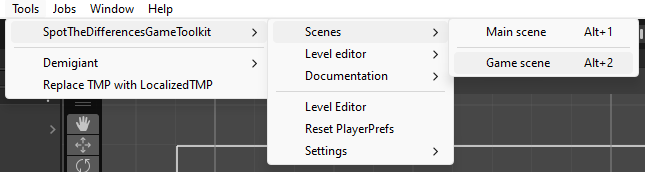
Open Game Scene: Go to <mark style="color:green;">Tools</mark> -> <mark style="color:green;">SpotTheDifferencesGameToolkit</mark> -> <mark style="color:green;">Game scene</mark> OR use a hotkeys <mark style="color:orange;">Alt+2</mark>

<figure><img src="https://120772374-files.gitbook.io/~/files/v0/b/gitbook-x-prod.appspot.com/o/spaces%2FDqBWm2nSW4GQ9A7vUAIq%2Fuploads%2F6vd588ZDCZlFAL6BLI7C%2Fimage.png?alt=media&#x26;token=782a33d5-b402-439e-9265-e7eeefe54549" alt=""><figcaption></figcaption></figure>

1. Go <mark style="color:green;">Tools</mark> -> <mark style="color:green;">SpotTheDifferencesGameToolkit</mark> -> <mark style="color:green;">Level Editor</mark> -> <mark style="color:green;">Editor</mark> OR use a hotkey <mark style="color:orange;">C</mark>

   <figure><img src="https://120772374-files.gitbook.io/~/files/v0/b/gitbook-x-prod.appspot.com/o/spaces%2FDqBWm2nSW4GQ9A7vUAIq%2Fuploads%2F5fbV6nWie5ipNNyyznY0%2Fimage.png?alt=media&#x26;token=0fbc3052-0c81-4a8c-9468-5092dd309274" alt=""><figcaption></figcaption></figure>

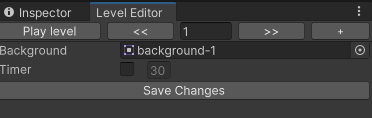
2. The **Level Editor** tab is used to set the level number, background, enable/disable the timer, and create a new level. All other level settings are configured in the **Hierarchy** tab.

   <figure><img src="https://120772374-files.gitbook.io/~/files/v0/b/gitbook-x-prod.appspot.com/o/spaces%2FDqBWm2nSW4GQ9A7vUAIq%2Fuploads%2Fp2qGpVAdq0T7VthRmOPg%2Fimage.png?alt=media&#x26;token=cb39bfd5-dbc9-4e88-b751-602d0bfd62f6" alt=""><figcaption></figcaption></figure>

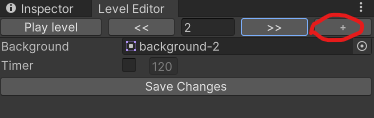
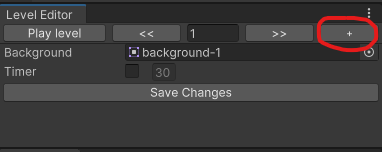
3. **Create a new level** by clicking the **"+"** button.<br>

   <figure><img src="https://120772374-files.gitbook.io/~/files/v0/b/gitbook-x-prod.appspot.com/o/spaces%2FDqBWm2nSW4GQ9A7vUAIq%2Fuploads%2F14lMSW53jAd97w7g1fRz%2Fimage.png?alt=media&#x26;token=b91ed973-89a7-4d46-8afd-a18cecc3e362" alt=""><figcaption></figcaption></figure>

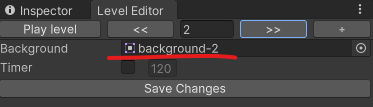
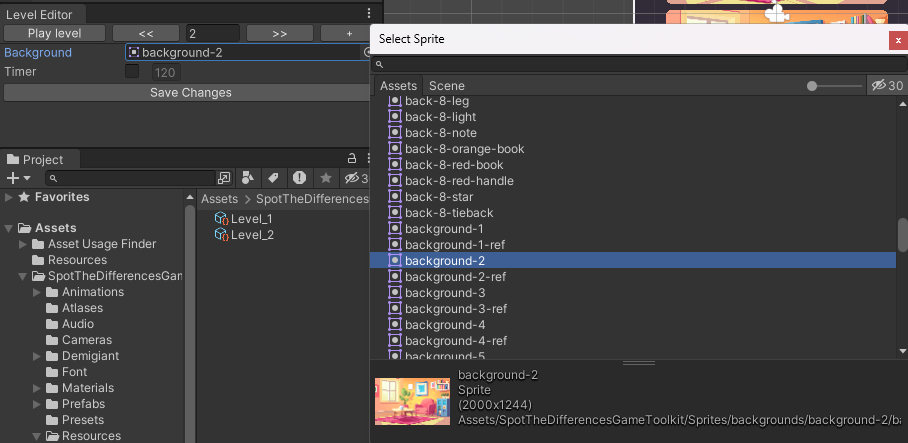
4. **Set the desired background** for the level.

   <figure><img src="https://120772374-files.gitbook.io/~/files/v0/b/gitbook-x-prod.appspot.com/o/spaces%2FDqBWm2nSW4GQ9A7vUAIq%2Fuploads%2FMvlcGKSRF8P9vWg22OCj%2Fimage.png?alt=media&#x26;token=21ac1d68-a4ea-43d8-90ed-400fd39f0598" alt=""><figcaption></figcaption></figure>

5. This background will also be displayed in the Play Menu

   <figure><img src="https://120772374-files.gitbook.io/~/files/v0/b/gitbook-x-prod.appspot.com/o/spaces%2FDqBWm2nSW4GQ9A7vUAIq%2Fuploads%2FNrpcwbHIy5u7S0TqGvVV%2Fimage.png?alt=media&#x26;token=e056021a-ba84-4c91-ac62-815c4351cf84" alt=""><figcaption></figcaption></figure>

6. **Specify whether the level is timed.** If so, set the required number of seconds.

   <figure><img src="https://120772374-files.gitbook.io/~/files/v0/b/gitbook-x-prod.appspot.com/o/spaces%2FDqBWm2nSW4GQ9A7vUAIq%2Fuploads%2FiZ7t2Q1nQovsOEk7X3QC%2Fimage.png?alt=media&#x26;token=fb597a50-1110-45ca-a8ca-1282765a786c" alt=""><figcaption></figcaption></figure>

7. For example, let's create Level 2. Click the **"+"** button. You'll see the same scene as in the very first level. This is the default scene, which we will modify.

   <figure><img src="https://120772374-files.gitbook.io/~/files/v0/b/gitbook-x-prod.appspot.com/o/spaces%2FDqBWm2nSW4GQ9A7vUAIq%2Fuploads%2Fc6gE3j7Al3gvJDiNKYWG%2Fimage.png?alt=media&#x26;token=52d7f77f-fabf-4a66-8a8c-b7dabfdfd87e" alt=""><figcaption></figcaption></figure>

8. First, let's add a background for our level (it will also be displayed in the Play Menu).

   <figure><img src="https://120772374-files.gitbook.io/~/files/v0/b/gitbook-x-prod.appspot.com/o/spaces%2FDqBWm2nSW4GQ9A7vUAIq%2Fuploads%2FNBveEuk3E7Vm3V9EUDU7%2Fimage.png?alt=media&#x26;token=4aecd5fe-1b89-4fff-9114-8e366a8d24c7" alt=""><figcaption></figcaption></figure>

9. We can make this a timed level, so check the box and set the time to 60 seconds, for example.

   <figure><img src="https://120772374-files.gitbook.io/~/files/v0/b/gitbook-x-prod.appspot.com/o/spaces%2FDqBWm2nSW4GQ9A7vUAIq%2Fuploads%2FLGpShxo7FMuWNDTJNOtb%2Fimage.png?alt=media&#x26;token=cd7cce48-2984-4bf4-892c-3df967e2ffd5" alt=""><figcaption></figcaption></figure>

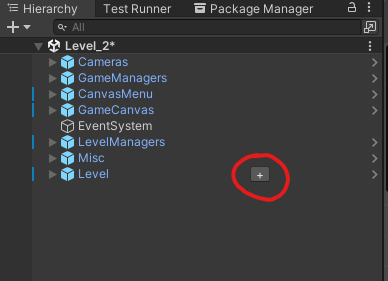
10. To add an object to the scene, go to the **Hierarchy** and click the **"+"** next to the word **Level**.

    <figure><img src="https://120772374-files.gitbook.io/~/files/v0/b/gitbook-x-prod.appspot.com/o/spaces%2FDqBWm2nSW4GQ9A7vUAIq%2Fuploads%2FhojPJzW3DX63UHVo8jOo%2Fimage.png?alt=media&#x26;token=a971d81d-c26c-493e-840c-37f4865ec026" alt=""><figcaption></figcaption></figure>

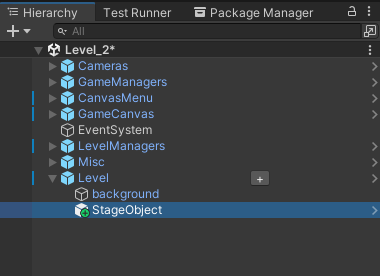
11. A default **Stage Object** will be created.

    <figure><img src="https://120772374-files.gitbook.io/~/files/v0/b/gitbook-x-prod.appspot.com/o/spaces%2FDqBWm2nSW4GQ9A7vUAIq%2Fuploads%2FbOzwRcNW3TSJgmgCt4xb%2Fimage.png?alt=media&#x26;token=aa549082-b896-4a6a-b0f0-37ad47a84b15" alt=""><figcaption></figcaption></figure>

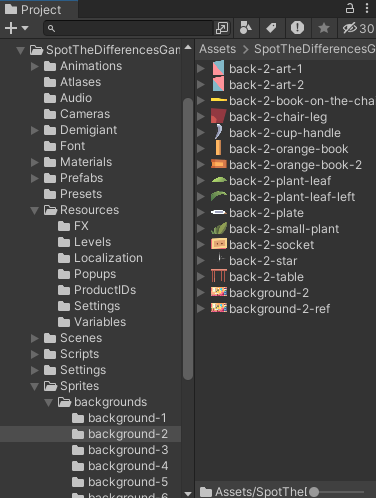
12. Now, let's go to the folder with textures for this level. Since this is an example of creating Level 2, go to <mark style="color:green;">**Sprites**</mark>**&#x20;->&#x20;**<mark style="color:green;">**Backgrounds**</mark>**&#x20;->&#x20;**<mark style="color:green;">**background-2**</mark><mark style="color:green;">.</mark> Here you'll find all the objects we'll use to create the puzzle.<br>

    <figure><img src="https://120772374-files.gitbook.io/~/files/v0/b/gitbook-x-prod.appspot.com/o/spaces%2FDqBWm2nSW4GQ9A7vUAIq%2Fuploads%2FgrCPRI84MtmSeSsUDr2Q%2Fimage.png?alt=media&#x26;token=4374b2c6-415a-46d4-bf1e-d1d52cbd4aac" alt=""><figcaption></figcaption></figure>

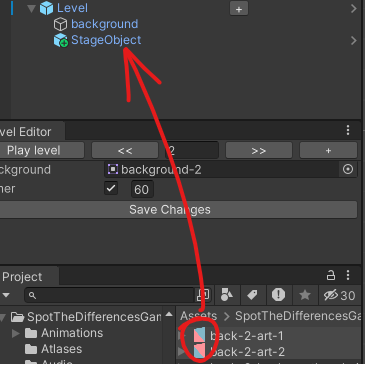
13. Now, we need to drag the necessary sprite into the **Hierarchy**, inside the **Stage Object** (drag the images one by one).<br>

    <figure><img src="https://120772374-files.gitbook.io/~/files/v0/b/gitbook-x-prod.appspot.com/o/spaces%2FDqBWm2nSW4GQ9A7vUAIq%2Fuploads%2F73DbAp1024DKvbkyHyOW%2Fimage.png?alt=media&#x26;token=9550d454-cd41-4f09-ac55-a75c8a377f89" alt=""><figcaption></figcaption></figure>

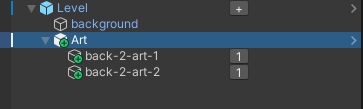
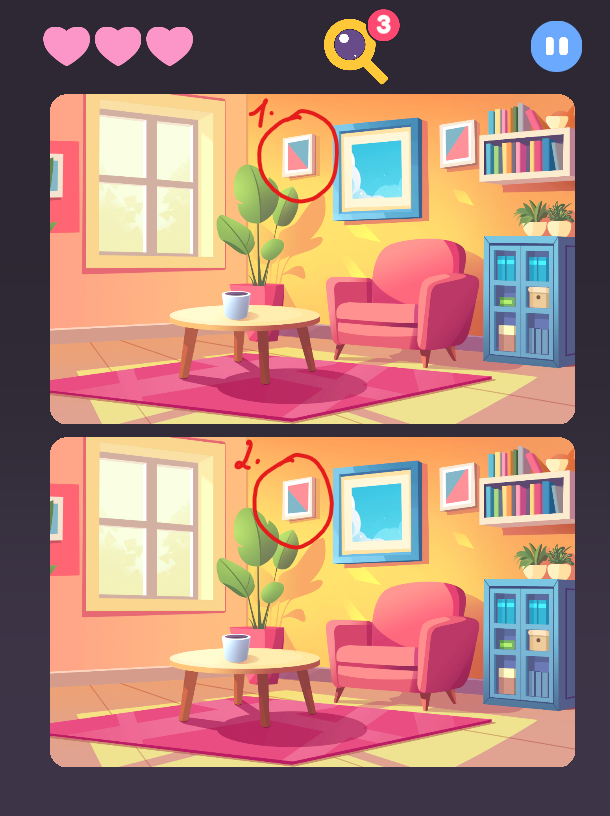
    For example, these two sprites will be used as one element (an abstract painting in a frame), but they will look different on each screen. On the first screen, we will see **art-1**, and on the second, **art-2**.

14. Rename the **Stage Object** to something convenient for you, for your own ease.<br>

    <figure><img src="https://120772374-files.gitbook.io/~/files/v0/b/gitbook-x-prod.appspot.com/o/spaces%2FDqBWm2nSW4GQ9A7vUAIq%2Fuploads%2FsQutIh7tLUgUXSdMVJFD%2Fimage.png?alt=media&#x26;token=831b6570-c3b6-41d8-9656-f073bf73abfa" alt=""><figcaption></figcaption></figure>

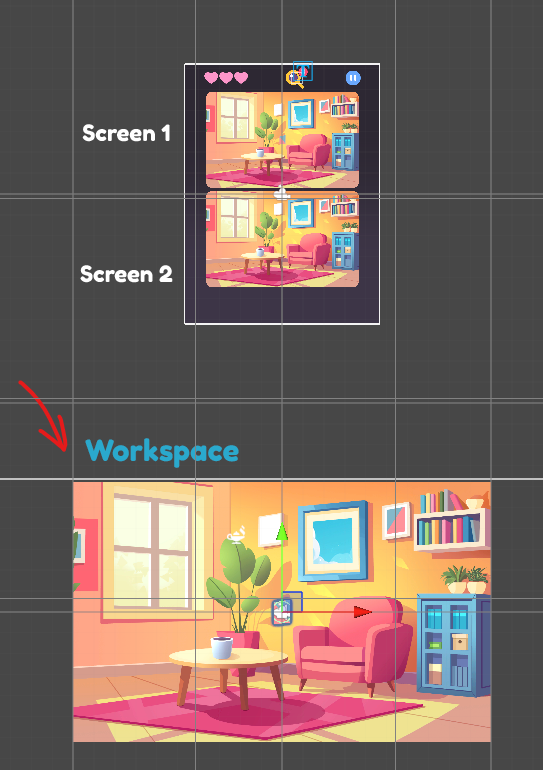
15. Initially, any added image appears on the first screen and in the workspace where we place all the objects.<br>

    <figure><img src="https://120772374-files.gitbook.io/~/files/v0/b/gitbook-x-prod.appspot.com/o/spaces%2FDqBWm2nSW4GQ9A7vUAIq%2Fuploads%2FdYqrb9LO2fsc1DLEfwkV%2Fimage.png?alt=media&#x26;token=2474f9d8-bba8-4c52-9303-2db4e2921b84" alt=""><figcaption></figcaption></figure>

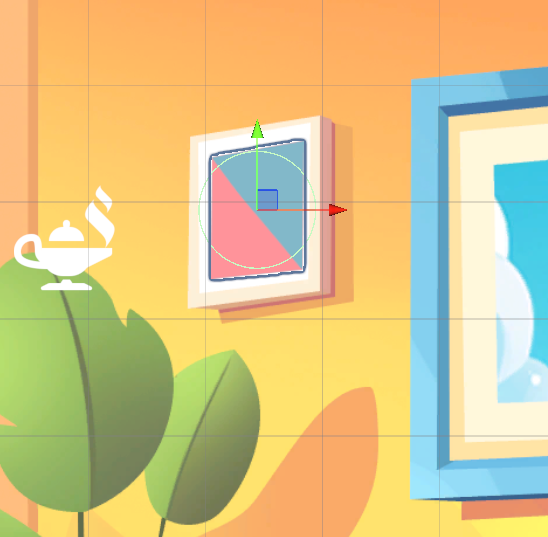
16. In the workspace, place both paintings inside the frame.<br>

    <figure><img src="https://120772374-files.gitbook.io/~/files/v0/b/gitbook-x-prod.appspot.com/o/spaces%2FDqBWm2nSW4GQ9A7vUAIq%2Fuploads%2Ff6qjP2KCeNdQoZt2cxDY%2Fimage.png?alt=media&#x26;token=d31239b3-4c38-4c45-bfb5-127898797e52" alt=""><figcaption></figcaption></figure>

17. Next, go back to the **Hierarchy** and specify which picture should be shown on which screen. **1** stands for **Screen 1**, and **2** stands for **Screen 2**. Just click the number to change its value.<br>

    <figure><img src="https://120772374-files.gitbook.io/~/files/v0/b/gitbook-x-prod.appspot.com/o/spaces%2FDqBWm2nSW4GQ9A7vUAIq%2Fuploads%2Fhq21TQwhoAcL38zXvfSz%2Fimage.png?alt=media&#x26;token=8f2a0dec-37a4-4466-a813-52977d6b9aef" alt=""><figcaption></figcaption></figure>

    Let's see how it looks. It works! We can see the first image on Screen 1 and the second image on Screen 2. They look very similar, but they are still different—take a closer look.<br>

    <figure><img src="https://120772374-files.gitbook.io/~/files/v0/b/gitbook-x-prod.appspot.com/o/spaces%2FDqBWm2nSW4GQ9A7vUAIq%2Fuploads%2Ffcf4os2NedwjN0Lf8PCL%2Fimage.png?alt=media&#x26;token=79f0b951-e47f-4917-9cb8-0496bf44a9d9" alt=""><figcaption></figcaption></figure>

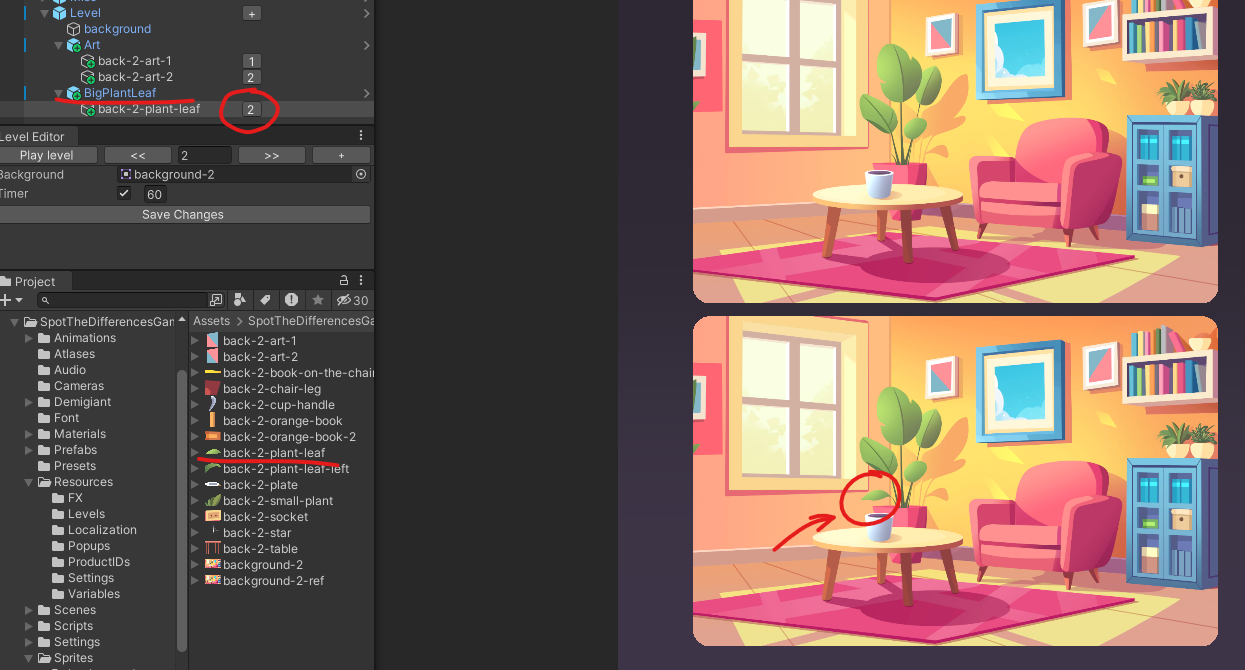
18. Let’s consider a scenario where the image will be visible on only one screen. To do this, create a **Stage Object** again by clicking the **"+"** button. Let’s say it’s a plant leaf in a pot. Drag the leaf into the **Stage Object**, rename the object. In the workspace, position it against the background. Then, in the editor, specify which screen you want this object to appear on. Let’s make it **Screen 2**. Perfect!<br>

    <figure><img src="https://120772374-files.gitbook.io/~/files/v0/b/gitbook-x-prod.appspot.com/o/spaces%2FDqBWm2nSW4GQ9A7vUAIq%2Fuploads%2FHOMJtRCD5OxIshJRc6C5%2Fimage.png?alt=media&#x26;token=85eae59a-68f0-4443-a3a2-4f27a8d0bbca" alt=""><figcaption></figcaption></figure>

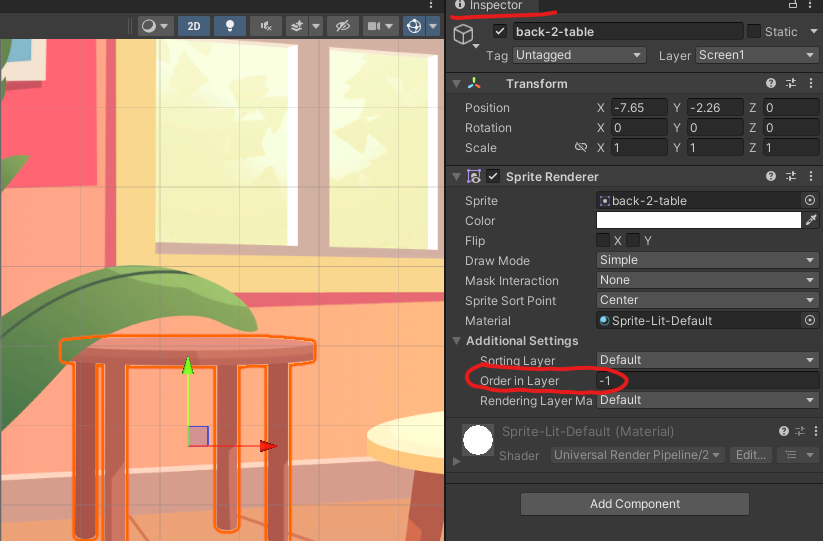
19. Now, let’s look at a scenario where one object overlaps another. It’s better not to do this, but if needed.\
    ![](https://120772374-files.gitbook.io/~/files/v0/b/gitbook-x-prod.appspot.com/o/spaces%2FDqBWm2nSW4GQ9A7vUAIq%2Fuploads%2FqPg8BD7CZLvwMKQGMzu0%2Fimage.png?alt=media\&token=87769736-91bd-45ac-aa95-046cdc336bf7)<br>

    Go to the **Inspector** and change the **Order in Layer** to a lower or higher number to adjust the layer.

    <figure><img src="https://120772374-files.gitbook.io/~/files/v0/b/gitbook-x-prod.appspot.com/o/spaces%2FDqBWm2nSW4GQ9A7vUAIq%2Fuploads%2FjG8HF6gwrdh5n0zFJwP4%2Fimage.png?alt=media&#x26;token=4862ec88-c6ad-4e1c-bc9e-7295fb2cfd46" alt=""><figcaption></figcaption></figure>

20. Repeat these steps for all the planned objects.

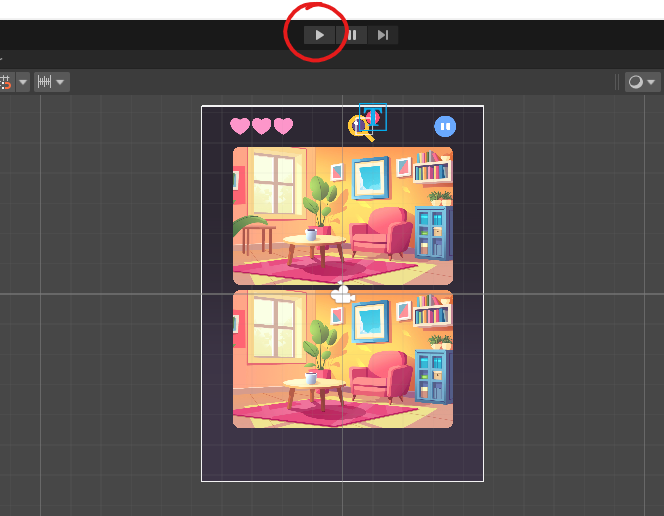
21. Click **Play** to test the level.<br>

    <figure><img src="https://120772374-files.gitbook.io/~/files/v0/b/gitbook-x-prod.appspot.com/o/spaces%2FDqBWm2nSW4GQ9A7vUAIq%2Fuploads%2FuQgIO5r3FmVQnmfy4rB9%2Fimage.png?alt=media&#x26;token=32ae91e9-29a1-4c9e-beda-2e1de60ff834" alt=""><figcaption></figcaption></figure>

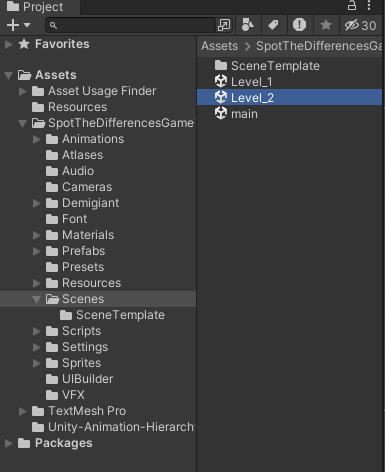
22. You can delete a level in <mark style="color:green;">**Asset**</mark>**&#x20;->&#x20;**<mark style="color:green;">**Scenes**</mark>**.**<br>

    <figure><img src="https://120772374-files.gitbook.io/~/files/v0/b/gitbook-x-prod.appspot.com/o/spaces%2FDqBWm2nSW4GQ9A7vUAIq%2Fuploads%2FrADBvmzFS3c2PE5YR9z8%2Fimage.png?alt=media&#x26;token=1bdaee33-3c97-44da-ae5f-8394cfd6aedd" alt=""><figcaption></figcaption></figure>

    And in <mark style="color:green;">**Assets**</mark>**&#x20;->&#x20;**<mark style="color:green;">**Resources**</mark>**&#x20;->&#x20;**<mark style="color:green;">**Levels**</mark><br>

    <figure><img src="https://120772374-files.gitbook.io/~/files/v0/b/gitbook-x-prod.appspot.com/o/spaces%2FDqBWm2nSW4GQ9A7vUAIq%2Fuploads%2F9kGx6Yn8DjAAhqMlIaB7%2Fimage.png?alt=media&#x26;token=69b37fc2-0d59-4191-9896-d41b64c59e7e" alt=""><figcaption></figcaption></figure>

23. To test the whole game, go to the **Main Scene**, then go to <mark style="color:green;">**Tools**</mark>**&#x20;->&#x20;**<mark style="color:green;">**SpotTheDifferencesGameToolkit**</mark>**&#x20;->&#x20;**<mark style="color:green;">**Game scene**</mark> OR use the hotkey <mark style="color:orange;">**Alt+1**</mark>. Then, press **Play** in Unity.

24. To reset settings, go to <mark style="color:green;">**Tools**</mark>**&#x20;->&#x20;**<mark style="color:green;">**SpotTheDifferencesGameToolkit**</mark>**&#x20;->&#x20;**<mark style="color:green;">**Reset PlayerPref**</mark>

***

🎥 For a more detailed overview, watch our [VIDEO](https://www.youtube.com/watch?v=15LgQ6llv4k) guide

❓ If you have any further questions, don't hesitate to ask us. We will be happy to help you understand the project on [DISCORD](https://discord.gg/dE3WS8d)\
\
**💖** Thank you for choosing our Assets! **💖**