> For the complete documentation index, see [llms.txt](https://docs.candy-smith.com/main/llms.txt). Markdown versions of documentation pages are available by appending `.md` to page URLs; this page is available as [Markdown](https://docs.candy-smith.com/main/sweet-candy-sugar-match-3/localization-setup.md).

# Localization setup

[List of supported languages by Unity](https://docs.unity3d.com/ScriptReference/SystemLanguage.html)&#x20;

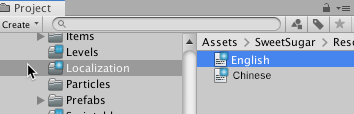
1. Copy file from SweetSugar/Resources/Localization/English.txt<br>

   <figure><img src="https://content.gitbook.com/content/TAtaJoxpORkxXbaFi9tt/blobs/ynYmxkLYVZ1aWbXRLwr0/image.png" alt=""><figcaption></figcaption></figure>
2. Rename the copied file into a language you wish to translate<br>
3. Translate the content of the file keeping the line numbers, I have created the Russian.txt as an example<br>
4. You can find your new font [here](https://fonts.google.com) or on another site. Make sure your font supports desired language. Then copy it into SweetSugar/Fonts<br>
5. Go to Window TextMeshPro->Font asset creator<br>

   <figure><img src="https://lh6.googleusercontent.com/w4rIcijNZumSk59tzUJCvSJVLqXUz-xOmir43GZk7q7shSumcxDI_3529Jmnfs8iwsY4j9Jr8evz_Nh4xTy7OKc2YUhFe9bBTbzoCVSbkeXfXsifO231t2RTvGWVfRPApfjXUeRHrnyEtnEibut3BQ" alt=""><figcaption></figcaption></figure>
6. Select your font
7. In Character Set select Unicode Range (Hex)<br>
8. Check the Unicode table to find your language [here](https://unicode-table.com/en)
9. In the site, for example, I selected Cyrillic characters<br>

   <figure><img src="https://lh4.googleusercontent.com/MPzh4xwALibakvwIgzdgr643fOBhdq4-gCBIi9LkLUe0VDQPXOP7f5g70z-rDNKnr_owzPNvUDdhEYj4RzH9hXU3CeE-arGmctfIQHecSCNXsqVJijVs45fj-JdyG_BRnyptBVwEk4c2qbLzJzM_2w" alt=""><figcaption></figcaption></figure>
10. Set the range into Character Sequence (Hex) of the Font Asset Creator. (don’t copy it from the site to avoid wrong symbols, just type it)
11. Press Generate Font Altas and Save it into the project, use a different name than font name<br>

    <figure><img src="https://lh5.googleusercontent.com/TEyqC4u3MBr5XVz1w7y-IkrF8NWeq7hI11sexLVFdHyoY09L9v2XRynOFxQFrvqHZyRMCAabM0hXUxBrFuc1peeGWy0D9renFkqBNQFT8_D1K60fXp1WvgT8HIcFYaf_2gWb4Lrkk0F1_E9EfC2GnA" alt=""><figcaption></figcaption></figure>
12. In the Project window select SweetSugar/TextMesh Pro/Resources/TMP Settings<br>

    <figure><img src="https://lh3.googleusercontent.com/Zp7KUagc4d8aWYRVjhxAATMmrcI5ZFe4qk6U3JPuZSGMhYtHexg1nEAQTDDQ6ZuXOzx5W86D3NJM6h37hLXwoRJBwhbWvUKGQdw2fioMakUGUydCaxXTWTV9-4PCnbaGBMwcwRTvfeTLew1A_0XYVg" alt=""><figcaption></figcaption></figure>
13. Add your created Font Asset in Fallback Font Assets list<br>

    <figure><img src="https://lh5.googleusercontent.com/FW16Kza6v-aS66IAlFR94RWOHbnrkw4EmoCp5HaciZ-WEk4ZkpXJKi6a6ga29p3x36YPvObI0eoVV8wdfZeYMeBy-tbNCrPfu16lN1Qucw0jCEP0kTWEom0XmfA5F81KgTgeTAQUPhhHvXJ9MW12JQ" alt=""><figcaption></figcaption></figure>
14. To test the language in Unity go to menu Sweet Sugar/Debug settings, select Test language<br>

    <figure><img src="https://lh4.googleusercontent.com/j76mntBgopX5cjvG4ytezRxpro4Yb6naktKIQm_XAdR6Z6vxxN2xmyBgbvPNlSKbWOLomy-w6dzmfejGFdOThxyHvwa6nuIjLZoxm7vxNmwUpXVHis6n1Ks6rzIgaeW4c18Fz0w0o6q6P-8nI0CmEQ" alt=""><figcaption></figcaption></figure>
15. You can add your text in the English.txt file, but don’t change indexes. Only text. If you wish to add your new line - add it to the end of the file with a new index

---

# Agent Instructions
This documentation is published with GitBook. GitBook is the documentation platform designed so that both humans and AI agents can read, navigate, and reason over technical content effectively. Learn more at gitbook.com.

## Querying This Documentation
If you need additional information that is not directly available in this page, you can query the documentation by asking a question.

Perform an HTTP GET request on the following URL with the `ask` and `goal` query parameters:

```
GET https://docs.candy-smith.com/main/sweet-candy-sugar-match-3/localization-setup.md?ask=<question>&goal=<user_goal>
```

`ask` is the immediate question: it should be specific, self-contained, and written in natural language.
`goal` is what the user is ultimately trying to achieve, the reason they need the answer. Sharing it helps GitBook give you a better, more relevant answer. A goal is most helpful when it describes the outcome the user wants rather than restating the question. For example, with `ask=how do I create an API token`, a goal like `automate deployments from our CI pipeline` lets GitBook tailor the answer to that use case.

The response will contain a direct answer to the question and relevant excerpts and sources from the documentation.

Use this mechanism when the answer is not explicitly present in the current page, you need clarification or additional context, or you want to retrieve related documentation sections.
